Home Assistant automations get powerful fast, then they get messy fast. The fix is usually not another template, it is a small set of helpers that make your intent obvious.
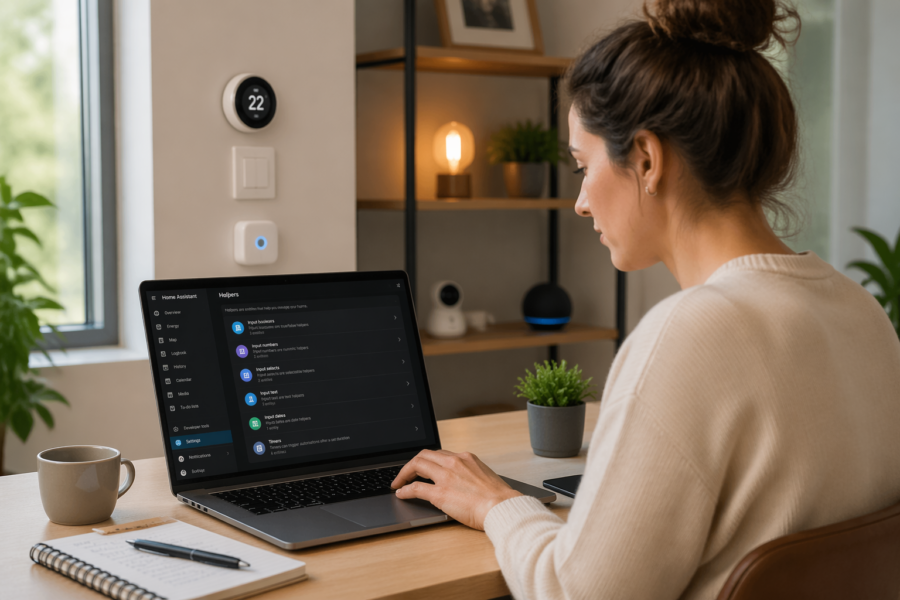
When I build local-first smart home rules, I want control surfaces I can see and touch in the UI. Home assistant automation helpers give you those surfaces, and they keep you from burying important decisions inside YAML.
Helpers are also the difference between a system you can tweak in 10 seconds and a system you are afraid to edit. If you have ever disabled an automation because it kept misbehaving, a helper-based design usually solves that.
This article sticks to three workhorses, input boolean, input select, and input number, plus a quick tie-in to datetime helpers. You will see practical patterns you can reuse for overrides, cooldowns, and schedules without giving up local control.
Why helpers make automations easier to control and debug
The biggest reason I lean on helpers is that they move decisions into named entities you can inspect. When an automation acts weird at 2 a.m., you can open States and see exactly which toggle or mode pushed it there.
Without helpers, you end up encoding state in scattered conditions, hidden variables, or clever templates that only make sense on the day you wrote them. With home assistant automation helpers, the state is explicit, and the UI becomes your control panel.
Helpers also let you separate policy from plumbing. One automation can handle motion lighting, while a helper like inputselect.housemode decides whether motion lighting should run at all.
Debugging gets easier because you can reproduce problems by flipping a helper and watching traces. If changing a helper fixes the behavior, you have learned something real about your system instead of guessing at timing issues.
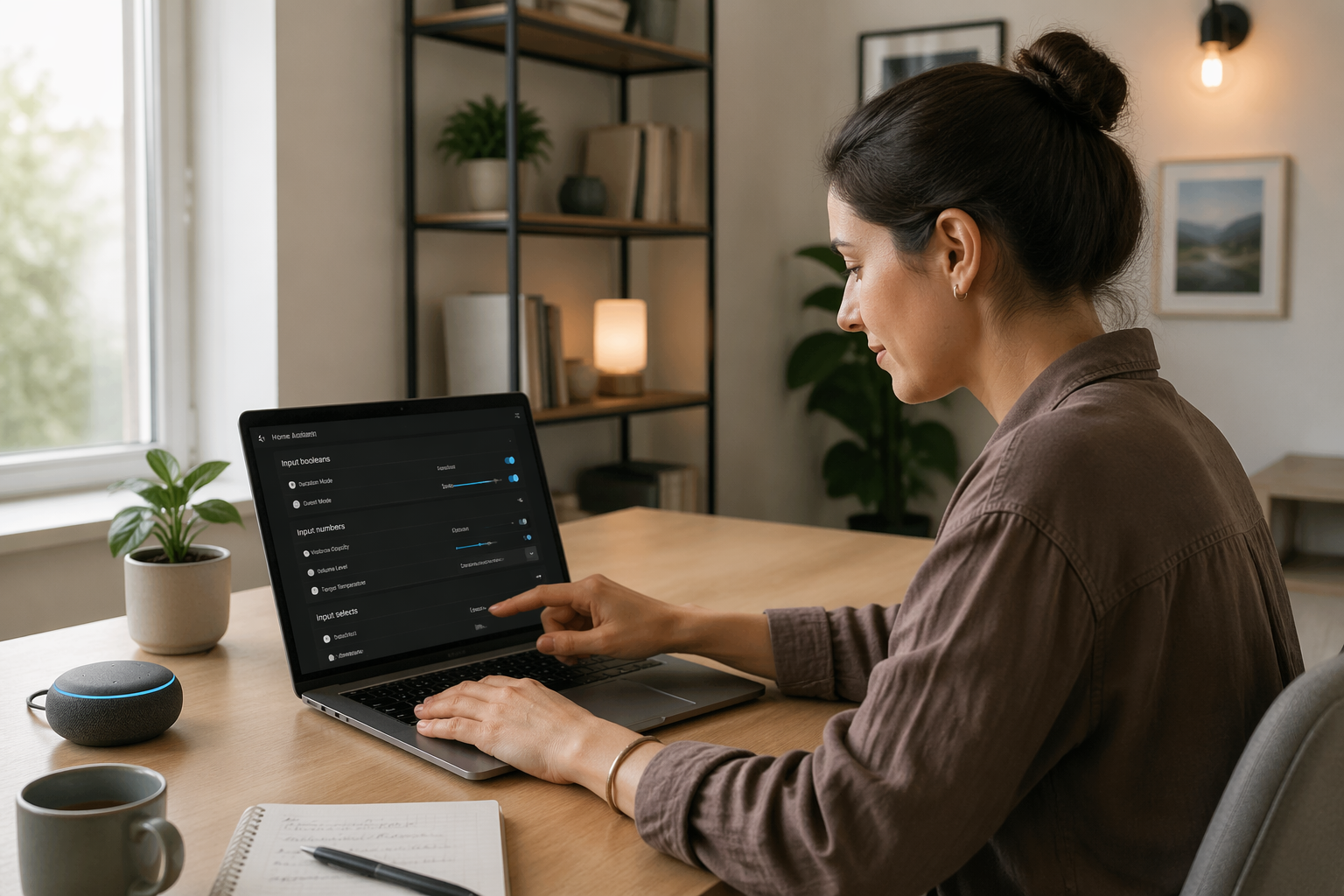
Helpers reduce the temptation to create one giant automation that does everything. When you can store a decision in a helper, you can keep each automation short and focused.
That focus matters because automation traces are easier to read when there are fewer branches. You can look at a trace and see a single condition like “house mode is Away” rather than a pile of nested templates.
Another underrated benefit is that helpers give you a stable interface while you change the internals. You can rewrite an automation completely and still keep the same helper entities, so dashboards and scripts do not break.
Helpers also make it easier to collaborate with other people in the house. A partner does not need to understand YAML to flip a “Quiet” mode or raise a timeout by five minutes.
When you use helpers, you can test behavior without waiting for real-world triggers. You can set a mode, adjust a threshold, and then manually run an automation to see what would happen.
They also improve resilience when devices change. If you replace a motion sensor, your logic can stay the same because the helper-based decisions are not tied to that specific sensor entity.
Finally, helpers make it easier to build a consistent “language” for your smart home. Once you have a few standard helpers, every new automation can plug into them instead of inventing new concepts.
Input boolean: building simple toggles for modes and overrides
An input boolean is the simplest helper, it is a named on or off switch. I use input boolean for anything that reads like a human decision, such as “guest mode” or “ignore motion in the hallway.”
The classic pattern is a manual override that blocks an automation without disabling it. If you disable the automation, you lose history and you forget why it is off, but an input boolean makes the reason visible.
For example, create inputboolean.livingroomlightsmanual and have your motion lighting automation check that it is off before turning anything on. Then create a second automation that turns the boolean on when you manually toggle the lights from a wall switch or dashboard.
I also like input boolean for safety and sanity switches, like inputboolean.sleeping or inputboolean.kids_asleep. Those switches become guardrails across many automations, and you can flip them from a phone, a Zigbee button, or a voice assistant.
A good boolean name reads like a question your automation asks. “Is the kitchen motion enabled” is clearer than “kitchenmotion1” because it tells you what the switch actually means.
I try to avoid booleans that encode multiple ideas at once. If a toggle is really doing double duty, it is usually a sign you need an input select or a second helper with a clearer purpose.
Input booleans are also perfect for temporary “maintenance mode” when you are changing devices. You can pause a whole category of automations while you swap batteries or re-pair a Zigbee device.
Another common use is a “presence override” that keeps the house in Home mode even if geofencing glitches. If you have ever had the HVAC flip to Away because a phone lost GPS, you know why this is useful.
I also use booleans to make automations opt-in per room. A simple “bedroom motion enabled” toggle lets you turn off motion lighting in a guest room without touching the automation logic.
When you build dashboards, booleans are the easiest controls to surface. A single row of toggles for “Guest,” “Sleeping,” and “Party” can save you from digging through menus later.
Booleans are especially helpful when you are experimenting. You can add a new automation with a default-off enable toggle, then turn it on only when you are ready to test it.
If you want to be extra careful, pair a boolean with a notification. When a critical override stays on for too long, you can remind yourself to turn it back off.
Finally, booleans make it easier to reason about “why nothing happened.” If an automation did not run, you can often point to one boolean gate that was off and move on.
Input select: creating clear states like home mode, quiet mode, cleaning mode
If input boolean is a switch, input select is a labeled dial with discrete positions. It is my go-to when a room or a house can be in one of several meaningful states that change how multiple automations behave.
A good input select has names that match how you talk, like Home, Away, Night, and Vacation. The goal is that you can open the dashboard and immediately understand what the system believes right now.
The key benefit of an input select is that it prevents contradictory states. You cannot be in “Cleaning” and “Quiet” at the same time if you model them as one select instead of two booleans.
I treat input select options as a contract with myself. Once I pick the option names, I try not to overload them with extra meaning that changes from automation to automation.
House mode is the obvious place to start, but room mode can also be useful. A living room might have Normal, Movie, and Guests, and those can drive lighting, blinds, and volume together.
Input select also makes it easy to build a simple dashboard control that feels like a real system. Instead of hunting for five toggles, you set one mode and the house responds consistently.
When you use an input select in conditions, your automations become self-documenting. A condition like “house mode is Vacation” is easier to trust than a template checking three presence sensors and a calendar event.
I like to keep option lists short, because long lists become hard to maintain. If you have ten options, it often means you are mixing global house modes with room scenes or special events.
One practical trick is to make a “Transition” mode when you want to avoid thrashing. If presence changes rapidly, you can set a temporary mode and only commit to Away after a delay.
Another trick is to use input select as a debugging tool. If you suspect a mode change is causing trouble, you can lock the mode manually and see if the problem stops.
Input select works well with scripts, because scripts can be written like “set house mode to Night.” That makes voice assistant intent mapping and button actions much cleaner.
It also helps with family acceptance, because people can learn a few modes and stop thinking about individual automations. “Set Quiet mode” is a lot easier than “turn off door chime, lower volume, and dim hallway lights.”
When you add new automations later, you can plug them into existing modes. That keeps your system coherent instead of turning into a pile of one-off rules.
| Input select option | What it means | Automation behaviors to change |
|---|---|---|
| Home | People are active and lights should feel normal | Motion lights on, HVAC comfort setpoints, announcements enabled |
| Quiet | Someone is resting or working and noise should drop | Lower speaker volume, suppress door chimes, dim notification lights |
| Cleaning | Lights should be bright and robots can run | Full brightness scenes, pause motion dimming, start vacuum schedule |
| Away | No one is home and energy saving matters | Turn off lights, arm alarm, reduce HVAC, pause media automations |
| Vacation | Extended away with extra security behavior | Randomized lighting, stricter leak alerts, mail reminders off |
If you already have presence detection, do not feel like you must let it fully control house mode. I often let presence suggest a mode, then I keep a manual way to override it for edge cases.
Quiet mode is a great example of why select beats boolean. You can have Quiet mean “soften things” and Night mean “assume people are asleep,” and the difference matters for lights and notifications.
Cleaning mode is also a good place to be explicit. If you are vacuuming or mopping, you usually want bright lights and fewer motion-based shutoffs.
Vacation mode should be boring and predictable. It is better to do a few reliable behaviors like lighting randomization and strict alerts than to stack ten clever tricks that break when you are away.
When you design modes, think about what you want to stop as much as what you want to start. A mode that suppresses nonessential automations can make the house feel calmer instantly.
Finally, keep the mode visible in your main dashboard. If you ever wonder why something happened, the current mode is usually the first clue.
Input number and datetime: thresholds, timers, and adjustable schedules
Input number is the helper I reach for when the right value depends on your house, your sensors, and your tolerance for annoyance. If you hardcode thresholds in YAML, you will end up editing files for tiny tweaks, and that gets old.
A simple example is brightness cutoffs for motion lights, like “only turn on if illuminance is below X lux.” Make X an input number so you can tune it over a week of real use, because sensor placement changes everything.
Input number also works for timeouts, like how long a bathroom fan runs after humidity drops or how long a hallway stays lit after motion. When you expose that number, you can stop arguing with your own automation and just adjust it.
Datetime helpers pair nicely with input number when you want schedules that are adjustable without rewriting triggers. I often use inputdatetime.quiethoursstart and inputdatetime.quiethoursend, then conditions compare now() to those values so the schedule is visible and editable.
I like input number because it turns tuning into normal usage instead of a configuration project. You can bump a value up or down from the UI while standing in the room and immediately feel the difference.
For lux thresholds, I usually start with a guess and then adjust in small increments. The right value is often surprising because sensors report differently depending on angle, window coverings, and even wall color.
Timeouts are another place where “correct” is personal. Some people want lights to snap off quickly, and others want a generous delay that never leaves them in the dark.
Input number can also represent offsets instead of absolute values. For example, you can store a “bedroom temperature offset” that nudges a thermostat target a degree or two without rewriting the HVAC logic.
Volume limits are a great use of input number if you have speakers around the house. You can cap announcement volume during Quiet mode while still allowing higher levels in the afternoon.
If you do energy monitoring, input number can set a threshold for “high usage” alerts. That lets you tune out false positives while still catching real problems like a space heater left on.
Datetime helpers are best when humans think in clock times rather than durations. Quiet hours, sprinkler windows, and “no bright lights after” rules are easier to maintain when you can edit a time picker.
I often pair datetime with a boolean enable switch. That way you can keep the schedule configured but temporarily disable it without deleting anything.
Another practical pairing is datetime plus input select for schedule profiles. You can switch between “Weekday” and “Weekend” schedules by changing one select, then use different datetime helpers under the hood.
Be careful about time zones and daylight saving changes, especially if you use templates that compare times. The built-in datetime helpers keep things consistent, but your logic should still be clear about whether you mean local time or a duration.
When you expose schedules and thresholds as helpers, you can also document them with descriptions. Future you will appreciate seeing “Lux threshold for evening motion lights” instead of guessing what a number is for.
The end result is that your automations become stable and your parameters become flexible. That is exactly the balance you want in a house that changes over time.
Patterns you can reuse: manual override, cooldown, and “do not disturb”
Once you accept that helpers are your system’s knobs, you can build patterns that repeat across rooms. The best patterns are boring, because boring means you can trust them and copy them.
The manual override pattern usually uses an input boolean plus a timer length stored as an input number. When you manually change a device, set the boolean on and schedule it to reset after inputnumber.overrideminutes, so the automation does not fight you.
A cooldown pattern prevents flapping, like a heater that toggles too often or a notification that fires repeatedly. Store the cooldown in an input number and track the last run time in an input datetime, then block actions until the cooldown window passes.
“Do not disturb” is where input select shines, because it can be Off, Quiet, or Strict instead of a vague on or off. I like Strict to suppress doorbell camera snapshots and audio announcements, while Quiet only lowers volume and blocks nonurgent notifications.
Manual override is really about respecting the last human action. If someone touches a switch, the house should assume they meant it and stop trying to be clever for a while.
I prefer override timers that are long enough to be useful but short enough to recover automatically. Thirty to ninety minutes is a common sweet spot for lighting, while HVAC overrides might be measured in hours.
A helpful twist is to reset the override when the device returns to a known baseline. If the light is turned off again manually, you can clear the manual flag immediately instead of waiting for the timer.
Cooldowns matter most where sensors are noisy. Motion sensors, door sensors, and some power meters can bounce, and a cooldown keeps your automations from reacting to every blip.
For notifications, cooldowns prevent alert fatigue. If you get five “garage door open” messages in ten minutes, you will eventually ignore the one that matters.
Cooldown windows should be adjustable because your tolerance changes. A new automation might need a longer cooldown at first, then you can shorten it once you trust the behavior.
Do not disturb is also a social feature, not just a technical one. It is how you make sure the smart home does not interrupt a meeting, a nap, or a movie night.
I like to treat DND as a gate that every notification automation checks first. If you do that consistently, you can change DND behavior once and instantly calm the whole system down.
A strict DND mode can also change lighting behavior. For example, you might allow only low-level path lighting at night and block any bright “attention” flashes.
These patterns also stack well together. You can have a manual override that sets a room mode to Movie, and then DND rules automatically suppress door chimes while that mode is active.
The important part is to keep the pattern consistent across rooms. If every room uses a different approach, you lose the main benefit of helpers, which is predictable control.
When you copy patterns, copy the naming scheme too. A consistent set of helper names makes it much easier to write new automations without constantly looking things up.
Helper-first examples you can copy into your own setup
Here is a clean way to wire a motion light with an override, without writing clever templates. Use inputboolean.kitchenmotionenabled and inputboolean.kitchen_manual, then keep the automation conditions readable.
Trigger on motion, check that kitchenmotionenabled is on and kitchenmanual is off, then turn on the light to a scene based on inputselect.housemode. When the light is turned on manually, a separate automation sets kitchenmanual on and resets it later using a delay based on inputnumber.kitchenoverride_minutes.
For HVAC, input number makes tuning tolerable instead of painful. Create inputnumber.heatsetpointhome and inputnumber.heatsetpointaway, then have one automation apply the right setpoint when inputselect.housemode changes.
For notifications, build a do not disturb gate once and reuse it everywhere. Your alert automations can check inputselect.dndmode and choose between sending, delaying, or logging only, which is a lot nicer than ripping out notifications when they get noisy.
In the kitchen motion example, the goal is that each helper has one job. One toggle enables or disables motion behavior, and the other indicates that a human has taken control.
If you want to refine it, add inputnumber.kitchenmotionlux and only run the motion scene when the lux is below that threshold. That keeps daytime motion from turning lights on when the room is already bright.
You can also add inputnumber.kitchenmotiontimeout_minutes and use it for the off delay. That way you can tune how long the kitchen stays lit without touching the automation.
For the manual detection, you can watch the light entity for state changes that did not come from the motion automation. The details vary by device, but the helper pattern stays the same.
House mode integration is where input select pays off quickly. If house mode is Night, you can pick a dim scene, and if it is Cleaning, you can pick a bright scene without adding complex conditions.
For HVAC, I like to add a third helper for hysteresis or tolerance. An inputnumber like heatdeadbanddegrees can prevent short cycling and make temperature control feel smoother.
You can also keep separate setpoints for different modes beyond Home and Away. A Night setpoint and a Vacation setpoint are easy to add once you already have the pattern.
If you use multiple thermostats, you can still keep one house mode. The automation can apply the same mode decision to multiple devices, while each room can have its own input number offsets.
For notifications, decide what “logging only” means for you. It might be a persistent notification in Home Assistant, a logbook entry, or a message to a quiet channel that you check later.
Delaying notifications can be as simple as waiting until DND is Off, then sending a summary. This is where a helper-based approach avoids losing information while still respecting quiet time.
Another helper-first example is a door chime that respects modes. Use inputselect.dndmode and inputnumber.chimevolumepercent, then set speaker volume before playing any sound.
You can also build a “test mode” boolean for notifications. When it is on, send alerts only to your phone so you can tune messages without bothering everyone else.
These examples look simple because they are meant to be. The power comes from repeating them across your house until the whole system behaves like one coherent design.
Choosing the right helper type for the job
People often reach for input boolean first because it is simple, but it is not always the best fit. If you catch yourself creating three booleans that should be mutually exclusive, you want an input select instead.
Input select is best when you want a single source of truth for a mode, like Home or Away, or a room state like Normal, Movie, and Cleaning. It also reads well in traces, because the state name tells you what the automation believed at the time.
Input number is best when you want tuning without edits, like lux thresholds, minutes, temperature offsets, or volume limits. I prefer to store units in the helper name, like inputnumber.hallwaytimeout_minutes, because it prevents mistakes later.
Datetime is best when humans think in clock times, like quiet hours, watering windows, or a cutoff for late night lighting. If the schedule changes on weekends, consider two datetime helpers or a select that switches between weekday and weekend schedules.
A quick way to choose is to ask what kind of question you are answering. If the question is yes or no, a boolean is usually right.
If the question is “which one,” a select is usually right. If the question is “how much” or “how long,” an input number is usually right.
Try not to use input number as a fake select by mapping 1, 2, and 3 to modes. You can do it, but it is harder to read and easier to break when you revisit it later.
Similarly, avoid using multiple booleans to represent a single mode unless you have a strong reason. It is too easy to end up with conflicting states that your automations never expected.
Datetime helpers are great for “start” and “end” times, but they are not always best for durations. If you mean “wait 20 minutes,” store 20 as an input number and use it as a duration.
Another factor is how you want the control to look in the UI. A select dropdown feels like a mode selector, while a boolean toggle feels like a permission or override.
Think about what you want to see in a trace when you debug. Seeing “dndmode: Strict” is more useful than seeing three booleans and trying to infer which one mattered.
Also consider whether the helper should be changed by automations, humans, or both. A house mode select can be set automatically by presence, but it should still be easy to change manually when needed.
If a helper is purely internal, you might not need a helper at all and could use a variable or a trigger id. I still prefer helpers for anything I might want to inspect later, because visibility is worth it.
When in doubt, pick the helper type that makes the intent most obvious on a dashboard. If you can explain it in one sentence, you probably chose the right one.
Keeping helpers organized so your system stays maintainable
Helpers multiply, and that is fine until your entity list turns into a junk drawer. The trick is to name them like you name automations, with a clear scope first, then the purpose, then any units.
I use prefixes by area or domain, like inputboolean.bedroomdnd or inputnumber.bathfanrunminutes. If you already use packages or separate YAML files, mirror that structure in names so search results make sense.
Consistent naming is not just for aesthetics, it is for speed. When you can type “kitchen_” and see every kitchen helper, you build and debug faster.
I also like to keep helper entity ids lowercase and predictable, even if the friendly name is nicer. The friendly name can be “Kitchen Override,” but the entity id should still tell you the scope and type.
Descriptions matter more than people think. A one-line description like “Blocks motion lighting after manual switch use” prevents confusion months later.
Another organizational trick is to decide what belongs at the house level versus the room level. House mode and DND are usually global, while lux thresholds and timeouts are usually per room.
Be careful about creating duplicates of global concepts. If you have house mode, you usually do not need a separate “away” boolean in every room.
Grouping helpers on a dashboard is not just for convenience, it is for incident response. When something is wrong, you want one place to check all the knobs that could be blocking behavior.
I like a dedicated “Controls” or “Modes” view with the key helpers at the top. It becomes the place you go before you start editing automations.
If you use labels in Home Assistant, labels can make helper organization even cleaner. You can label helpers by area and by function, like “lighting” or “notifications,” and then filter quickly.
Try to avoid creating helpers that you never actually change. If a number never moves after the first week, you might not need it as a helper, or you might want to set a better default and remove the knob.
On the other hand, do not be afraid of having a lot of helpers if they are well named. A system with many clear knobs is easier to maintain than a system with fewer knobs and more hidden logic.
- Prefix helper names with area, like kitchen, bedroom, garage
- Include units in input number entity ids, like minutes, lux, percent
- Keep one house mode input select, avoid per room duplicates
- Group helper cards on a single dashboard tab for quick debugging
- Add descriptions to helpers so future you remembers the intent
- Use consistent option names in input select, like Home, Away, Night
Once you adopt these habits, adding new helpers stops feeling like clutter. It starts feeling like you are building a control panel that matches the way you live.
The payoff shows up when you revisit your setup after a break. Instead of re-learning your own cleverness, you read helper names and instantly remember how the house is supposed to behave.
Good organization also makes migrations easier. If you ever move devices, change integrations, or rebuild dashboards, your helpers remain the stable layer that keeps behavior consistent.
Finally, a well-organized helper list makes it easier to delete things. When you can see what a helper does and where it is used, you can clean up confidently instead of hoarding old toggles forever.
Conclusion
If your automations feel fragile, the fix is usually to stop hiding decisions inside logic and expose them as helpers. Home assistant automation helpers give you a small set of levers that make behavior predictable and easy to change.
Input boolean handles simple overrides, input select captures clear modes, and input number plus datetime makes thresholds and schedules adjustable without edits. When you build around these helpers, you spend less time babysitting automations and more time enjoying a smart home that stays local and understandable.
The best part is that helper-first design scales naturally. As you add rooms and devices, you keep reusing the same patterns instead of inventing new logic every time.
If you want one practical next step, create a house mode input select and a DND input select, then update a few automations to respect them. Once you feel that control in the UI, the rest of your system design tends to fall into place.