Time is the simplest trigger in Home Assistant, and it still causes the most weird support threads. The minute you start relying on schedules, you run into offsets, daylight saving time, missed runs, and the fact that humans change routines without warning.
A good home assistant time based automation should feel boring, because boring means it runs the same way every day. If yours feels fragile, it usually means you picked the wrong time tool or you did not plan for the ugly edge cases.
I like time automations that are easy to read six months later, when you forgot why you made them. Home Assistant gives you several ways to express time, and the best one depends on whether you care about a clock, the sun, or a calendar event.
Most people start with a single “at 7:00” automation and then wonder why it becomes unmanageable once it touches lights, HVAC, and security. Time is not just a trigger, it is a promise, and your system needs to keep that promise even when the network drops or the schedule changes.
The goal is not to automate everything on a strict timetable, but to use time as a gentle backbone for routines. When time is paired with sensible checks, it becomes reliable instead of annoying.
Picking the right time tool: time triggers vs helpers vs calendars
The plain time trigger Home Assistant ships with is perfect when you mean an exact wall clock time, like 7:15 AM on weekdays. It is also the easiest to debug because you can see the next run time in the automation UI and you can reproduce it with a manual trigger.
Time triggers are also great for things that are basically administrative, like resetting a counter at midnight or turning off a temporary override at a known hour. If the action should happen regardless of weather, sun angle, or who is home, a simple time trigger is usually the cleanest expression.
The downside is that wall clock time is a human abstraction, and humans are inconsistent. If you find yourself adding exceptions like “except holidays” and “except when we are away” and “except when someone is still asleep,” that is a sign you need more context or a different tool.
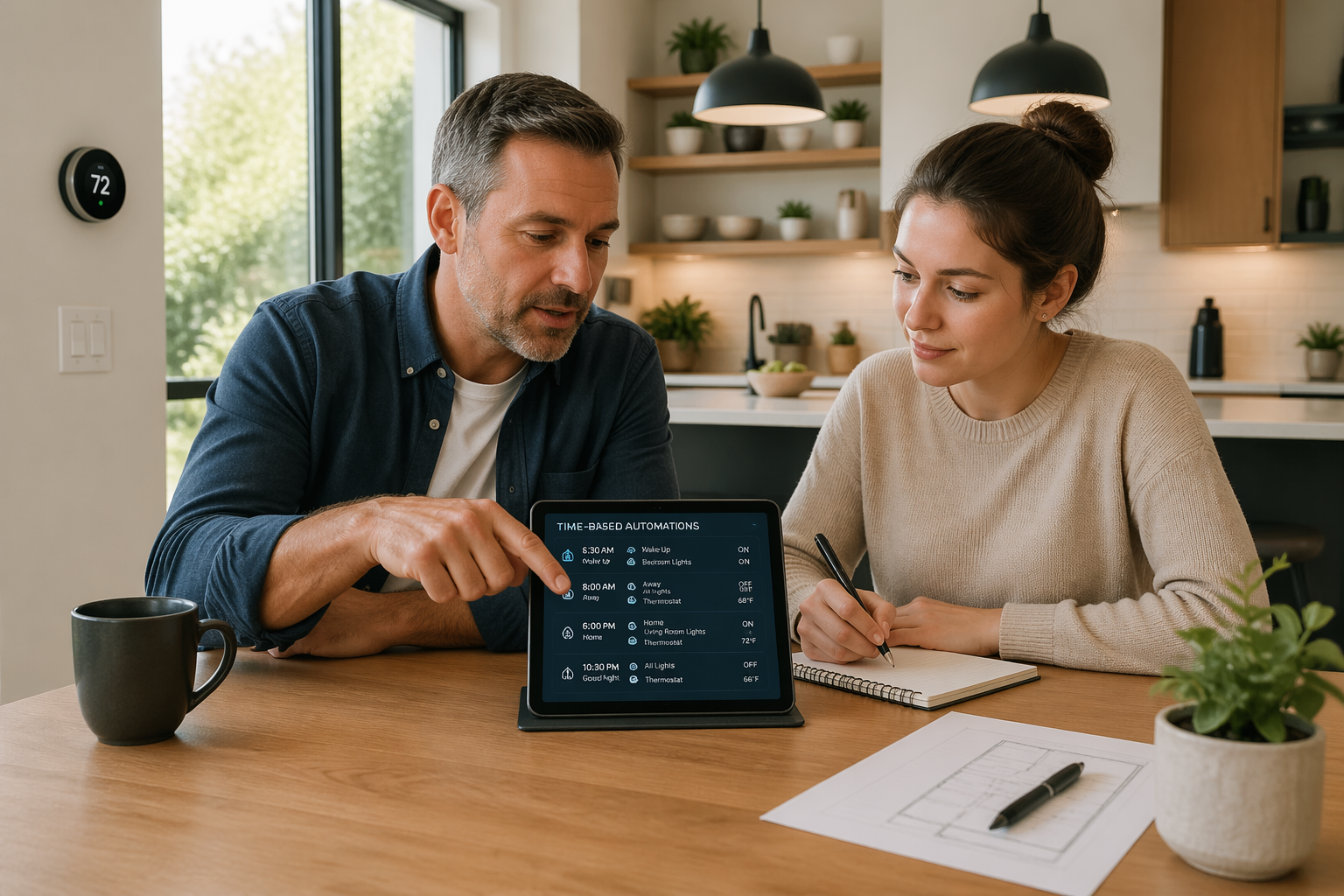
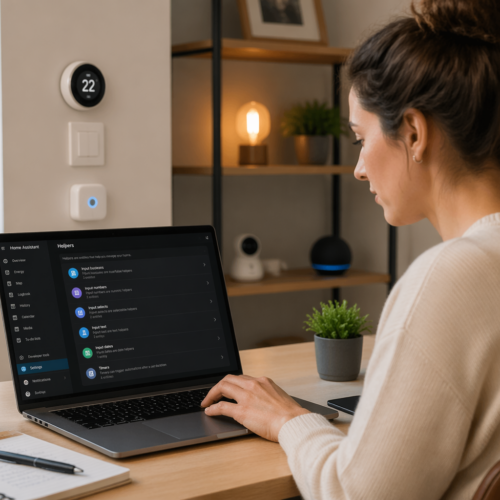
Helpers are the move when you want the time to be editable without opening YAML or the automation editor. An input_datetime helper for “Quiet hours start” turns a spouse request into a two second change instead of a mini deployment.
Helpers also make your automations self documenting because the names show intent in the UI. When you see an automation referencing inputdatetime.weekdaywakeup, you understand the human meaning without reading the action list.
Another benefit is that helpers can support temporary overrides without rewriting schedules. You can expose a helper on a dashboard, change it for one odd day, and then set it back without touching the logic.
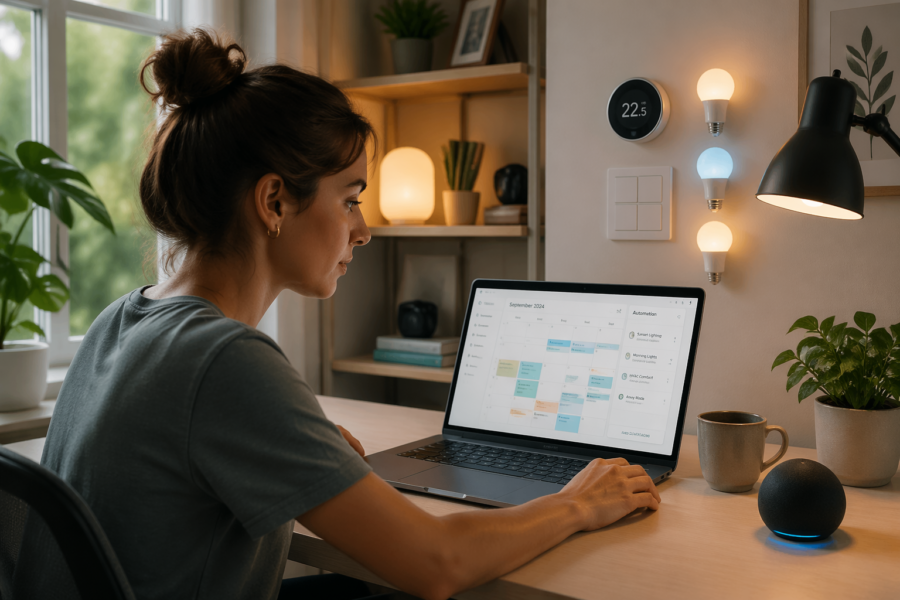
Calendars win when the schedule is irregular, like garbage pickup, vacations, or a kid’s early dismissal days. A calendar based automation also documents the intent better than a pile of conditions that try to mimic real life.
Calendars also handle exceptions naturally because you are not fighting a weekly pattern. If trash day moves because of a holiday, you change one event and the automation follows, instead of trying to encode every holiday rule in conditions.
They are also a good fit for anything that is “event driven but time anchored,” like “start preheating 30 minutes before the meeting ends.” That kind of schedule is painful with pure time triggers and trivial with a calendar and an offset.
If you are building local first smart home automation, keep the time source local too. Use Home Assistant’s internal time zone setting, local calendars when possible, and avoid cloud only schedule services that can drift or go offline.
Also make sure the host machine has correct time sync, because bad NTP is a silent killer for schedules. When the system clock is wrong, every automation looks broken and none of the logs make sense.
If you are using multiple integrations that care about time, keep them aligned on the same time zone and locale settings. A calendar in UTC and a Home Assistant instance in local time can work, but you need to be intentional or you will chase “one hour off” bugs forever.
Finally, pick the tool that matches the mental model you want to maintain. A schedule that is meant to be edited by non technical people should live in helpers or calendars, not buried in an automation that only you understand.
Building weekday and weekend schedules that don’t become a mess
The fastest way to create a mess is duplicating the same automation five times with tiny differences. You get one change request, like moving wakeup ten minutes later, and suddenly you are editing multiple copies and hoping you did not miss one.
Duplication also makes debugging harder because you cannot remember which copy fired. When two similar automations fight each other, the logbook looks like chaos and the house feels haunted.
Start by writing down the schedule in plain language, then map it to one automation with clear branching. A weekday schedule can live in one automation using a time trigger plus a weekday condition, and a weekend schedule can be another branch with its own times.
That branching can be as simple as choose blocks with readable labels like “Weekday path” and “Weekend path.” The point is that you can open one automation and see the whole story without clicking through a folder of near duplicates.
If you have multiple time points in the same routine, consider using multiple triggers that all land in the same automation. One automation can handle “wake up,” “leave for work,” and “bedtime” as long as each trigger is clearly named and the actions are separated cleanly.
If the times themselves vary, store them in helpers and reference the helpers in triggers or conditions. I usually create inputdatetime helpers named like “weekdaywakeup” and “weekend_wakeup” so the dashboard reads like a label maker, not a programming project.
When you do this, you can build a simple schedule dashboard that becomes the real interface for your home. People stop asking you to “change the automation” and start changing the schedule like they would change an alarm clock.
Helpers also let you add a temporary “tomorrow only” change by flipping one value and setting it back later. That is much less stressful than editing conditions at midnight because someone has an early flight.
When you need more than two patterns, consider a template condition that checks day of week and a single script that runs the actions. That keeps the schedule logic in one place and the device actions in another, so your home assistant time based automation stays readable.
A script is also where you can centralize the “do nothing if already correct” logic. If the script starts with checks like “if the blinds are already open, stop,” you reduce noise and avoid unnecessary device wear.
Another trick is to separate “decision” from “execution” by using a mode helper like “morningroutineenabled.” The schedule automation can decide when to run, and the routine script can decide what to do based on mode, presence, and current states.
If you have a household with shifting work schedules, do not be afraid to make the schedule dynamic instead of pretending it is fixed. A calendar event like “Work from home” can drive a different branch without turning your weekday/weekend logic into a pile of exceptions.
It also helps to keep your schedule constraints explicit, like defining a “morning window” rather than a single instant. When you define a window, you can catch up after reboots and still behave like a schedule instead of a single fragile moment.
Using sun offsets for seasonal timing without constant tweaks
Sun based automations are the cure for lights that feel wrong half the year, like porch lights turning on too early in summer and too late in winter. The sun integration gives you sunrise and sunset events, and a sun offset automation lets you shift those events by minutes.
They also reduce the temptation to “fix” your schedule every few weeks as daylight changes. Once you switch to sun events, you stop chasing the season and let the system do the boring math.
Offsets are where you get the human friendly result, like “turn on 20 minutes before sunset” or “turn off 30 minutes after sunrise.” It is still a time trigger Home Assistant can calculate locally, but it tracks the season without you touching anything.
Offsets are also a way to encode your house’s quirks, like a porch that gets shadowed early or a living room that stays bright late. The sun is the baseline, and the offset is your personal correction factor.
Be careful with negative offsets around sunset if you live near tall buildings or trees, because “before sunset” might still be too late for your actual light level. When that happens, pair the sun trigger with an illuminance condition so the automation waits until it is truly dim.
Another common pattern is using sun events as a boundary rather than a direct trigger. You can say “only run evening lighting automations after sunset” while still using a wall clock trigger for dinner time, which keeps behavior consistent across seasons.
If you travel or have guests, sun based timing also feels more natural because it matches what people expect from the outside world. Nobody wonders why the lights turn on at 4:30 PM in December, because sunset is basically the explanation.
| Goal | Trigger type | Example offset |
|---|---|---|
| Porch light on before it gets dim | Sunset with offset | -00:20:00 |
| Bedroom lights off after sunrise | Sunrise with offset | +00:30:00 |
| Blinds open when sun is up but not too early | Sunrise with offset | +01:00:00 |
| Outdoor lights off when it is clearly morning | Sunrise with offset | +00:45:00 |
| Evening scene starts before golden hour ends | Sunset with offset | -00:40:00 |
For indoor lighting, I often combine a sun trigger with a time cutoff so it does not run too early on stormy days. A rule like “after 3:30 PM and after sunset minus 40 minutes” prevents weird mid afternoon lighting when the weather is dark.
For blinds, sun based triggers can be safer than clock time because they avoid opening to full glare before the sun is actually up. The offset gives you room to respect neighbors, bedrooms, and that one window that turns into a laser beam in spring.
Remember that sunrise and sunset are computed from your configured location, so double check your latitude and longitude. A wrong location does not just shift sun times, it makes them consistently wrong in a way that looks like a logic bug.
If you use multiple Home Assistant instances or move your hardware, verify that the location did not revert to a default. Sun automations are only as good as the coordinates they are based on.
Handling edge cases: DST changes, reboots, and missed triggers
Daylight saving time is where naive schedules go to die, especially if you have automations that fire between 1:00 AM and 3:00 AM. When the clock jumps forward, some times never happen, and when it falls back, some times happen twice.
The annoying part is that both failures look like “random” behavior if you do not remember the DST weekend. People blame devices, Wi-Fi, or integrations, when it is really just the calendar doing calendar things.
The safest move is to avoid critical actions during the DST window, like a water heater cycle at 2:30 AM or a security mode flip at 1:15 AM. If you must run then, add a guard condition that checks a helper flag so the action only runs once per day.
A guard can be as simple as an inputboolean called “morningroutine_ran” that resets at noon. You set it when the routine runs, and any duplicate trigger checks it and exits quietly.
Reboots cause a different kind of pain, because a time trigger does not retroactively fire just because Home Assistant was down. If the box restarts at 7:05 AM and your 7:00 AM automation was supposed to disarm an alarm and open blinds, you need a plan.
This is especially common after updates, power flickers, or a router reboot that takes longer than expected. The automation did not fail, it just never got the chance to run.
I handle missed triggers with a startup automation that checks the current time and current state, then catches up if needed. That can be as simple as “on Home Assistant start, if it is after weekday_wakeup and the blinds are closed, open them,” and it saves you from random bad mornings.
A good catch up automation should be conservative, because you do not want it to replay an entire day of actions. Focus on end states, like “blinds should be open by now” or “alarm should be disarmed when we are home,” instead of trying to recreate every step.
Also think about what “missed” means for each device, because some actions are harmless and others are not. Turning on a lamp late is fine, but starting a loud vacuum at 3:00 AM because the system rebooted is not fine.
For noisy or risky actions, add a time window condition so catch up only happens within a reasonable range. A rule like “only catch up if current time is within 30 minutes of the intended trigger” prevents awkward late executions.
Another edge case is when devices are unavailable at trigger time, like a Zigbee bulb that dropped off the mesh. If the automation runs but the device ignores it, you may need a retry pattern or a later state check that corrects it when the device comes back.
Logging helps here, because you want to distinguish between “automation did not fire” and “automation fired but the device did not respond.” The fix is different, and guessing wastes time.
If you use a database recorder, make sure your retention and performance are healthy, because slow systems miss deadlines in subtle ways. A loaded Home Assistant instance can delay triggers enough that your schedule feels sloppy even though it technically ran.
Combining time with context (presence, mode, and light levels)
Pure time based automations feel robotic because they ignore whether anyone is home, asleep, or already doing the thing manually. The fix is adding context conditions so the schedule becomes a suggestion with boundaries, not a bossy timer.
Context is also how you avoid automations fighting with people. If someone turns a light off on purpose, a schedule that turns it back on five minutes later feels like the house is arguing.
Presence is the big one, because it prevents wasted actions like turning on lights for an empty house at 6:00 PM. Use person entities or a group, then layer time windows on top so you do not run a “welcome home” scene at 2:00 AM just because someone’s GPS bounced.
Presence also helps with heating and cooling schedules, because comfort is only relevant when someone is there to feel it. A schedule that preheats the house before arrival can still be time based, but it should be gated by whether anyone is expected home soon.
If your presence detection is flaky, add hysteresis like “home for 5 minutes” before running comfort actions. That one change eliminates a lot of false triggers caused by phones that briefly drop off Wi-Fi.
Modes are where Home Assistant gets pleasant, like a helper called “house_mode” with values such as Home, Away, Night, and Vacation. You can keep the same schedule triggers but change the actions based on mode, so your weekday schedule behaves differently during vacation week without rewriting everything.
Modes also let you build manual control that does not feel like “disabling automations.” When you set Vacation mode, you are not turning things off, you are telling the house to follow a different set of rules.
Night mode is a special case because it is usually both a time window and a behavior change. I like using time to suggest Night mode, but using motion, bed sensors, or a manual toggle to confirm it, because people do not go to sleep on a strict schedule.
Light level sensors stop the dumbest lighting mistakes, like turning on a room light at 5:30 PM when the sun is blasting through the windows. A simple condition like “illuminance below 50 lux” turns a rigid home assistant time based automation into something that matches reality.
Illuminance is also useful for turning lights off, because it prevents the house from staying in “evening mode” when the morning is already bright. If the room is naturally lit, you can skip turning on lights even if the clock says it is still early.
Another context layer is media state, like not running a loud routine when the TV is playing or a call is active. Time can say “start bedtime,” but context can say “wait until the movie is paused.”
Temperature and humidity can also provide context for time schedules, especially for bathrooms and kitchens. A fan schedule that runs at certain times is fine, but a fan schedule that also checks humidity feels smart instead of arbitrary.
The trick is to keep context checks simple and predictable, because too many conditions create a system that never runs. If you add five context conditions, you should also add a way to see which one prevented the automation from acting.
Testing and maintaining schedules as your routine changes
Testing time automations is annoying because you do not want to wait until tomorrow morning to see if you got it right. I prefer building in a temporary “test offset” helper, so I can shift a scheduled time ahead by five minutes and watch it run safely.
Another approach is using the automation’s manual trigger while keeping all conditions intact. If a manual trigger does nothing, you know it is your conditions or states, not the time math.
When you test, do it with the same context you expect in real life, like presence set correctly and modes in the right state. A schedule that works in a sterile test environment can still fail when the house is in Away mode or a device is unavailable.
It also helps to add temporary notifications that tell you what branch ran and why. A single persistent notification like “Morning routine: weekday path” can save you from guessing which choose block executed.
Maintenance is mostly about naming and comments, because future you is a stranger with less patience. If you use descriptive aliases, keep actions in scripts, and store times in helpers, a schedule change becomes editing one value instead of hunting through automations.
Try to name triggers and conditions like sentences, because the automation trace reads those labels back to you. When the trace says “Condition: Is Weekend” you instantly understand what was evaluated.
When routines change, resist the urge to bolt on one more exception without cleaning up the old ones. If you have not used a condition in months, remove it, because dead logic is how schedules become impossible to reason about.
Review your schedule automations every few months like you would review recurring subscriptions. If your life changed, your automations should change too, and a quick audit prevents slow drift into annoyance.
Keep an eye on device replacements, because swapping a light switch or renaming an entity can silently break a routine. If your schedule depends on specific entities, a little documentation in the automation description goes a long way.
If you share Home Assistant with other people, treat schedules like shared infrastructure. Put the helpers on a dashboard, keep the names friendly, and avoid hiding critical schedule logic in places only you can edit.
- Create input_datetime helpers for every user editable schedule time
- Name automations with a room and intent, like “Kitchen, weekday coffee”
- Move repeated action sequences into scripts
- Add a startup catch up automation for critical morning and night routines
- Log runs with logbook or a persistent notification during testing
- Avoid DST window times for anything that matters
I also like to keep one “schedule notes” area in the UI, even if it is just a markdown card, that explains the philosophy of the house. When you remember why something exists, you are less likely to delete it and reintroduce the same problem later.
If you use backups, test restoring once in a while, because schedules are only reliable if you can recover them. A broken restore is another way to discover that your “boring” automation was actually doing a lot of important work.
Finally, do not be afraid to simplify when a routine stops being useful. The best time automation is the one you do not think about, and sometimes that means deleting a clever idea that turned into maintenance debt.
Conclusion
Time based automation in Home Assistant works best when you pick the right primitive, then add just enough structure to keep it readable. Time triggers, helpers, calendars, and sun offset automation each solve a different scheduling problem, and mixing them on purpose beats copying automations until they collapse.
The edge cases are not rare, they are guaranteed, so treat DST, reboots, and missed triggers like normal requirements. Once you combine schedules with presence, mode, and light levels, your weekday schedule stops acting like a metronome and starts acting like a home.
If you aim for boring, you end up with routines that survive real life instead of breaking the first time something changes. The win is not that everything runs on time, but that it runs in a way that still makes sense when the house and the people inside it do something unexpected.