Imagine a world where your blinds adjust automatically to the perfect position, optimizing sunlight and privacy throughout the day. That’s the promise of smart home automation, and with Home Assistant, achieving this level of control is easier than you might think. This article will guide you through the process of setting up Home Assistant blind control automation, unlocking a new level of comfort and convenience in your home.
We’ll cover everything from choosing the right smart blinds to creating custom scenes that cater to your specific needs. You’ll learn how to integrate weather information and sunlight intensity data to create truly intelligent and responsive window coverings. Get ready to transform your living space with the power of Home Assistant and smart blinds!
Controlling your blinds with Home Assistant offers a multitude of benefits. Enjoy reduced energy bills, enhanced security, and a more comfortable living environment. Let’s get started on this exciting project!
Choosing the Right Smart Blinds
The first step in setting up your Home Assistant blind control automation is selecting the right smart blinds. Not all smart blinds are created equal, and compatibility with Home Assistant is a key consideration. You want to make sure your Home Assistant blind control automation setup is streamlined.
Consider the communication protocol used by the smart blinds. Zigbee and Z-Wave are popular choices due to their reliability and compatibility with a wide range of smart home devices. Wi-Fi-based blinds are also available, but they may be more susceptible to network congestion.
Another factor to consider is the type of blinds you prefer. Roller shades, Venetian blinds, and cellular shades are all available in smart versions. Think about the aesthetics of your room and the level of light control you desire.
Finally, take into account the power source of the blinds. Some smart blinds are battery-powered, while others require a wired connection. Battery-powered blinds offer more flexibility in terms of placement, but you’ll need to replace or recharge the batteries periodically.
Integrating Smart Blinds into Home Assistant
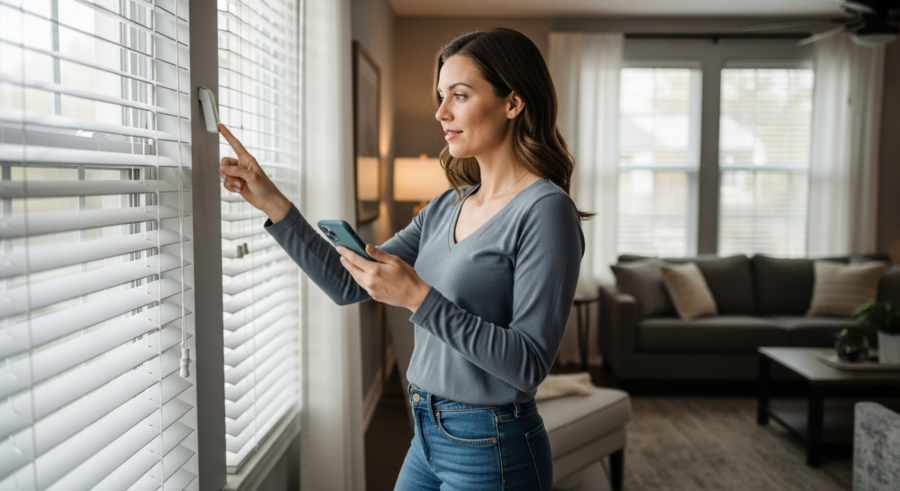
Once you’ve chosen your smart blinds, the next step is to integrate them into Home Assistant. This process typically involves adding the blinds as a device in Home Assistant and configuring their settings. You can enjoy your new smart blinds with Home Assistant blind control automation.
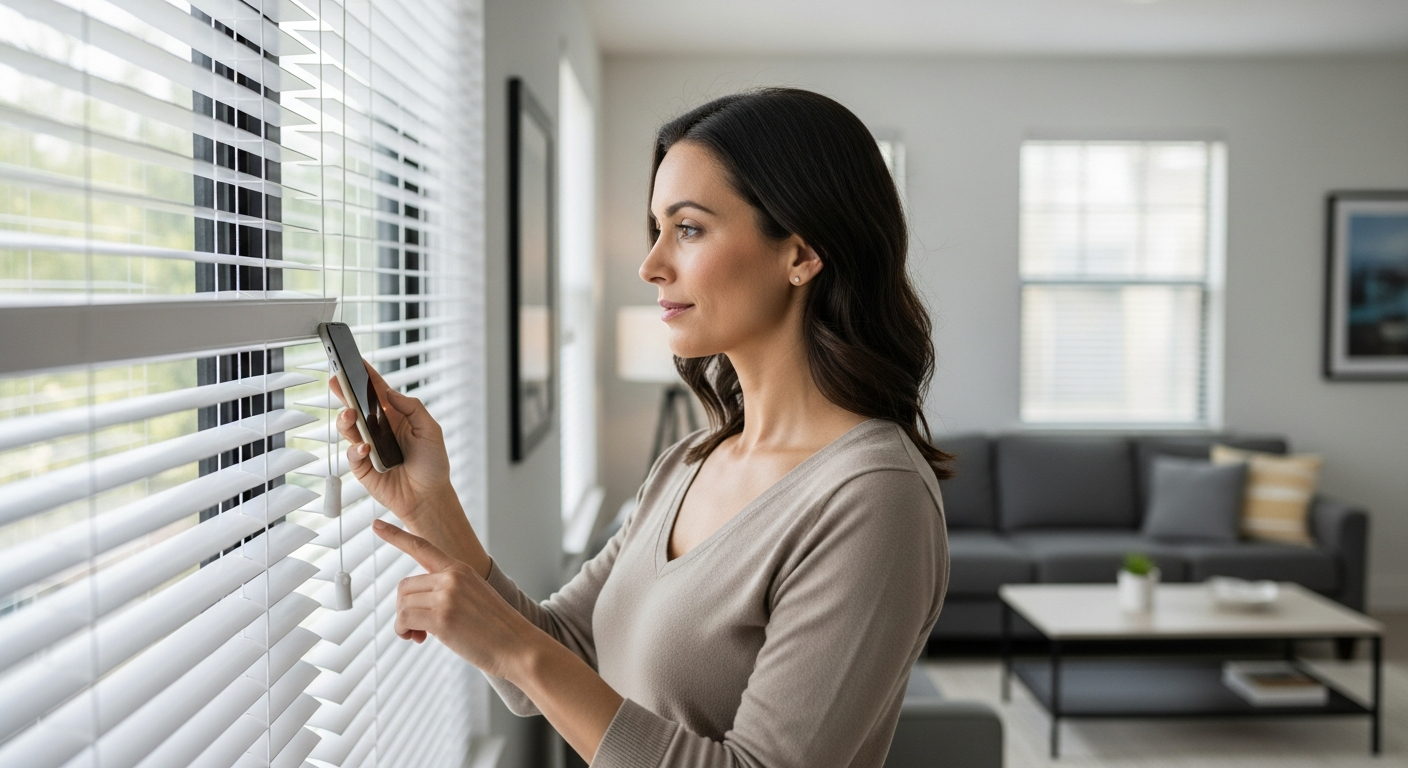
The exact integration process will vary depending on the type of smart blinds you have. For Zigbee and Z-Wave blinds, you’ll need a compatible hub connected to your Home Assistant instance. Once the hub is set up, you can use the Home Assistant interface to discover and add the blinds.
For Wi-Fi-based blinds, you may need to install a custom integration or use a cloud-based service to connect them to Home Assistant. Follow the instructions provided by the manufacturer to ensure a smooth integration process. A stable internet connection is vital to ensure the Home Assistant blind control automation works correctly.
After the blinds are added to Home Assistant, you can control them directly from the Home Assistant interface. You can open, close, or adjust the blinds to a specific position using the slider control. You can also rename the blinds and assign them to specific rooms for easier management.
Understanding Home Assistant Entities
Before diving into automation, it’s important to understand how Home Assistant represents your smart blinds. Each smart blind is represented as an “entity” in Home Assistant. These entities have unique IDs and states that reflect their current condition, which can be used for Home Assistant blind control automation.
The entity ID is a unique identifier that you’ll use to reference the blind in your automations. The state represents the current position of the blind, typically expressed as a percentage (0% for closed, 100% for open). You can view the entity ID and state of your blinds in the Home Assistant developer tools.
| Entity Attribute | Description | Example |
|---|---|---|
| Entity ID | Unique identifier for the blind | cover.livingroomblinds |
| State | Current position of the blind | 50 (representing 50% open) |
| Friendly Name | User-friendly name for the blind | Living Room Blinds |
| Supported Features | List of supported features (e.g., open, close, stop) | open, close, stop, set_position |
| Device Class | Type of device (e.g., shutter) | shutter |
Controlling Blind Position Based on Time of Day
One of the most basic, yet useful, automations you can create is controlling your blinds based on the time of day. This allows you to automatically open the blinds in the morning to let in sunlight and close them in the evening for privacy. This is a simple but powerful way to use your Home Assistant blind control automation.
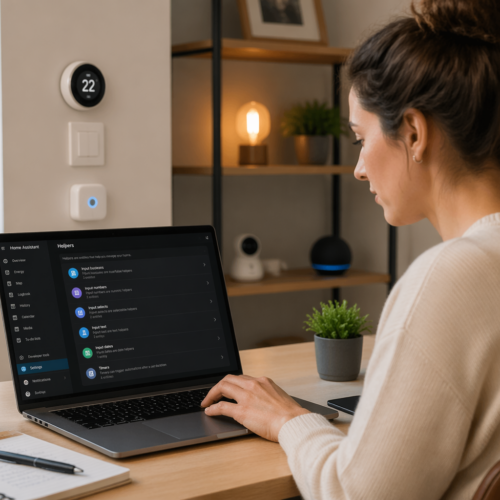
To create this automation, you’ll use the Home Assistant automation editor. You’ll need to define a trigger, which is the event that starts the automation, and an action, which is what the automation does. In this case, the trigger will be a specific time of day, and the action will be to open or close the blinds.
For example, you can set the blinds to open at 7:00 AM every day. The automation editor allows you to specify the time and the days of the week that the automation should run. You can also add multiple actions to the automation, such as setting the blinds to a specific position instead of fully opening or closing them.
You can also create separate automations for different times of the day. For instance, you might want to open the blinds halfway at noon to reduce glare. Experiment with different times and positions to find the settings that work best for you.
Adjusting Blinds Based on Sunlight Intensity
Taking your automation a step further, you can adjust the blinds based on sunlight intensity. This allows you to automatically close the blinds when the sun is too bright, preventing glare and protecting your furniture from fading. This is a more advanced form of Home Assistant blind control automation.
To implement this, you’ll need a sunlight intensity sensor. Several options are available, including dedicated light sensors and weather stations that report sunlight intensity. You can also use the “Sun” integration in Home Assistant, which provides an estimated sunlight intensity based on your location and the time of day.
Once you have a sunlight intensity sensor, you can create an automation that triggers when the intensity exceeds a certain threshold. The threshold will depend on your specific needs and the sensitivity of your sensor. Experiment to find the right value that triggers the automation when the sun is too bright.
The action of the automation can be to close the blinds completely or to adjust them to a specific position. You can also add a condition to the automation to only run if the blinds are currently open. This prevents the automation from running unnecessarily when the blinds are already closed.
Integrating with Weather Information
Weather information can also be used to control your smart blinds. For example, you can automatically close the blinds on hot days to reduce heat gain and save energy. Or, you can open the blinds on cloudy days to maximize natural light.
Home Assistant has several weather integrations available, including AccuWeather, OpenWeatherMap, and WeatherAPI. These integrations provide data such as temperature, humidity, cloud cover, and precipitation. You can use this data to create automations that respond to changing weather conditions.
- Close blinds when temperature exceeds 80°F
- Open blinds when cloud cover is less than 20%
- Partially close blinds during heavy rain
- Adjust blinds based on wind speed
- Override automations during specific events
Creating Custom Blind Control Scenes
Scenes allow you to group multiple actions together and trigger them with a single command. This is useful for creating custom blind control scenarios that cater to your specific needs. With Home Assistant blind control automation, scenes are an important tool.
For example, you can create a “Movie Time” scene that closes the blinds, dims the lights, and turns on your TV. Or, you can create a “Morning Routine” scene that opens the blinds, turns on the coffee maker, and plays your favorite music. The possibilities are endless.
To create a scene, you’ll use the Home Assistant scene editor. The editor allows you to define the state of multiple entities in the scene. In this case, you’ll set the position of your smart blinds and the state of other devices, such as lights and TVs.
Once you’ve created a scene, you can trigger it manually from the Home Assistant interface or include it in an automation. This allows you to easily activate complex scenarios with a single command.
Advanced Automation Techniques
Beyond basic time-based and sensor-based automations, Home Assistant offers a wide range of advanced automation techniques. These techniques allow you to create truly intelligent and responsive smart home systems. You can create unique Home Assistant blind control automation setups.
One advanced technique is using conditional logic in your automations. This allows you to create automations that only run under certain conditions. For example, you can create an automation that only closes the blinds on hot days if someone is home. You can use presence detection to determine if someone is home.
Another advanced technique is using templates to dynamically adjust the behavior of your automations. Templates allow you to use variables and calculations in your automations. For example, you can use a template to calculate the optimal blind position based on the current sunlight intensity and the time of day.
You can also use scripting to create more complex automations. Scripts allow you to define a sequence of actions that are executed in order. This is useful for creating automations that involve multiple steps or require complex logic. These are all valuable tools for Home Assistant blind control automation.
Optimizing Energy Efficiency with Smart Blinds
Smart blinds can play a significant role in optimizing energy efficiency in your home. By automatically adjusting to sunlight and temperature changes, they can help reduce your heating and cooling costs. This is a great way to use Home Assistant blind control automation.
In the summer, closing the blinds during the hottest part of the day can prevent sunlight from entering your home, reducing heat gain and lowering your air conditioning bills. In the winter, opening the blinds during the day can allow sunlight to warm your home, reducing your heating costs. This is especially effective on south-facing windows.
You can also use smart blinds to optimize natural light, reducing your reliance on artificial lighting. Opening the blinds on cloudy days can provide enough natural light to illuminate your home, saving energy and creating a more pleasant living environment. This is another way to use your Home Assistant blind control automation.
By integrating your smart blinds with other smart home devices, such as thermostats and lighting systems, you can create a comprehensive energy management system. This system can automatically adjust your home’s settings to optimize energy efficiency based on your preferences and the current conditions.
Troubleshooting Common Issues
While setting up your smart blinds and automations, you may encounter some common issues. Here are some tips for troubleshooting these issues and getting your system up and running smoothly. Many problems can be resolved with patience and careful attention to detail.
If your smart blinds are not connecting to Home Assistant, check the following: Make sure your hub is properly connected and configured. Verify that the blinds are within range of the hub. Ensure that the blinds are powered on and have sufficient battery life. If you’re using Wi-Fi blinds, confirm that they are connected to your Wi-Fi network.
If your automations are not working as expected, check the following: Verify that the triggers and conditions are configured correctly. Ensure that the entity IDs in your automations are correct. Check the Home Assistant logs for any error messages. Test the automation manually to see if it works.
If your blinds are not responding to commands, try restarting the blinds and the hub. You can also try removing and re-adding the blinds to Home Assistant. If the problem persists, consult the manufacturer’s documentation or contact their support team.
Conclusion
Automating your blind control with Home Assistant offers a range of benefits, from enhanced convenience to improved energy efficiency. By following the steps outlined in this article, you can create a smart home system that automatically adjusts your blinds based on your preferences and the environment.
Experiment with different automations and scenes to find the settings that work best for you. With a little creativity, you can transform your living space into a comfortable, energy-efficient, and automated haven. Enjoy the possibilities of Home Assistant blind control automation!
Remember to consider the type of blinds, integration methods, and your specific needs when setting up your system. By carefully planning and implementing your smart blind automation, you can create a truly personalized and intelligent living environment.
Start exploring the world of Home Assistant blind control automation today and unlock a new level of comfort and convenience in your home. With the right setup, you can enjoy a smarter, more efficient, and more enjoyable living experience. Welcome to the future of home automation!