Smart home automation is no longer a futuristic fantasy; it’s a present-day reality. One of the most exciting aspects of this technology is its ability to adapt to your location. With the power of Home Assistant and geolocation automation, your home can intelligently respond to your comings and goings, making your life more convenient, secure, and energy-efficient.
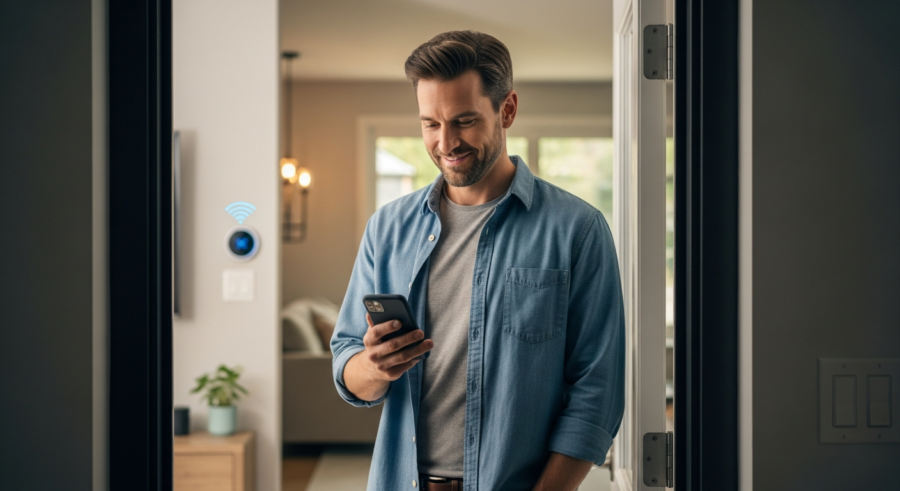
Imagine your lights turning on automatically as you approach your driveway after a long day, or your thermostat adjusting to your preferred temperature as you arrive home from work. This level of personalization is achievable through Home Assistant geolocation automation, which uses presence detection, location tracking, and geofencing to create a truly smart and responsive living environment.
This article will explore the ins and outs of setting up and utilizing Home Assistant geolocation automation. We will cover everything from configuring location tracking to creating sophisticated automations that cater to your specific needs. Let’s get started turning your house into a truly smart home with Home Assistant geolocation automation.
Setting Up Geolocation Tracking in Home Assistant
Before you can start automating your home based on location, you need to set up geolocation tracking within Home Assistant. This involves configuring a method for Home Assistant to know where you and your family members are.
There are several ways to achieve this, each with its own advantages and disadvantages. Let’s explore some of the most popular options for presence detection and location tracking.
One of the simplest methods is using the Home Assistant Companion App. This app, available for both iOS and Android, can be configured to send your location data to your Home Assistant instance.
The app utilizes your phone’s GPS and Wi-Fi to determine your location and can be set to update at regular intervals or when you enter or exit predefined zones. To set this up, download the app, connect it to your Home Assistant server, and enable location tracking in the app’s settings.
The Home Assistant Companion App offers a user-friendly interface for managing location settings. You can customize the update frequency to balance accuracy and battery life.
Another crucial setting is the background app refresh permission. This ensures that the app can continue to track your location even when it’s not actively running in the foreground.
Keep in mind that enabling location tracking can impact your phone’s battery life. Experiment with different update frequencies to find a balance that works for you.
For more advanced users, the Companion App also supports geocoded location updates. This provides more accurate location data by using reverse geocoding to determine the address of your current location.
You can also configure the app to send your Wi-Fi SSID to Home Assistant. This can be used to create automations that trigger when you connect to your home Wi-Fi network.
Creating Automations for Arrival and Departure
Now that you have geolocation tracking set up, you can start creating automations that trigger when you arrive or depart from specific locations. These locations are typically defined as zones within Home Assistant.
A zone is a virtual boundary that you define on a map within Home Assistant. When a tracked device enters or exits a zone, it can trigger an automation.
To create a zone, navigate to the Configuration panel in Home Assistant and select “Zones.” Click the “+” button to add a new zone and specify its name, latitude, longitude, and radius.
The radius determines the size of the zone. Consider setting up zones for your home, work, school, or any other location you frequently visit.
When creating zones, it’s important to consider the accuracy of your location data. A larger radius can compensate for inaccuracies, but it may also delay the triggering of automations.
Conversely, a smaller radius can provide more precise triggering, but it may also result in missed triggers if your location data is not accurate enough.
Experiment with different zone sizes to find the optimal balance for your specific needs. You can also create multiple zones for the same location with different radii to trigger different automations based on proximity.
For example, you could create a large zone around your neighborhood to trigger an automation when you’re approaching home, and a smaller zone around your house to trigger an automation when you actually arrive.
Once you’ve created your zones, you can start creating automations that use them as triggers. In the automation editor, select “zone” as the trigger type and specify the zone you want to use.
Automating Lights and Climate Control Upon Arrival
One of the most common and convenient uses of geolocation automation is controlling your lights and climate control system. Imagine arriving home to a well-lit and comfortably heated or cooled house without having to lift a finger.
This can be easily achieved by creating automations that trigger when you enter your home zone. Let’s look at how to set this up.
| Component | Action | Example |
|---|---|---|
| Lights | Turn on | Turn on living room lights to 50% brightness |
| Thermostat | Adjust temperature | Set thermostat to 72°F |
| Fan | Turn on/off | Turn on ceiling fan if temperature is above 75°F |
| Humidifier | Turn on/off | Turn on humidifier if humidity is below 40% |
First, create an automation in Home Assistant that uses a “zone” trigger. Set the zone to your home zone and the event to “enter.”
Next, add actions to control your lights and climate control system. For lights, you can use the “light.turn_on” service to turn on specific lights or groups of lights.
You can also specify the brightness and color of the lights. For climate control, you can use the “climate.set_temperature” service to set the desired temperature.
You can also use the “climate.sethvacmode” service to set the heating or cooling mode. To make your automations more sophisticated, you can add conditions that check the current time of day or the outside temperature.
For example, you could create an automation that only turns on the lights if it’s after sunset, or that only adjusts the thermostat if the outside temperature is below a certain threshold.
You can also use the “wait_template” action to delay the execution of certain actions until a specific condition is met. This can be useful for ensuring that your home is fully heated or cooled before you arrive.
Sending Notifications for Family Members Arriving Home
Geolocation automation can also be used to keep you informed about the whereabouts of your family members. You can set up notifications to be sent to your phone when a family member arrives home, leaves for school, or reaches their workplace.
This can provide peace of mind and help you coordinate family activities. Here’s how to set up these notifications.
Create an automation in Home Assistant that uses a “zone” trigger. Set the zone to the location you want to monitor (e.g., home, school, work) and the event to “enter” or “leave,” depending on what you want to track.
Next, add an action to send a notification to your phone using the Home Assistant Companion App. The notification message should include the name of the family member and the location they have entered or left.
You can customize the notification message to include additional information, such as the time of arrival or departure. To send a notification, use the “notify.mobileapp[yourdeviceid]” service, replacing “[yourdeviceid]” with the device ID of your phone.
You can find your device ID in the Home Assistant Companion App settings. In the data field of the notification service, specify the message you want to send.
For example, you could use the following data to send a notification: {“message”: “{{ trigger.tostate.attributes.friendlyname }} arrived home at {{ now().strftime(‘%I:%M %p’) }}”}. This will send a notification that includes the name of the person who arrived home and the current time.
You can also add conditions to the automation to only send notifications under certain circumstances. For example, you could only send notifications if it’s during a specific time window or if the person is arriving home from a particular location.
Using Geolocation for Security Purposes
Beyond convenience and family awareness, geolocation can play a significant role in enhancing your home security. You can use location data to arm or disarm your security system, simulate occupancy while you’re away, or receive alerts if someone enters your property unexpectedly.
Let’s explore some specific security-related automations you can implement with Home Assistant geolocation.
One useful automation is to automatically arm your security system when the last person leaves the home zone. To do this, create an automation with a “zone” trigger, setting the zone to your home and the event to “leave.” Add a condition to ensure that all tracked devices have left the zone.
Then, add an action to arm your security system. Conversely, you can disarm the system when the first person arrives home by creating a similar automation with the “enter” event.
- Arm security system when last person leaves
- Disarm security system upon first arrival
- Simulate occupancy with smart lights
- Receive alerts for unexpected zone entries
- Integrate with security cameras for live feeds
Another security application is simulating occupancy while you’re away on vacation. This involves turning lights on and off at various times to make it appear as though someone is home.
You can create an automation that triggers when everyone leaves the home zone and then randomly turns lights on and off throughout the evening. This can deter potential burglars and make your home a less attractive target.
To further enhance security, you can integrate your geolocation data with your security cameras. Set up automations that trigger your cameras to record when someone enters your property unexpectedly.
You can also receive alerts on your phone with live feeds from your cameras. This allows you to quickly assess the situation and take appropriate action.
Consider using a combination of different security measures to create a comprehensive security system. Geolocation automation can be a valuable component of this system.
Remember to regularly review and update your security automations to ensure they are effective and meet your evolving needs. Keeping your home secure is an ongoing process.
Understanding Privacy Considerations
While geolocation automation offers numerous benefits, it’s crucial to be mindful of the privacy implications. Sharing location data, even with trusted family members, can raise concerns about surveillance and potential misuse of information.
It’s essential to have open and honest conversations with everyone involved about the purpose of location tracking and the measures you’re taking to protect their privacy.
One important step is to ensure that you’re only collecting the minimum amount of location data necessary for your automations. Avoid tracking location continuously and instead opt for infrequent updates or zone-based triggers.
You should also be transparent about how the data is being used and who has access to it. Consider implementing controls that allow individuals to opt out of location tracking or adjust the frequency of updates.
Another important consideration is data storage. Make sure that your location data is stored securely and that you have a clear policy for how long it will be retained.
You should also consider using encryption to protect your location data from unauthorized access. Regularly review your privacy settings and security measures to ensure they are up to date.
Be aware of the potential risks associated with sharing your location data with third-party services. Only share your data with services that you trust and that have a clear privacy policy.
It’s also a good idea to educate yourself about the privacy laws and regulations in your area. This will help you understand your rights and responsibilities when it comes to collecting and sharing location data.
By taking these steps, you can minimize the privacy risks associated with geolocation automation and enjoy the benefits of this technology without compromising your privacy.
Alternative Geolocation Methods
While the Home Assistant Companion App is a popular choice for geolocation tracking, it’s not the only option. Several other methods can be used, each with its own strengths and weaknesses.
Exploring these alternatives can help you find the best solution for your specific needs and preferences. One popular alternative is using a dedicated presence detection service like OwnTracks.
OwnTracks is an open-source location tracking app that allows you to securely share your location with trusted individuals or services. It offers more granular control over location updates and privacy settings compared to the Home Assistant Companion App.
Another option is using Wi-Fi-based presence detection. This involves monitoring the Wi-Fi network for the presence of specific devices, such as smartphones or laptops. When a device connects to the network, it’s assumed that the person is home.
Wi-Fi-based presence detection is less accurate than GPS-based tracking, but it can be a good option for detecting whether someone is home or not. It’s also less battery-intensive than GPS tracking.
Another alternative is using Bluetooth-based presence detection. This involves monitoring for the presence of Bluetooth devices, such as Bluetooth beacons or smartphones with Bluetooth enabled.
Bluetooth-based presence detection is more accurate than Wi-Fi-based detection, but it has a shorter range. It can be useful for detecting whether someone is in a specific room or area of your home.
You can also use a combination of different geolocation methods to improve accuracy and reliability. For example, you could use GPS tracking when someone is outside and Wi-Fi or Bluetooth tracking when they are inside.
Experiment with different geolocation methods to find the best solution for your specific needs and environment. Consider factors such as accuracy, battery life, and privacy when making your decision.
Advanced Automation Scenarios
Once you’ve mastered the basics of geolocation automation, you can start exploring more advanced scenarios. These can involve combining location data with other sensors and data sources to create truly intelligent and personalized experiences.
Let’s look at some examples of advanced automation scenarios that leverage Home Assistant geolocation.
One advanced scenario is creating a “vacation mode” that automatically adjusts your home’s settings when you’re away for an extended period. This could involve turning off all non-essential lights and appliances, adjusting the thermostat to conserve energy, and simulating occupancy to deter burglars.
Another scenario is creating a “guest mode” that automatically adjusts your home’s settings when guests arrive. This could involve turning on specific lights, adjusting the thermostat to a comfortable temperature, and providing guests with access to the Wi-Fi network.
You can also create automations that adjust your home’s settings based on your activity. For example, you could create an automation that dims the lights and turns on relaxing music when you arrive home from work and enter your living room.
Another advanced scenario is integrating geolocation with your calendar. This allows you to create automations that trigger based on your schedule and location.
For example, you could create an automation that automatically turns on the lights and adjusts the thermostat when you’re on your way home from a meeting. You can also use geolocation to create automations that remind you to do things when you’re in a specific location.
For example, you could create an automation that reminds you to pick up groceries when you’re near the grocery store. By combining geolocation with other data sources and sensors, you can create truly intelligent and personalized automations that make your life easier and more convenient.
Troubleshooting Common Issues
While Home Assistant geolocation automation is generally reliable, you may encounter issues from time to time. These can range from inaccurate location data to automations that don’t trigger as expected.
Troubleshooting these issues can be frustrating, but with a systematic approach, you can usually identify and resolve the problem. Let’s look at some common issues and how to troubleshoot them.
One common issue is inaccurate location data. This can be caused by a weak GPS signal, incorrect device settings, or issues with the location tracking app. To troubleshoot this, ensure that your device has a strong GPS signal and that location services are enabled for the Home Assistant Companion App or other location tracking app you’re using.
Another issue is automations that don’t trigger as expected. This can be caused by incorrect zone settings, faulty automation logic, or connectivity problems. Double-check that your zones are defined correctly and that the automation logic is sound.
Make sure that the trigger conditions are met and that there are no conflicting automations. Also, check your network connection to ensure that your Home Assistant instance can communicate with your devices and services.
Another common issue is battery drain. Location tracking can be battery-intensive, especially if you’re using GPS tracking with frequent updates. To minimize battery drain, try reducing the frequency of location updates or using Wi-Fi or Bluetooth-based presence detection instead of GPS.
You can also try optimizing your app settings to reduce battery consumption. If you’re still experiencing issues, try restarting your device or reinstalling the Home Assistant Companion App.
If you’re having trouble with a specific automation, try disabling it and then re-enabling it. This can sometimes resolve issues caused by caching or other temporary problems.
Conclusion
Home Assistant geolocation automation is a powerful tool that can transform your house into a truly smart and responsive home. By leveraging presence detection, location tracking, and geofencing, you can create automations that cater to your specific needs and preferences, making your life more convenient, secure, and energy-efficient.
While setting up geolocation automation requires some initial configuration, the benefits are well worth the effort. From automatically adjusting your lights and climate control to receiving notifications when family members arrive home, the possibilities are endless.
Remember to be mindful of privacy considerations and to have open conversations with your family about location tracking. By implementing appropriate safeguards, you can enjoy the benefits of geolocation automation while protecting your privacy.
So, dive in, experiment with different automations, and discover the power of Home Assistant geolocation automation. Your smart home awaits, ready to respond to your every move.
The integration of geolocation with Home Assistant opens up a world of possibilities for creating a truly personalized and intelligent living environment. Embrace the technology and tailor it to your unique lifestyle.
Continue exploring the vast resources available within the Home Assistant community and online forums. You’ll find inspiration and guidance to take your smart home automation to the next level.