Home Assistant automations fail in boring ways, and that is why they are so maddening to debug. One missed state change, one bad template, or one device that went unavailable can make a “simple” rule look haunted.
Good home assistant automation debugging is less about clever tricks and more about building a paper trail. If you can prove what fired, what evaluated, and what got called, the fix usually shows itself.
Home Assistant gives you three tools that matter most, automation traces, home assistant logs, and template debug. When you use them together, you stop guessing and start verifying.
This article sticks to real failure modes, like triggers that never fire after a restart or templates that break on “unknown”. You will see how to reproduce the bug, read the trace, filter logs, and confirm the repair.
Start With a Reproducible Test (So You Don’t Chase Ghosts)
If an automation fails once a week at 2:13 AM, your first job is to make it fail on demand. Reproduction turns a spooky story into a checklist.
Start by isolating the automation from the rest of your system, then run it with the “Run actions” button and watch what changes. If “Run actions” works but the real trigger does not, you already narrowed the problem to triggers or conditions.
Use Developer Tools, States to manually set up the exact preconditions you expect, like a specific sensor value or a light being off. When you can set the stage in 30 seconds, you can iterate fast without waiting for real life.
When timing is involved, remove randomness and long waits while you debug. Replace a 10 minute delay with 5 seconds and swap a sun trigger for a fixed time trigger until the logic proves itself.
Be explicit about what “failure” looks like so you can tell if you reproduced it. If the automation is supposed to turn on a light, decide whether the failure is “light stayed off” or “light turned on late” or “light turned on and then turned off again.”
Write down the exact steps you took to reproduce the problem, even if it feels silly. Those steps become your regression test after you change something, and they keep you from “fixing” the wrong issue.
If the automation depends on multiple entities, change only one variable at a time during testing. When you flip two switches and the automation behaves differently, you have no idea which input mattered.
Use helpers like inputboolean and inputnumber to simulate sensors when the real device is slow or unreliable. A fake input that you can toggle instantly is perfect for proving logic before you bring hardware back into the loop.
If your automation relies on presence, consider temporarily replacing device_tracker logic with a manual helper that you can toggle. Presence systems add their own delays and edge cases, and they can mask the real bug.
When the failure only happens after a restart, schedule a controlled restart during the day and test immediately after Home Assistant comes back. Startup is a special environment where many entities are unknown for a while, and it is worth treating it as its own test case.
Try to reproduce in the smallest scope possible, like a single automation with one trigger and one action. If you can’t reproduce at that level, the bug may be an interaction between automations, scenes, or scripts.
Finally, decide whether you are debugging the automation or the device behavior. If the automation trace says it called the service correctly, your reproducible test should include verifying the device can respond reliably outside the automation too.
Using Automation Traces to See Exactly What Happened
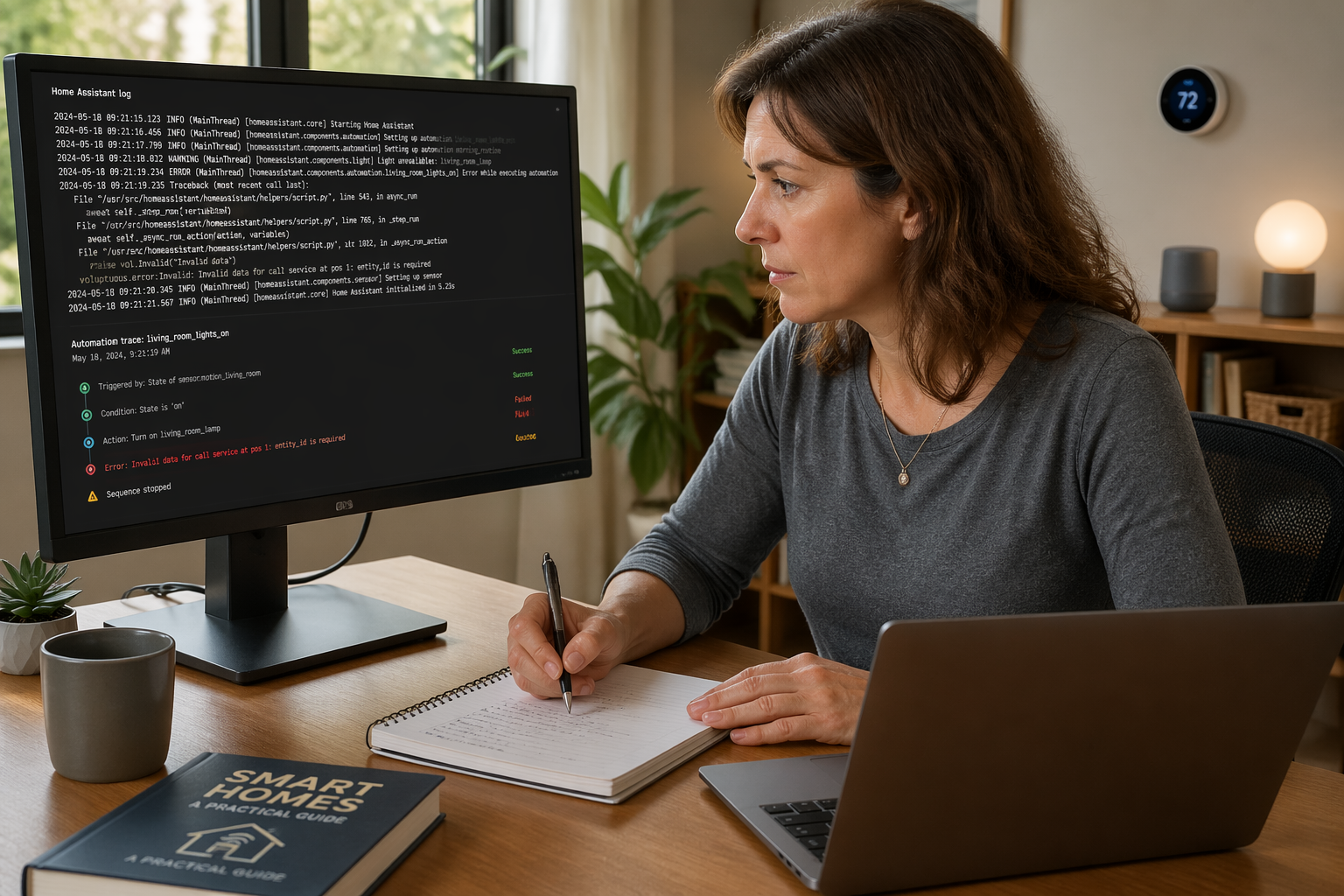
Automation traces are the closest thing Home Assistant has to a debugger, and they are where I start when something “should have” happened. A trace shows the trigger event, which conditions passed, which actions ran, and where it stopped.
Open the automation, click Traces, then pick the most recent run that matches your test. If there is no trace at all, that is a clue by itself because it points to the trigger never firing.
Read the trace top to bottom and resist the urge to jump straight to the red error line. Many failures are silent, like a choose block that takes the “default” path because a condition evaluated false.
Pay attention to the “Changed variables” and the context around templates, because the wrong input often looks reasonable at a glance. If a sensor state is “unknown” in the trace, that is not cosmetic, it can flip your whole automation.
Use the trace to answer one question at a time, starting with “what triggered this run.” If the trigger is not what you expected, your automation might be firing from a different trigger than the one you are thinking about.
Expand each condition in the trace and look at the evaluated result, not just the YAML. A condition that looks correct in code can still evaluate false because an attribute is missing or a state has extra whitespace.
In choose blocks, treat the trace like a flowchart and confirm the exact branch taken. It is common to think you are in branch A while the trace clearly shows the default branch ran.
When an automation calls a script, open the script trace too instead of assuming the script is fine. A lot of “automation” problems are really script failures that only show up when you drill one level deeper.
Look for places where the trace shows a wait continuing forever or ending due to timeout. A wait that never completes can make the automation appear dead, even though it is technically still running.
If you see a delay in the trace, confirm whether the automation mode could have interrupted it. In restart mode, a new trigger cancels the prior run, and the trace will show the earlier run ending abruptly.
Use the timestamps in the trace to spot performance and latency issues. If a service call step takes several seconds before the next step, the integration may be slow or the network may be struggling.
When you are dealing with intermittent issues, compare two traces, one “good” and one “bad.” Differences in input values, timing, or branch selection usually jump out when you view them side by side.
Remember that a trace is a record of Home Assistant’s decisions, not a guarantee that the physical world complied. If the trace shows the call succeeded but the light stayed off, shift your focus to the device, the integration, or the network path.
Reading Logs and Filtering Noise Without Missing Clues
Home assistant logs look noisy because they are, and a wall of warnings can hide the one line that matters. The trick is to filter by the right logger and to search for the automation entity_id or integration that owns the device.
Use Settings, System, Logs for quick triage, then move to the full log file when you need context around restarts and disconnects. If you are doing home assistant automation debugging during device flakiness, the timestamp around “unavailable” is often the smoking gun.
Get comfortable with the idea that most log lines are not actionable, and that is fine. Your goal is to find the few lines that align with the moment your automation should have fired or the moment the device stopped responding.
When you can, search for the integration name, like zwave_js, zha, mqtt, or esphome, because those logs often explain why an entity changed state. A device going unavailable is rarely “random” in the logs, even if it feels random in the UI.
Pay special attention to log entries around Home Assistant startup, because many automations fail there. You will often see lines about restoring states, reloading integrations, or entities not yet ready, and those are direct hints for adding waits or guards.
If you suspect your automation is getting blocked by another automation, look for rapid sequences of service calls that fight each other. Two automations toggling the same light will look like a device problem until you notice the alternating calls in the logs.
Use the log timestamps to correlate with trace timestamps, because that correlation is your timeline. When the trace says the service was called at 12:01:05 and the log shows a disconnect at 12:01:04, you have a clear story.
If you are comfortable editing configuration.yaml, temporarily raise log level for one integration rather than everything. Targeted debug logging gives you signal without turning your system into a scrolling novel.
When you see repeated warnings, do not ignore them just because the system “usually works.” Repeated warnings are often the early signs of the exact automation failure you will be debugging later.
Also watch for rate limiting, authentication, or permission errors when calling services. Those errors can show up as a single line that is easy to miss, but they explain why a call did nothing.
If you use MQTT, check both Home Assistant logs and your broker logs if available. A missing retained message, a changed topic, or a disconnected client can break triggers without any obvious automation error.
Finally, remember that logs are not just for errors, they are for context. A clean log line that says an entity updated can be the clue that your trigger never saw the transition you thought it would.
| What you are looking for | Where to check | What it usually means |
|---|---|---|
| Trigger never created a trace | Automation Traces and system log around the time | Trigger config mismatch or automation disabled |
| Template error or undefined variable | Settings, System, Logs and Template editor | State was unknown, missing attribute, or bad Jinja |
| Service call failed | Trace action step and log entry from the integration | Device offline, wrong entity_id, or permission issue |
| Automation ran but did nothing | Trace choose path and condition results | Condition evaluated false because inputs differ |
Debugging Triggers: Why They Didn’t Fire (or Fired Too Often)
When an automation does not fire, I assume the trigger definition is wrong until proven otherwise. Triggers are picky about entity_id, state strings, and event payloads, and one character can break everything.
For state triggers, confirm the exact state values in Developer Tools, States, because many entities use “on” and “off” while others use numbers or strings like “home”. If you wrote to: “Open” but the real state is “open”, the trigger will never match.
For numeric_state triggers, check units and data type, because a sensor can report “unknown” during startup and then your trigger never sees a clean transition. If you need reliability after restarts, add a short “for” time or a startup automation that waits for key sensors to become available.
If the automation fires too often, look for bouncing inputs like motion sensors or power meters that fluctuate around a threshold. Add a “for” clause, use a helper like inputboolean as a latch, or move the trigger to a more stable entity like a binarysensor that already debounces.
Confirm that the automation is enabled and that you are editing the same automation that is running. It sounds obvious, but it is easy to debug “Kitchen Lights v2” while “Kitchen Lights v1” is still enabled and doing the actual work.
For device triggers, verify the device is still the same device in the registry and did not get replaced after a re-pair. A re-paired Zigbee device can keep the same friendly name while the underlying entity_id changes, and your trigger can silently point to the old one.
For event triggers, inspect the event data in Developer Tools, Events, and listen for the exact event type you expect. If your automation is matching on a field that is sometimes missing, it will only fire “randomly” when that field happens to exist.
Time triggers are reliable, but they can still surprise you if you are mixing local time, UTC, and daylight saving transitions. If an automation fails around DST changes, check whether the schedule shifted or whether a time condition became false for an hour.
Sun triggers can be confusing because offsets, elevation, and location settings matter. If a sun trigger never fires, confirm your Home Assistant location is correct and that you are not accidentally using a positive offset when you meant negative.
For triggers with “for”, remember that any state change resets the timer, including brief bounces. A motion sensor that flickers from on to off for a second can prevent an “off for 10 minutes” trigger from ever completing.
When you suspect missed triggers, check whether the entity actually produced a state_changed event. Some integrations update attributes without changing the main state, and a state trigger watching the state will never see an attribute-only update.
If your trigger is based on a template, test that template in the Template editor and then test it again with edge values. Template triggers are powerful, but they are also easy to write in a way that never becomes true.
If the automation fires twice, check for both a state trigger and a device trigger pointing at the same underlying event. It is common to accidentally stack triggers during edits, and then you get double runs that look like a race condition.
Finally, consider whether you actually want a trigger or a condition guarding a different trigger. A lot of “why didn’t it fire” problems go away when you trigger on a reliable event and then use conditions to filter instead of trying to trigger on the perfect state change.
Debugging Conditions and Templates: Finding the One Value That Broke It
Most automation logic bugs live in conditions, and templates are where they hide. One unexpected None, a missing attribute, or a string that looks like a number can make a condition fail quietly.
Use the Template editor in Developer Tools for template debug, and paste the exact Jinja from your condition. Then test it against the current states and also against the ugly cases, like unknown, unavailable, or an empty attribute.
Defensive templates are boring but they save you, so default values matter. Use states(‘sensor.xyz’) instead of state_attr calls on entities that might not exist yet, and wrap numeric conversions with | float(0) or | int(0) so the template does not crash.
If you are using choose blocks, verify which branch ran in the automation traces, because the wrong branch can still look “successful”. I also like to temporarily add a persistent_notification or logbook entry that prints the key values, then remove it after the fix.
Be careful with string comparisons that depend on capitalization or localization. Some integrations return “on” and “off” while others return “On” in attributes, and that mismatch can break conditions that look perfectly reasonable.
When you compare numbers, confirm you are comparing numbers and not strings. A template that compares “9” and “10” as strings will behave wrong in ways that feel like a logic bug but are really a type bug.
Watch out for conditions that depend on attributes that are not always present, like brightness, hvac_action, or battery. If the attribute disappears when the device is unavailable, your template can error or evaluate to an unexpected default.
Use the trace to capture the exact values at the moment of evaluation, because the UI might show a different value a second later. Fast-changing sensors like power, illuminance, and motion are notorious for making you debug the wrong snapshot.
If you use time conditions, remember that they operate on local time and can be tricky around midnight. A condition like “after 22:00 and before 06:00” needs the special overnight handling, or it will be false all the time.
For state conditions, confirm whether you should be checking the state or an attribute. Climate entities often keep state as “heat” or “cool” while the actionable detail is in hvac_action, and mixing those up can make your automation feel inconsistent.
When you use multiple conditions, test them individually before you test them together. One failing condition can mask the fact that the others are fine, and the trace will show you which one failed if you look closely.
Be cautious with templates that call now() or as_timestamp(now()) because they change constantly. If you put a time-based expression in a condition, it can behave differently depending on when the automation evaluates it, especially after delays.
Use helpers to simplify conditions that are getting too clever. If a template is doing three conversions and two fallbacks, consider moving that logic into a template sensor so the automation reads a clean, stable value.
If you rely on groups, understand how group state is computed and whether it matches your intent. A group of lights can be “on” if any member is on, which can surprise you if you meant “all lights are on.”
Finally, treat “unknown” and “unavailable” as first-class states in your design instead of rare exceptions. Once you explicitly handle them, a whole category of intermittent failures stops being intermittent.
Debugging Actions: Service Calls, Delays, and Device Availability
Actions fail in two main ways, the service call is wrong, or the device cannot do what you asked at that moment. Home Assistant will often show a clean trace step even when the real device never responded.
Start by confirming the service call in Developer Tools, Services, using the same entity_id and data you used in the automation. If it fails there, the automation is innocent and the problem is the integration, the device, or the entity you targeted.
Delays and waits can create bugs that look random because they depend on timing and restarts. If you use delay or waitfortrigger, decide what should happen after a Home Assistant restart, then add a timeout and a clear fallback path.
Device availability is the silent killer, especially with Wi Fi plugs, sleepy Zigbee sensors, and cloud dependent devices that you thought were local. If you see “unavailable” around the failure window in home assistant logs, add a wait_template that confirms the entity is available before calling the service.
Confirm that the service domain matches the entity type, because Home Assistant will not always save you from a mismatch. Calling light.turn_on on a switch entity might do nothing or error, and the trace will make it look like a normal step unless you expand the details.
Be careful with scenes and scripts that override each other. If your automation turns on a light and then a scene activates a second later, it will look like your action failed when it was actually undone.
If you are using parallel actions, remember that order is not guaranteed the way you feel it should be. Two service calls issued at the same time can race, and the device might end up in the wrong final state if it cannot process them quickly.
For notifications, validate the target and payload, especially if you are using mobile app notify services. A typo in the notify service name will not turn into a visible device error, it will just quietly not notify.
For media players and TVs, add small delays between power on, source selection, and volume changes. Many devices accept the service call but ignore it until they finish booting, which looks like an automation that “sometimes works.”
If you call a service based on a dynamic entityid built in a template, print the resolved entityid during debugging. A template that resolves to an empty string or a non-existent entity will create a no-op that is hard to spot.
Use timeouts on waits and then handle the timeout explicitly, even if it is just a notification to yourself. A timeout path turns a silent stall into a visible failure, which is a huge upgrade for debugging.
When a device is flaky, consider adding a retry pattern with a short delay and a second service call. Retries are not glamorous, but they can turn a 95% reliable device into a 99.9% reliable automation outcome.
Also check whether the action is being blocked by a condition you forgot you added later in the sequence. A condition after a delay is still a condition, and it can stop actions that you assume are unconditional.
If the action is a call to a script, confirm the script’s mode and max runs too. A script set to single can drop calls under load, and the automation trace will only show that it called the script, not that the script refused to start.
Finally, if the action depends on the state immediately after a service call, add a wait_template to confirm the state changed. This is the difference between “I asked the light to turn on” and “the light is actually on,” which matters for reliable chains of actions.
Make the system talk: add temporary logging without wrecking your setup
Sometimes traces and logs still leave a gap, and you need the automation to print its own receipts. I prefer temporary, targeted messages over turning the whole logger to debug and drowning in noise.
Pick one place in the automation, usually right after the trigger, and output the values you are basing decisions on. This turns template debug from a lab exercise into proof of what happened in the real run.
Make your debug output boring and consistent so you can scan it quickly. A message like “Porch motion: on, Lux: 3.2, Quiet hours: true” is more useful than a clever sentence you have to interpret.
Keep debug messages close to the decision points, not at the end of the automation. If the automation never reaches the end, an end-of-run message tells you nothing.
Use unique prefixes in your debug messages so you can search logs easily. A prefix like “AUTO_PORCH” makes it trivial to filter logbook entries and notifications later.
If you are debugging a choose block, log the values that decide the branch and also the branch name you think should run. When the trace disagrees with your expectation, the mismatch becomes obvious.
For intermittent bugs, store the last few debug values in helpers instead of spamming notifications. An inputtext like “lastmotion_debug” can hold a snapshot you can inspect later without waking you up at night.
Use counters to measure frequency and confirm whether you have a flappy trigger. If a counter jumps by 50 in an hour, you are not dealing with a rare event anymore, you are dealing with noise.
When you add temporary logging, set a reminder to remove it after the fix. Debugging artifacts have a way of becoming permanent clutter if you do not clean them up.
If you need deeper visibility, log the trigger context, like trigger.id and trigger.platform, so you can tell which path started the run. This is especially helpful when you have multiple triggers that lead into the same action sequence.
Also consider adding a debug switch helper that gates your logging. When debug is off, the automation stays quiet, and when debug is on, it becomes chatty on purpose.
- Persistent notification with key variables
- Logbook log entry at the decision point
- System log write via logger integration
- Input_text helper to store last seen value
- Counter helper to count trigger frequency
- Tag the run with trigger.id for later filtering
Persistent notifications are great when you want a snapshot that will not scroll away. They are also easy to delete in bulk once you are done, which keeps your UI clean.
Logbook entries are better when you want a timeline view and you care about timestamps. They also help you correlate automation decisions with manual actions in the same UI.
Writing to the system log is useful when you want everything in one place with other integration messages. Just keep it targeted, because system logs get noisy fast.
Input_text helpers are underrated for debugging because they preserve the last known good or bad value. If the problem happens at 2:13 AM, you can still see the snapshot at 9:00 AM.
Counter helpers are perfect for proving whether a trigger is happening at all. If your automation “never fires,” a counter that stays at zero confirms it without you watching the screen.
Trigger ids are the difference between “it ran” and “it ran because of this specific trigger.” Once you start tagging triggers, multi-trigger automations become much easier to reason about.
Common trace patterns that point to real fixes
After you read enough automation traces, you start seeing the same patterns show up with different devices. I keep a mental map of what each pattern usually means, because it saves time.
A trace that stops right after a condition block usually means the condition evaluated false, not that Home Assistant “skipped” your automation. A trace that reaches a service call and then nothing changes usually means the target entity was wrong or the device was unavailable.
If the trace shows a template error, fix the template first even if you think it is unrelated. A single failing template can abort an entire choose sequence and leave your automation half executed.
If the trace shows the automation ran twice in quick succession, you probably have two triggers that fire on the same state change. Add trigger ids and branch with choose so the automation handles each trigger on purpose, not by accident.
A trace with a long gap between steps often points to a delay, a wait, or a slow integration call. If that gap lines up with a restart, you may be looking at a run that got cancelled and never resumed.
If you see “Stopped because the automation was turned off” or similar hints, treat it as a configuration issue, not a logic issue. Sometimes an automation gets disabled during edits or by a restore, and the trace history tells the story.
A trace that always takes the default choose path is usually a sign of a condition that is too strict. It might be checking for an exact string when it should be checking for a range or a boolean.
If the trace shows a condition passing when you expected it to fail, you might be checking the wrong entity. This happens a lot with similarly named entities, like sensor.temperature and sensor.temperature_2, or with helpers that shadow real sensors.
A trace that ends on a wait_template timeout is a clue that the world did not reach the state you assumed it would. Either the device never changed state, or the template is checking the wrong state representation.
If a trace shows a service call succeeded but the device state did not update, look for optimistic mode behavior. Some integrations report success immediately and update state later, which can break automations that assume immediate feedback.
When you see repeated runs that all fail at the same step, stop changing random things and focus on that step. Reproducible failure at a single step is a gift, because it means you can isolate and fix it cleanly.
If the trace shows variables changing in unexpected ways, check variable scope and naming collisions. A variable named “state” or “entity” can confuse you later, especially when templates also use those words in other contexts.
A trace that looks correct but the outcome is wrong can indicate a competing automation or manual action. In those cases, the trace is telling you Home Assistant did its part, and the rest of the system disagreed.
Over time, you will recognize which patterns are logic problems and which are reliability problems. That distinction matters, because the fixes are different, and chasing the wrong category wastes hours.
Debugging mode, automation settings, and the stuff you forget to check
Some bugs are not logic bugs, they are configuration footguns hiding in the automation settings. Before you rewrite YAML, check mode, max runs, and whether the automation is even enabled.
Mode matters because single will drop runs while restart will cancel delays and waits, and queued can stack up surprises. If your automation has a waitfortrigger and you set mode to restart, you just told it to cancel itself every time it retriggers.
Max runs matters when a flappy trigger hits a queued automation, because you can hit the cap and then nothing runs until the queue drains. When someone says “it worked earlier and then stopped”, I check for max exceeded messages in home assistant logs.
Also check helpers and scripts the automation calls, because the failure might live there instead. If a script throws an error, the automation trace can look fine until you expand the script trace and see the real problem.
Check whether the automation is in YAML mode or UI mode and whether your edits are actually being applied. It is possible to edit YAML in one place while the UI is running a different version, especially after imports or manual file edits.
Look for disabled triggers, disabled actions, or disabled conditions inside the automation editor. A single disabled step can make the automation look broken, even though it is doing exactly what the current configuration says.
Review the automation’s last triggered timestamp, but do not treat it as proof of correctness. An automation can trigger and still do nothing useful, and the trace is what tells you why.
If you use blueprints, confirm whether the blueprint changed and whether your automation instance updated. Blueprint updates can subtly alter behavior, and it can feel like your automation “randomly” started failing after an update.
Be aware of entityid changes caused by renaming or re-adding devices. If an entityid changed, the automation might still reference the old one, and Home Assistant will not always make that obvious until you inspect the action step details.
Check for conflicts with manual control, like a wall switch cutting power to a smart bulb. The automation can call light.turn_on perfectly, but if the bulb has no power, the call will never produce the expected result.
Confirm that your time zone, location, and system clock are correct. Time-based automations are only as reliable as the clock, and clock drift or misconfiguration can create failures that look like logic errors.
After Home Assistant updates, scan the logs for deprecations that affect your automations. A deprecated service or a changed attribute name can break templates in ways that only show up at runtime.
If you are using custom integrations, consider them suspect during debugging. Custom components can be great, but they can also behave differently across updates, and that can ripple into your automations.
Finally, remember that reliability is a system property, not just an automation property. If your network, coordinator, or broker is unstable, your best automation logic will still look flaky.
Conclusion
Reliable home assistant automation debugging comes down to discipline, reproduce the issue, read the automation traces, then use home assistant logs and template debug to confirm the root cause. The tools are already in your setup, but you have to use them like instruments instead of vibes.
When you fix one automation, write down what broke and why, because the same pattern will hit you again with a different sensor next month. The best smart home is the one that fails loudly, leaves evidence, and gets repaired in minutes instead of hours.
If you take anything from this, let it be the habit of proving each step instead of assuming it. Once you can say “the trigger fired, the condition evaluated true, and the service call succeeded,” the remaining mystery is always smaller.
Over time, you will build your own library of failure modes and fixes, and debugging will feel less like panic and more like routine maintenance. That is when automations stop being spooky and start being boring in the best way.