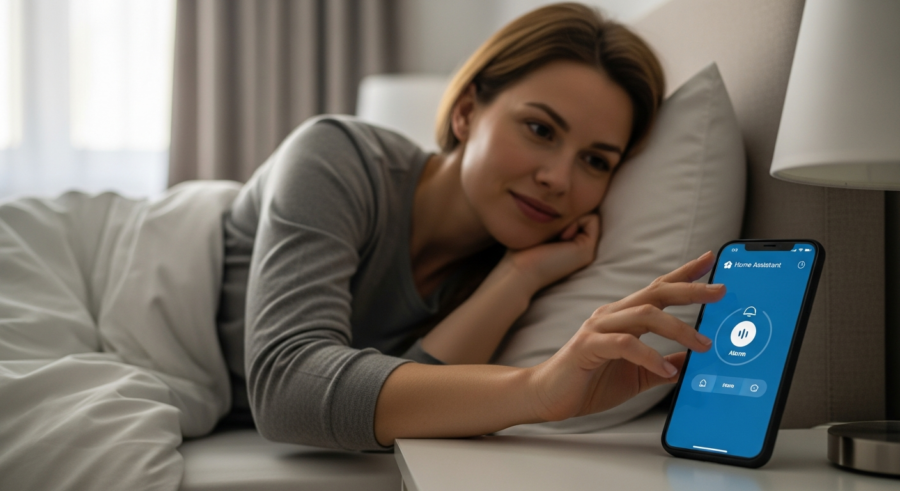
Creating a smart home isn’t just about convenience, it’s about crafting an environment that caters to your specific needs and preferences. Imagine waking up each morning feeling refreshed and energized, not jolted awake by a jarring alarm sound.
With Home Assistant, you can transform your ordinary alarm clock into a sophisticated, personalized wake-up experience. This article will guide you through the process of setting up a Home Assistant Alarm Clock Automation that gently eases you into the day, incorporating wake-up lights, gradually increasing sound, and even integrating weather information.
By the end, you’ll have a smart alarm system that not only wakes you up on time but also enhances your overall well-being. Ditch the traditional alarm and embrace a smarter, more pleasant start to your day with Home Assistant.
Setting Up a Smart Alarm in Home Assistant
The first step in creating your personalized wake-up experience is to set up a basic alarm within Home Assistant. This involves defining the time you want to wake up and creating an automation that triggers at that time.
You can use the built-in “Time” trigger to specify the exact wake-up time, or use the “Sun” trigger to wake up at sunrise or a specific time before sunrise. Using the “Sun” trigger can be especially beneficial as it naturally aligns with your body’s circadian rhythm, promoting a more natural and less disruptive wake-up.
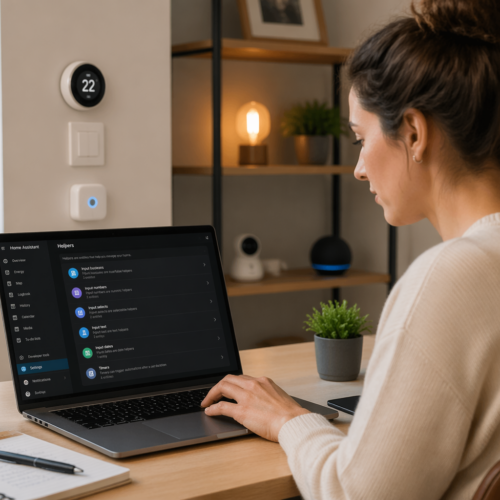
To get started, navigate to the “Automations” section in your Home Assistant configuration. Click on the “+” button to create a new automation, and give it a descriptive name like “Weekday Alarm”.
Select the appropriate trigger, either “Time” or “Sun”, and configure the desired wake-up time or offset from sunrise. You’ll also want to add a condition to ensure the alarm only triggers on weekdays, using the “Weekday” condition.
The “Time” trigger is straightforward; simply enter the desired hour and minute for your alarm. The “Sun” trigger offers more flexibility, allowing you to wake up at sunrise, sunset, or a specific offset before or after either event.
Consider using the “Offset” option with the “Sun” trigger to fine-tune your wake-up time based on the season. For example, you might want to wake up 30 minutes before sunrise in the winter and only 15 minutes before sunrise in the summer.
The “Weekday” condition is crucial to prevent your alarm from triggering on weekends when you might want to sleep in. Select the days of the week you want the alarm to be active, typically Monday through Friday.
You can also add multiple conditions to further refine your alarm’s behavior. For instance, you could add a condition that checks if you’re on vacation and disables the alarm if you are.
Remember to save your automation after configuring the trigger and conditions. You can then test the automation by manually triggering it to ensure it’s working as expected.
Integrating with Wake-Up Lights
One of the most effective ways to create a gentle wake-up experience is to integrate your alarm with smart lights that gradually increase in brightness. This simulates the natural sunrise, signaling to your body that it’s time to wake up.
Home Assistant seamlessly integrates with a variety of smart lighting systems, including Philips Hue, LIFX, and IKEA Trådfri. Before setting up the automation, ensure your smart lights are properly configured and accessible within Home Assistant.
Once your lights are set up, you can add an action to your alarm automation that gradually increases the brightness of your chosen lights over a specified period. For example, you can set the lights to start at 1% brightness 30 minutes before your desired wake-up time and gradually increase to 100% by the time the alarm is set to go off.
This gradual increase in light helps to suppress melatonin production, making you feel more alert and awake. Experiment with different durations and brightness levels to find what works best for you.
To ensure your smart lights are properly integrated with Home Assistant, you may need to install the appropriate integration for your specific brand. This usually involves providing your account credentials or linking your smart home hub to Home Assistant.
Once the integration is set up, your smart lights will appear as entities in Home Assistant, allowing you to control them through automations and scripts. You can then use the “Light: Turn on” service to control the brightness and color of your lights.
When creating the action to gradually increase the brightness, consider using a “Transition” time to create a smooth and natural fade-in effect. This will prevent the lights from suddenly jumping to a higher brightness level, which can be jarring.
You can also use the “Brightness Step” parameter to control the rate at which the brightness increases. A smaller step size will result in a slower and more gradual increase.
Experiment with different combinations of duration, brightness levels, and transition times to find the perfect wake-up light settings for your personal preferences. Don’t be afraid to adjust the settings over time as you fine-tune your wake-up routine.
Configuring Light Brightness and Color
Beyond simply increasing brightness, you can also adjust the color temperature of your smart lights to further enhance the wake-up experience. Warmer, more orange-toned light is generally more relaxing, while cooler, blue-toned light is more energizing.
Start with a warm color temperature in the initial stages of the wake-up process and gradually shift to a cooler temperature as the alarm time approaches. This mimics the changing color of natural sunlight throughout the morning.
| Time (minutes before alarm) | Brightness (%) | Color Temperature (Kelvin) |
|---|---|---|
| 30 | 1 | 2700 (Warm White) |
| 20 | 25 | 3000 (Soft White) |
| 10 | 50 | 3500 (Neutral White) |
| 0 | 100 | 4000 (Cool White) |
You can configure these color temperature changes within your Home Assistant automation using the “Light: Turn on” service and adjusting the “color_temp” parameter. Experiment with different color temperatures to find what feels most natural and energizing for you.
The color temperature is measured in Kelvin (K). Lower Kelvin values indicate warmer colors, while higher Kelvin values indicate cooler colors. A typical warm white light has a color temperature of around 2700K, while a cool white light has a color temperature of around 4000K.
You can also use the “xy_color” parameter to specify the color of your lights using CIE color coordinates. This allows for more precise color control, but it can be more complex to configure.
Consider using a gradual transition between color temperatures to avoid sudden shifts that can be jarring. You can achieve this by using the “Transition” parameter in the “Light: Turn on” service.
Experiment with different color temperature combinations to find what works best for you. Some people prefer to start with a very warm color temperature and gradually shift to a cooler temperature, while others prefer a more subtle transition.
Remember to take into account the ambient lighting in your room when choosing your color temperature settings. If your room is already brightly lit, you may not need to use a very cool color temperature to feel energized.
Gradually Increasing Light and Sound
While wake-up lights are great, adding sound can help. Combining light and sound provides a multi-sensory wake-up experience that is more effective.
Instead of a sudden, jarring alarm sound, consider using a gentle, gradually increasing sound, such as nature sounds or calming music. Home Assistant can control various media players, including Sonos, Google Home, and even your smartphone, allowing you to integrate them into your alarm automation.
To implement this, add an action to your automation that starts playing your chosen sound at a low volume a few minutes after the lights begin to brighten. Gradually increase the volume over time, reaching a comfortable level by the time the alarm is set to go off.
You can use the “Media Player: Volume Set” service to control the volume of your chosen media player. Experiment with different sounds and volume levels to find what works best for you.
Ensure your chosen media player is properly integrated with Home Assistant. This may involve installing the appropriate integration and providing your account credentials.
Once the media player is integrated, you can use the “Media Player: Play Media” service to start playing your chosen sound. You’ll need to specify the media content ID, which will vary depending on the media player.
To gradually increase the volume, you can use a series of actions that each set the volume to a slightly higher level. You can use the “Delay” action to create a pause between each volume increase.
Consider using a “Fade In” effect to create a smoother volume increase. This can be achieved by gradually increasing the volume over a longer period of time.
Experiment with different sounds, volume levels, and fade-in effects to find the perfect combination for your personal preferences. You can also use different sounds for different days of the week or for different seasons.
Selecting the Right Sounds
The type of sound you choose for your alarm can significantly impact your wake-up experience. Avoid harsh, jarring sounds that can trigger stress and anxiety.
Opt for gentle, natural sounds like birds chirping, rain falling, or ocean waves. Calming music, such as classical or ambient music, can also be effective.
Consider creating a playlist of your favorite wake-up sounds and configuring your automation to shuffle the playlist each morning. This prevents you from becoming desensitized to a single sound and keeps the wake-up experience fresh and enjoyable.
Experiment with different sounds and playlists to find what resonates with you. What sounds relaxing to one person can be irritating to another, so personalization is key.
Think about the sounds you find most relaxing and comforting. These are likely to be good choices for your wake-up alarm.
Avoid using sounds that are associated with negative experiences or emotions. For example, if you dislike the sound of a particular instrument, avoid using it in your wake-up alarm.
Consider using binaural beats or isochronic tones, which are believed to promote relaxation and improve sleep quality. These sounds can be easily found online.
Experiment with different soundscapes to create a more immersive wake-up experience. For example, you could combine the sound of rain with the sound of a crackling fireplace.
Remember to adjust the volume of your wake-up sounds to a comfortable level. The goal is to gently ease you into wakefulness, not to jolt you awake.
Creating a Personalized Wake-Up Experience
The beauty of Home Assistant is its ability to create highly personalized experiences. Tailor your smart alarm to your specific needs and preferences.
Consider factors like your sleep schedule, preferred sounds and lighting, and even your mood when designing your wake-up routine. For example, you could create different alarm profiles for weekdays and weekends, or even for different seasons.
You can use input booleans in Home Assistant to create options in the user interface to quickly change the wake-up routine. This allows you to easily switch between different alarm profiles based on your needs.
You can also integrate other smart home devices into your wake-up routine, such as automatically starting your coffee maker or turning on your bathroom lights. The possibilities are endless.
Think about what you enjoy doing in the morning and try to incorporate those activities into your wake-up routine. This can help you start your day feeling more positive and motivated.
Consider using a smart mirror to display information such as the weather forecast, your calendar appointments, and your to-do list. This can help you get organized and prepared for the day ahead.
You can also use a smart speaker to play your favorite news podcast or audiobook as part of your wake-up routine. This can help you stay informed and entertained while you get ready for the day.
Experiment with different combinations of lights, sounds, and smart home devices to create a wake-up routine that is truly unique to you. Don’t be afraid to try new things and adjust your routine as needed.
Remember to be patient and persistent. It may take some time to find the perfect wake-up routine for your needs. However, the effort is well worth it, as a personalized wake-up routine can significantly improve your overall well-being.
Integrating with Weather Information
Take your smart alarm to the next level by integrating weather information. This adds a practical and informative element to your wake-up routine.
Home Assistant can access weather data from various sources, such as AccuWeather, OpenWeatherMap, and even your local weather station. You can use this data to customize your alarm based on the day’s forecast.
For example, you could configure your alarm to play a different sound if it’s raining or snowing, or to adjust the brightness of your wake-up lights based on the cloud cover. You can even have Home Assistant read out the day’s weather forecast as part of your wake-up routine.
To do this, you’ll need to set up a weather integration in Home Assistant and then use the weather entity’s attributes in your alarm automation. You can use the “Template” action to create a custom message that includes the weather forecast and then use the “Text-to-Speech” service to have Home Assistant read out the message.
Setting up a weather integration typically involves providing your location and API key (if required by the weather service). Once the integration is set up, you’ll have access to various weather entities, such as temperature, humidity, wind speed, and precipitation.
You can use these entities in your automations to create conditional actions based on the weather conditions. For example, you could use an “If…Then…” condition to check if the temperature is below freezing and then trigger a different set of actions if it is.
When creating the custom message for the Text-to-Speech service, you can use template variables to insert the weather information into the message. For example, you could use the following template to create a message that includes the current temperature and weather condition: “The current temperature is {{ states(‘weather.home’).attributes.temperature }} degrees and the weather condition is {{ states(‘weather.home’).attributes.forecast[0].condition }}.”
You can also use the weather information to adjust the timing of your alarm. For example, you could configure your alarm to wake you up earlier if there is a chance of snow, giving you more time to clear your driveway before heading to work.
Integrating weather information into your smart alarm can make your wake-up routine more practical and informative, helping you start your day feeling prepared for whatever the weather may bring.
Configuring Weather-Based Actions
Consider these weather-based actions for your smart alarm: If it’s raining, play a gentle rain sound and keep the lights dimmer. If it’s sunny, play a more upbeat song and increase the light brightness.
If there’s a severe weather alert, have Home Assistant read out the alert message in addition to the regular weather forecast. This adds an extra layer of safety and awareness to your wake-up routine.
For rainy days, you might also consider adjusting the color temperature of your wake-up lights to a warmer tone. This can help to create a more cozy and relaxing atmosphere.
For sunny days, you could increase the brightness of your wake-up lights more quickly to simulate the natural sunrise. This can help you feel more energized and alert.
If there’s a chance of snow or ice, you could have Home Assistant remind you to scrape your windshield or allow extra travel time. This can help you avoid being late for work or other appointments.
You can also use the weather information to adjust the temperature of your smart thermostat. For example, you could have Home Assistant preheat your home on cold days or precool it on hot days.
If there’s a thunderstorm warning, you could have Home Assistant turn off your sensitive electronic devices to protect them from power surges. This can help to prevent damage to your valuable equipment.
By carefully considering the weather conditions and configuring appropriate actions, you can create a smart alarm that is both informative and helpful, making your mornings more pleasant and productive.
Snooze and Dismissal Options
No alarm system is complete without snooze and dismissal options. Home Assistant provides several ways to implement these features in your smart alarm.
You can create a “Snooze” button in your Home Assistant dashboard that triggers a script to delay the alarm for a set period, such as 10 minutes. You can also use a smart button or voice command to snooze the alarm.
- Create a “Snooze” button in your dashboard
- Use a smart button for quick snoozing
- Implement voice command snoozing
- Add a “Dismiss” button to completely stop the alarm
- Use a conditional action to prevent the alarm from triggering again that day
For dismissal, you can create a “Dismiss” button that stops the alarm and prevents it from triggering again that day. Implement a conditional action in your automation that checks if the alarm has been dismissed before triggering.
To create a “Snooze” button in your dashboard, you’ll need to create a script that delays the alarm. The script should include a “Delay” action that pauses the automation for the desired snooze duration.
You can then add a button to your dashboard that calls this script when pressed. This will allow you to quickly snooze the alarm without having to manually adjust the automation.
Using a smart button for snoozing can be even more convenient. You can configure a smart button to trigger the same script that delays the alarm. This allows you to snooze the alarm with a single press of a button, without having to reach for your phone or tablet.
Implementing voice command snoozing is another great option. You can use Home Assistant’s voice assistant to trigger the snooze script with a simple voice command, such as “Hey Google, snooze the alarm.”
For dismissal, you’ll need to create a script that stops the alarm and prevents it from triggering again that day. This can be achieved by using a conditional action that checks if the alarm has been dismissed. If it has, the automation should not trigger.
Advanced Snooze Control
For a more advanced snooze experience, consider implementing a “smart snooze” feature that gradually decreases the snooze duration each time you snooze. For example, the first snooze could be for 10 minutes, the second for 7 minutes, and the third for 5 minutes.
This encourages you to get out of bed instead of repeatedly hitting the snooze button. You can achieve this using variables and conditional actions within your Home Assistant automation.
You can also explore using presence detection to automatically dismiss the alarm when you get out of bed. This requires setting up presence detection in Home Assistant using a device tracker, such as your smartphone or a Bluetooth beacon.
Once presence is detected away from the bed, the alarm dismisses itself. This creates a truly seamless and automated wake-up experience.
To implement the “smart snooze” feature, you’ll need to create a variable that stores the current snooze duration. The initial value of the variable should be the maximum snooze duration, such as 10 minutes.
Each time the snooze button is pressed, the script should decrease the value of the variable by a set amount, such as 3 minutes. The script should then use this variable as the delay duration for the “Delay” action.
You can also add a condition to the script that checks if the snooze duration has reached a minimum value, such as 5 minutes. If it has, the script should not decrease the duration any further.
Using presence detection to automatically dismiss the alarm requires setting up a device tracker in Home Assistant. This can be done using your smartphone’s GPS or Bluetooth, or by using a Bluetooth beacon placed near your bed.
Once the device tracker is set up, you can add a condition to your alarm automation that checks if your presence is detected away from your bed. If it is, the automation should stop the alarm and prevent it from triggering again that day.
Conclusion
Creating a smart alarm with Home Assistant is a rewarding project that can significantly improve your mornings. By integrating wake-up lights, gradually increasing sound, weather information, and customizable snooze options, you can create a personalized wake-up experience.
This tailored routine caters to your specific needs and preferences. Say goodbye to jarring alarms and hello to a gentler, more refreshing start to your day with Home Assistant.
The possibilities for customization are truly endless, allowing you to create a wake-up routine that is perfectly tailored to your individual needs and preferences. Don’t be afraid to experiment and try new things until you find what works best for you.
By taking the time to create a smart alarm with Home Assistant, you can invest in your well-being and start each day feeling refreshed, energized, and ready to take on the world.
So, ditch the traditional alarm clock and embrace the power of Home Assistant to create a smarter, more pleasant, and more personalized wake-up experience. Your mornings will thank you for it!