Smart home automation offers numerous benefits, from enhancing convenience to improving security. One of the most impactful advantages is the potential for significant energy savings. By implementing Home Assistant Power Monitoring Automation, you can gain detailed insights into your energy consumption and create automations that optimize your usage, leading to lower electricity bills and a reduced carbon footprint.
This article will guide you through setting up energy monitoring with smart plugs, integrating that data into Home Assistant, and creating automations based on power consumption. You’ll learn how to identify energy hogs, receive alerts for high power usage, and even automate device shutdown during peak hours, all contributing to a more efficient and sustainable home.
Ready to take control of your energy usage? Let’s explore how to leverage energy monitoring with Home Assistant to create a truly smart and energy-conscious home, saving you money and helping the environment.
Setting Up Power Monitoring with Smart Plugs
The foundation of any effective Home Assistant Power Monitoring Automation system is accurate and reliable data. This starts with choosing the right smart plugs that offer power monitoring capabilities.
Many smart plugs on the market provide real-time power consumption data, allowing you to track how much electricity your devices are using. When selecting smart plugs, look for models that are compatible with Home Assistant and known for their accuracy in energy monitoring.
Popular options include those from TP-Link Kasa, Sonoff, and Shelly, all of which offer integrations with Home Assistant. These plugs typically connect to your Wi-Fi network and report their power consumption data through their respective apps, which can then be accessed by Home Assistant.
Once you’ve chosen your smart plugs, the next step is to install them in strategic locations throughout your home. Identify appliances and devices that are known to be energy-intensive or that you suspect might be consuming more power than necessary; good candidates include refrigerators, entertainment systems, and space heaters.
Consider the placement of your smart plugs carefully. Ideally, you want to monitor devices that have a significant impact on your energy bill. Think about appliances that run for extended periods, such as your refrigerator or washing machine.
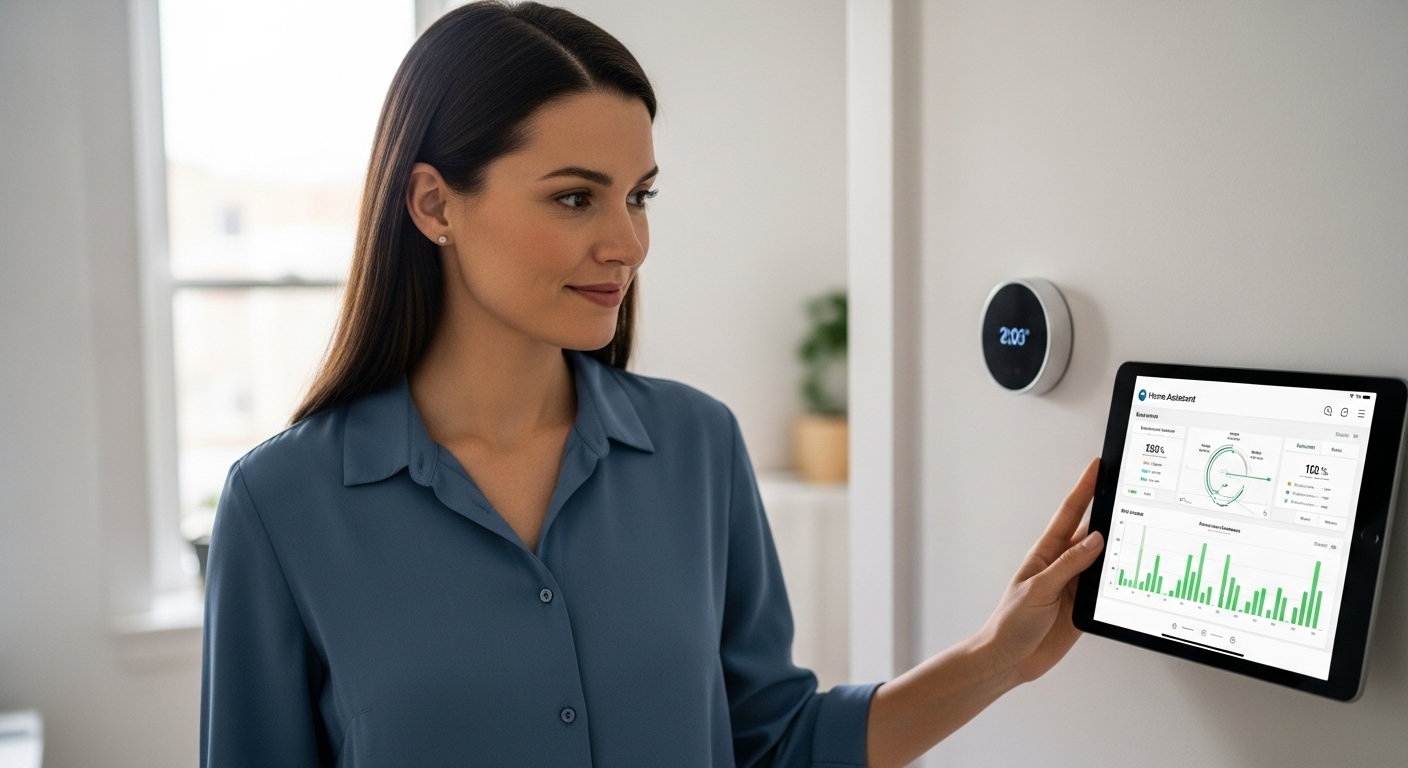
Also, consider devices that might be consuming power even when they are turned off, like TVs or computers. These “phantom loads” can contribute significantly to your overall energy consumption. Installing a smart plug on these devices allows you to track and potentially eliminate this wasted energy.
When installing the smart plugs, make sure they are securely plugged into the wall outlet and that the devices you are monitoring are properly connected to the smart plugs. A loose connection could lead to inaccurate data or even pose a safety hazard.
Before proceeding, test each smart plug to ensure it is functioning correctly and reporting power consumption data. Use the manufacturer’s app to verify the power readings and confirm that the plug is responsive to on/off commands.
Integrating Power Data into Home Assistant
With your smart plugs installed and collecting power data, it’s time to bring that information into Home Assistant. This is where the real magic of Home Assistant Power Monitoring Automation begins.
Home Assistant’s strength lies in its ability to integrate with a wide variety of devices and services, creating a unified control system for your smart home. To integrate your smart plugs, you’ll need to install the appropriate integration for your chosen brand.
For TP-Link Kasa plugs, you can use the built-in Kasa integration. For Sonoff devices, you might need to flash them with Tasmota firmware and then use the MQTT integration. Shelly devices typically have their own dedicated integration as well.
Once the integration is installed and configured, Home Assistant will automatically discover your smart plugs and create entities for them. These entities will include various attributes, such as the current power consumption (in watts), voltage, and current.
The integration process usually involves providing Home Assistant with the necessary credentials to access your smart plug accounts. This might include your username, password, or API key, depending on the integration.
Once Home Assistant has successfully connected to your smart plugs, it will automatically create entities for each plug. These entities will represent the various aspects of the plug, such as its on/off state, power consumption, and energy usage.
You can then customize the names and icons of these entities to make them easier to identify in Home Assistant. This will help you keep track of which plug is connected to which device and make it easier to create automations based on their power consumption.
It’s essential to ensure that the power consumption data is being reported accurately by the smart plugs. Compare the readings in Home Assistant with the readings in the manufacturer’s app to verify that they are consistent.
Understanding Home Assistant Entities
Home Assistant uses the concept of “entities” to represent devices, sensors, and other elements in your smart home. Each smart plug you add will appear as one or more entities in Home Assistant.
For example, a TP-Link Kasa smart plug might have one entity for the plug itself (to control on/off state) and another entity for its power consumption. The power consumption entity will provide the data you need for your energy monitoring automations.
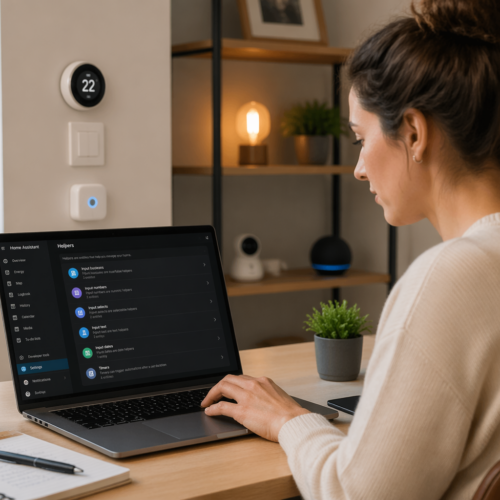
You can access and visualize these entities in the Home Assistant user interface. The “Entities” card in Lovelace allows you to see the current state and attributes of each entity, including the power consumption of your smart plugs.
Understanding how entities work is crucial for creating effective automations. You’ll use the entity IDs and attributes to trigger automations based on specific power consumption levels.
Each entity has a unique ID, which is used to identify it within Home Assistant. This ID is typically in the format `domain.entityname`, where `domain` is the type of device or service (e.g., `switch`, `sensor`) and `entityname` is a unique name you assign to the entity.
Entities also have attributes, which are additional pieces of information about the entity. For example, a smart plug entity might have attributes for its current power consumption, voltage, and current.
You can use these attributes in your automations to trigger actions based on specific conditions. For example, you could create an automation that turns off a smart plug if its power consumption exceeds a certain threshold.
It’s important to understand the different types of entities and their attributes to effectively use Home Assistant for power monitoring and automation. Experiment with different entities and attributes to see how they can be used to create powerful automations.
Creating Automations Based on Power Consumption
Now that you have power data flowing into Home Assistant, the exciting part begins: creating automations. Home Assistant Power Monitoring Automation allows you to react intelligently to changes in power consumption, optimizing your energy usage and saving you money.
Home Assistant’s automation engine is incredibly flexible, allowing you to create rules that trigger based on various conditions, including power consumption levels. You can define triggers, conditions, and actions to create sophisticated automations that respond to your specific needs.
| Automation Goal | Trigger | Condition | Action |
|---|---|---|---|
| Turn off a lamp when nobody is home | Power consumption drops below 5W | Person entity is ‘not_home’ | Turn off the lamp |
| Send a notification if the washing machine is left on overnight | Power consumption above 5W for 2 hours | Time is between 10 PM and 6 AM | Send a notification |
| Turn off a space heater if the room temperature is too high | Power consumption above 100W | Room temperature is above 75°F | Turn off the space heater |
| Reduce the brightness of smart bulbs when the TV is on | TV power consumption above 20W | N/A | Dim the smart bulbs to 20% |
These are just a few examples to illustrate the possibilities. The key is to identify opportunities to automate based on power consumption patterns in your home.
Experiment with different triggers and conditions to find the automations that work best for your lifestyle. With energy monitoring, you can create a truly intelligent and energy-efficient home.
When creating automations, it’s important to consider the specific needs and usage patterns of each device. For example, you might want to create a different automation for your refrigerator than you would for your TV.
It’s also important to test your automations thoroughly to ensure that they are working as expected. You can use the “Trace” feature in Home Assistant to see exactly what is happening during an automation and identify any potential problems.
Don’t be afraid to experiment and try new things. The more you learn about Home Assistant’s automation engine, the more powerful and effective your automations will become.
Identifying Energy Hogs
One of the most immediate benefits of Home Assistant Power Monitoring Automation is the ability to identify energy hogs in your home. By tracking the power consumption of individual devices, you can pinpoint those that are consuming excessive energy, even when they’re not actively being used.
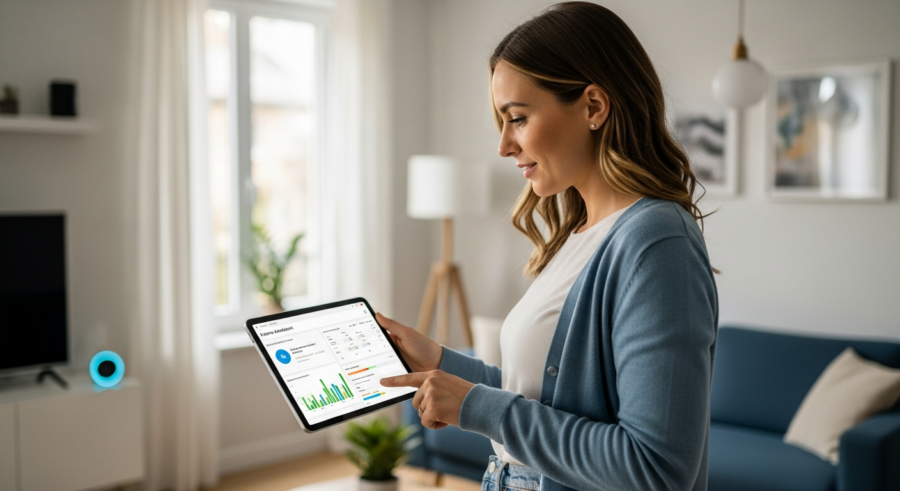
Start by creating a dashboard in Home Assistant that displays the real-time power consumption of all your smart plugs. This will give you a quick overview of which devices are using the most energy at any given time.
Pay close attention to devices that continue to draw power even when they’re supposedly “off.” Many electronics, such as TVs, computers, and game consoles, consume standby power, also known as “phantom load” or “vampire power.”
These small amounts of power can add up over time, costing you money and wasting energy. Once you’ve identified these energy hogs, you can take steps to reduce their consumption.
Use the history graph feature in Home Assistant to visualize the power consumption of each device over time. This can help you identify patterns of high energy usage and pinpoint the times when devices are consuming the most power.
Create a spreadsheet or table to track the energy consumption of each device over a period of time, such as a week or a month. This will give you a more detailed view of your energy usage and help you identify the devices that are consistently consuming the most power.
Consider using a dedicated energy monitoring tool or service to get even more detailed insights into your energy consumption. These tools can provide you with detailed reports and analysis of your energy usage, helping you identify areas where you can save energy and money.
Don’t forget to factor in the age and efficiency of your appliances. Older appliances are often less energy-efficient than newer models, so replacing them with newer, more energy-efficient appliances can save you a significant amount of money over time.
Reducing Standby Power Consumption
Reducing standby power consumption is a simple but effective way to save energy and lower your electricity bill. There are several strategies you can use to minimize the phantom load of your electronics.
The most straightforward approach is to simply unplug devices when they’re not in use. This eliminates standby power consumption entirely, but it can be inconvenient for devices you use frequently.
A more practical solution is to use smart power strips with master control. These power strips have one “master” outlet that controls the other outlets. When the device plugged into the master outlet is turned off, the other outlets are automatically switched off as well, cutting off power to any connected devices.
Another option is to use Home Assistant automations to automatically turn off smart plugs when devices have been idle for a certain period of time. For example, you could create an automation that turns off the smart plug connected to your TV after it hasn’t been used for an hour.
Check the power settings on your electronic devices and enable any power-saving features that are available. Many devices have settings that allow you to reduce their power consumption when they are idle.
Consider using a power meter to measure the standby power consumption of your devices. This will give you a more accurate idea of how much energy they are consuming when they are turned off.
Be mindful of devices that are always on, such as modems and routers. These devices can consume a significant amount of power over time, so consider turning them off when you are not using them.
Educate your family members about the importance of reducing standby power consumption. Encourage them to unplug devices when they are not in use and to be mindful of their energy usage.
Setting Up Alerts for High Power Usage
In addition to identifying energy hogs, Home Assistant Power Monitoring Automation can also be used to set up alerts for high power usage. This can help you identify potential problems with your appliances or devices, such as malfunctioning components or inefficient operation.
You can create automations that trigger when a device exceeds a certain power consumption threshold. For example, if your refrigerator starts drawing significantly more power than usual, it could indicate a problem with the compressor or other components.
- Set a power threshold for each device
- Use a template sensor to calculate total house power usage
- Configure notifications via email or mobile app
- Include the device name and power consumption in the alert
- Review alerts regularly and investigate anomalies
By setting up power usage alerts, you can proactively address potential issues before they lead to more significant problems or higher energy bills. This can save you money on repairs and prevent energy waste.
Consider setting up alerts for your most energy-intensive appliances, such as refrigerators, washing machines, and dryers. This will give you early warning of any potential issues and allow you to take corrective action promptly.
When setting up alerts, consider the typical power consumption of each device and set the threshold accordingly. You don’t want to set the threshold too low, as this will result in frequent false alarms.
Make sure to configure the notification settings so that you receive alerts in a timely manner. You can choose to receive alerts via email, SMS, or push notification to your mobile device.
When you receive an alert, investigate the cause of the high power usage as soon as possible. This could be a sign of a serious problem with the device, so it’s important to take action quickly.
Automating Device Shutdown During Peak Hours
Another powerful application of Home Assistant Power Monitoring Automation is automating device shutdown during peak hours. Many utility companies charge higher rates for electricity during periods of high demand, typically in the late afternoon and early evening.
By automating the shutdown of non-essential devices during these peak hours, you can significantly reduce your electricity bill. This requires knowing when your utility company’s peak hours occur and setting up automations to respond accordingly.
You can create automations that turn off smart plugs connected to devices like lamps, entertainment systems, and electric vehicle chargers during peak hours. To avoid disrupting essential activities, you can set conditions that only turn off devices if nobody is home or if the power consumption exceeds a certain threshold.
This type of power usage automation can be particularly effective if you have a smart thermostat. You can configure Home Assistant to automatically adjust the thermostat temperature during peak hours to reduce your cooling or heating load.
Check your electricity bill or contact your utility company to find out when peak hours occur in your area. This information is essential for setting up your automations correctly.
Consider using a calendar integration in Home Assistant to automatically adjust your automations based on the day of the week or the time of year. This can help you optimize your energy usage throughout the year.
Be sure to test your automations thoroughly to ensure that they are working as expected and that they are not disrupting essential activities. You can use the “Trace” feature in Home Assistant to see exactly what is happening during an automation.
Communicate with your family members about your plans to automate device shutdown during peak hours. This will help them understand why certain devices are being turned off and prevent any confusion or frustration.
Integrating with Energy Providers
Taking your Home Assistant Power Monitoring Automation to the next level involves integrating with your energy provider. Some energy companies offer APIs or integrations that allow you to access your real-time energy usage data and even receive alerts about peak demand periods.
By integrating with your energy provider, you can create even more sophisticated automations that respond to real-time grid conditions. For example, you could create an automation that automatically reduces your home’s power consumption when the grid is under stress, helping to prevent blackouts.
Some energy providers also offer time-of-use rates, which vary depending on the time of day. By integrating with your energy provider, you can optimize your energy usage to take advantage of these lower rates.
Check with your energy provider to see if they offer any APIs or integrations that you can use with Home Assistant. This can unlock even greater potential for energy savings and grid stabilization.
The integration process will vary depending on your energy provider. Some providers may offer a simple API that you can access with a few lines of code, while others may require you to use a more complex integration.
Be sure to follow your energy provider’s guidelines and security best practices when integrating with their systems. This will help protect your data and prevent any unauthorized access.
Once you have successfully integrated with your energy provider, you can use their data to create even more powerful and effective automations. This can help you save even more money on your electricity bill and contribute to a more sustainable future.
Consider sharing your experiences and insights with other Home Assistant users. This can help them learn from your successes and avoid any potential pitfalls.
Conclusion
Implementing Home Assistant Power Monitoring Automation is a powerful way to take control of your energy usage and save money on your electricity bill. By using smart plugs, integrating power data into Home Assistant, and creating intelligent automations, you can optimize your energy consumption and reduce your carbon footprint.
From identifying energy hogs to setting up alerts for high power usage and automating device shutdown during peak hours, the possibilities are endless. Start small, experiment with different automations, and gradually expand your system to cover more devices and appliances in your home.
With a little effort, you can transform your home into an energy-efficient smart home that saves you money and helps protect the environment. Embrace the power of energy monitoring and unlock the full potential of Home Assistant for a more sustainable future.
Remember to regularly review and update your automations to ensure that they are still working effectively and that they are meeting your current needs. As your energy usage patterns change, you may need to adjust your automations accordingly.
Stay up-to-date on the latest developments in smart home technology and energy efficiency. New devices and technologies are constantly being developed, so there are always new opportunities to improve your energy efficiency and save money.
Share your knowledge and experiences with others. By sharing your insights and best practices, you can help others create their own energy-efficient smart homes and contribute to a more sustainable future for all.