

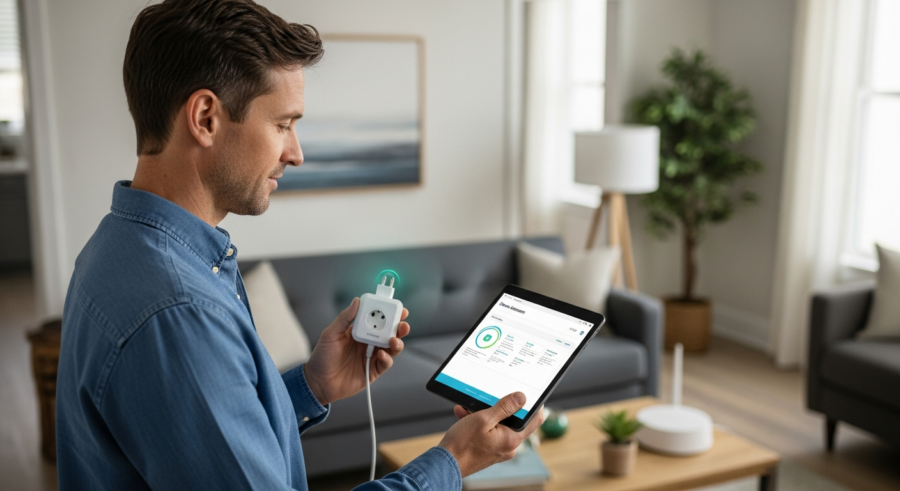
Smart home automation is becoming increasingly popular, offering convenience and efficiency in managing your home. Home Assistant stands out as a powerful, open-source platform that puts you in control of your smart home, locally. One of the key technologies that integrates seamlessly with Home Assistant is Z-Wave, a wireless communication protocol designed specifically for home automation.
This guide will walk you through the process of setting up Z-Wave devices in Home Assistant, ensuring a smooth and successful integration. By the end of this article, you’ll be able to configure Z-Wave Home Assistant and start automating your home with confidence.
We’ll cover everything from choosing the right Z-Wave USB stick to troubleshooting common connectivity issues. Let’s dive into the world of Z-Wave and Home Assistant to unlock the full potential of your smart home.
Understanding Z-Wave and Its Benefits
Z-Wave is a wireless communication protocol used primarily for home automation. It operates on a different frequency than Wi-Fi, which reduces interference and ensures reliable communication between devices.
Unlike Wi-Fi, Z-Wave creates a mesh network where devices can communicate with each other to extend the range of the network. This means that each Z-Wave device can act as a repeater, relaying signals to other devices and ensuring comprehensive coverage throughout your home.
One of the main benefits of Z-Wave is its low power consumption, which allows battery-powered devices to last much longer. This is especially important for sensors and other devices that need to operate for extended periods without frequent battery replacements.
Z-Wave also offers enhanced security features, including encryption, to protect your smart home network from unauthorized access. This ensures that your devices and data remain secure, providing peace of mind as you automate your home.
Delving deeper into the advantages of Z-Wave reveals its robust interoperability. Devices from different manufacturers can communicate seamlessly within the same network.

This interoperability is a significant advantage over some proprietary smart home systems. You are not locked into a single brand or ecosystem.
Another notable benefit is the dedicated frequency used by Z-Wave, which minimizes interference with other wireless devices. This ensures a more stable and reliable connection compared to devices that share the crowded Wi-Fi spectrum.
The mesh network architecture of Z-Wave also contributes to its reliability. If one device fails, the network can automatically reroute signals through other devices, maintaining connectivity.
Furthermore, Z-Wave devices are designed to be easy to install and configure. Most devices can be added to the network with just a few simple steps.
This ease of use makes Z-Wave an accessible option for both beginners and experienced smart home enthusiasts. The technology continues to evolve with newer generations offering improved range, security, and power efficiency.
Security is paramount in today’s connected world, and Z-Wave addresses this concern with its S2 security framework. This framework provides advanced encryption and authentication, safeguarding your smart home from potential threats.
Choosing Z-Wave empowers you to create a secure and reliable smart home environment. You gain control over your devices and data, knowing that your privacy is protected.
Choosing a Z-Wave USB Stick
To integrate Z-Wave devices with Home Assistant, you’ll need a Z-Wave USB stick. This stick acts as the central hub for your Z-Wave network, allowing Home Assistant to communicate with your devices.
There are several Z-Wave USB sticks available on the market, each with its own features and capabilities. Some popular options include the Aeotec Z-Stick Gen5, the Zooz ZST10 700 Series Z-Wave Plus USB Stick, and the HUSBZB-1.
When choosing a Z-Wave USB stick, consider the range, compatibility, and features offered by each device. The Aeotec Z-Stick Gen5 is known for its ease of use and compatibility with a wide range of devices.
The Zooz ZST10 700 Series offers improved range and faster communication speeds, thanks to its 700 series Z-Wave chip. The HUSBZB-1 is a dual-protocol stick that supports both Z-Wave and Zigbee, making it a versatile option for users with devices using both protocols.
When selecting a Z-Wave USB stick, it’s crucial to consider the number of devices you plan to connect to your network. Some sticks have limitations on the number of devices they can support, so choose one that can accommodate your needs.
Also, think about the physical location of your Home Assistant server and the range of your Z-Wave devices. If your devices are spread out over a large area, you’ll need a stick with a longer range or consider adding Z-Wave repeaters to extend the network.
The Aeotec Z-Stick Gen5 is a solid choice for beginners due to its simplicity and broad compatibility. It’s a reliable option for smaller to medium-sized homes with a reasonable number of Z-Wave devices.
For users with larger homes or a greater number of devices, the Zooz ZST10 700 Series is an excellent upgrade. Its 700 series chip offers significantly improved range and faster communication, resulting in a more responsive network.
The HUSBZB-1 is a unique option for those who have both Z-Wave and Zigbee devices. This dual-protocol stick eliminates the need for separate USB sticks, simplifying your setup and reducing clutter.
Before making a purchase, check the compatibility of the USB stick with your Home Assistant setup. Some sticks may require specific drivers or configurations to work properly.
Reading reviews and comparing specifications can help you make an informed decision. Consider the long-term needs of your smart home and choose a Z-Wave USB stick that can grow with you.
Finally, ensure that the USB stick you choose supports the latest Z-Wave security protocols. This will help protect your network from potential vulnerabilities and ensure the privacy of your data.
Installing the Z-Wave JS UI Add-on
The Z-Wave JS UI add-on is a crucial component for integrating Z-Wave devices into Home Assistant. It provides a user-friendly interface for managing your Z-Wave network and devices.
To install the Z-Wave JS UI add-on, navigate to the Home Assistant Supervisor panel and select the “Add-on Store”. Search for “Z-Wave JS UI” and click on the add-on to open its details page.
| Setting | Description | Example |
|---|---|---|
| Device | The path to your Z-Wave USB stick | /dev/ttyACM0 |
| Network Key | A unique key for your Z-Wave network | 01020304050607080910111213141516 |
| MQTT Enable | Enable MQTT for external access | True/False |
| Disable Legacy API | Disable the legacy Z-Wave API | True/False |
Before installing, configure the add-on by entering the device path for your Z-Wave USB stick and setting a network key. The device path is typically something like `/dev/ttyACM0`, but it may vary depending on your system.
Before proceeding with the installation, it’s essential to ensure that your Home Assistant instance is up-to-date. Regularly updating Home Assistant ensures that you have the latest features, bug fixes, and security patches.
Once you’ve located the Z-Wave JS UI add-on in the Add-on Store, take a moment to review its documentation. The documentation provides valuable information about the add-on’s features, configuration options, and troubleshooting tips.
Pay close attention to the device path setting, as it’s crucial for Home Assistant to communicate with your Z-Wave USB stick. The correct device path will depend on your operating system and how your USB stick is connected to your system.
The network key is another important setting that should be configured before installing the add-on. The network key is used to encrypt communication between your Z-Wave devices and your Home Assistant instance, protecting your network from unauthorized access.
It’s highly recommended to generate a strong and unique network key using a random password generator. Avoid using easily guessable passwords, as this could compromise the security of your network.
The MQTT Enable option allows you to access your Z-Wave devices from external applications using the MQTT protocol. If you don’t plan to use MQTT, you can leave this option disabled.
The Disable Legacy API option disables the legacy Z-Wave API, which is no longer recommended for use. It’s generally safe to leave this option enabled, as the Z-Wave JS UI add-on uses the newer and more efficient Z-Wave JS API.
After configuring the add-on settings, click the “Install” button to begin the installation process. The installation may take a few minutes, depending on your system’s resources and internet connection.
Once the installation is complete, click the “Start” button to start the Z-Wave JS UI add-on. You can then access the add-on’s web interface by clicking the “Open Web UI” button.
Configuring the Z-Wave JS UI Integration
Once the Z-Wave JS UI add-on is installed and running, you’ll need to configure the Z-Wave JS integration in Home Assistant. This integration allows Home Assistant to communicate with the Z-Wave JS UI add-on and manage your Z-Wave devices.
To configure the integration, go to the Home Assistant Configuration panel and select “Integrations”. Click the “+” button to add a new integration and search for “Z-Wave JS”.
You’ll be prompted to enter the URL of the Z-Wave JS UI add-on, which is typically `ws://localhost:3000`. Make sure the add-on is running before proceeding.
Follow the on-screen instructions to complete the configuration. Once the integration is set up, Home Assistant will start discovering and importing your Z-Wave devices.
Before adding the integration, double-check that the Z-Wave JS UI add-on is indeed running. You can verify this in the Supervisor panel under the “Add-ons” section.
If the add-on is not running, start it and wait for it to initialize completely. The logs of the add-on can provide valuable information about its status and any potential errors.
When entering the URL for the Z-Wave JS UI add-on, ensure that you use the correct protocol and port number. The default URL is `ws://localhost:3000`, but it may vary depending on your configuration.
If you’re running Home Assistant in a Docker container, you may need to use the container’s IP address instead of `localhost`. Consult the Home Assistant documentation for specific instructions on configuring integrations in a Docker environment.
During the integration setup, you may be prompted to enter your Z-Wave network key. This is the same key that you configured in the Z-Wave JS UI add-on settings.
If you’re unsure of your network key, you can find it in the Z-Wave JS UI add-on configuration. Entering the correct network key is crucial for Home Assistant to communicate securely with your Z-Wave devices.
Once the integration is configured, Home Assistant will begin discovering your Z-Wave devices. This process may take some time, depending on the number of devices in your network.
You can monitor the discovery process in the Home Assistant logs. As devices are discovered, they will be automatically added to your Home Assistant instance.
Adding Z-Wave Devices to Your Network
With the Z-Wave JS UI add-on and integration configured, you can now add Z-Wave devices to your network. This process typically involves putting the Z-Wave USB stick into inclusion mode and then following the device’s instructions to pair it with the network.
In the Z-Wave JS UI, click on the “Control Panel” and select “Inclusion”. This will put the Z-Wave USB stick into inclusion mode, allowing it to discover and pair with new devices.
Next, follow the instructions provided with your Z-Wave device to initiate the pairing process. This usually involves pressing a button or combination of buttons on the device.
Once the device is successfully paired, it will appear in the Z-Wave JS UI and Home Assistant. You can then configure and control the device through the Home Assistant interface.
Before initiating the inclusion process, make sure that the device you’re adding is compatible with Z-Wave and Home Assistant. Check the device’s documentation or the Home Assistant community forums for compatibility information.
When putting the Z-Wave USB stick into inclusion mode, choose the appropriate inclusion mode for your device. Some devices may require secure inclusion, which provides enhanced security but may also be more complex to set up.
Follow the device’s instructions carefully when initiating the pairing process. The pairing process can vary depending on the device manufacturer and model.
Some devices may require you to press and hold a button for a specific amount of time, while others may require a series of button presses. Pay close attention to the device’s LED indicators, as they often provide feedback on the pairing process.
If the device fails to pair after several attempts, try excluding it from the network first. Exclusion mode removes the device from the network, which can sometimes resolve pairing issues.
After excluding the device, try pairing it again using the inclusion process. If the device still fails to pair, try moving it closer to the Z-Wave USB stick or another Z-Wave device acting as a repeater.
Once the device is successfully paired, it will appear in the Z-Wave JS UI and Home Assistant. You can then configure the device’s settings, such as its name, location, and parameters.
Take some time to explore the device’s settings and customize them to your liking. This will help you get the most out of your Z-Wave devices and create a truly personalized smart home experience.
Tips for Successful Z-Wave Device Pairing
Pairing Z-Wave devices can sometimes be tricky, but there are a few tips that can help ensure a successful pairing. First, make sure the device is within range of the Z-Wave USB stick or another Z-Wave device acting as a repeater.
If the device is too far away, it may not be able to communicate with the network. Also, be sure to follow the device’s instructions carefully, as the pairing process can vary depending on the manufacturer and model.
Some devices may require you to press and hold a button for a specific amount of time, while others may require a series of button presses. If you’re having trouble pairing a device, try excluding it from the network first before attempting to pair it again.
Exclusion mode allows you to remove a device from the network, which can sometimes resolve pairing issues. In the Z-Wave JS UI, click on the “Control Panel” and select “Exclusion” to put the Z-Wave USB stick into exclusion mode.
Before attempting to pair a Z-Wave device, ensure that it is not already paired with another network. A device can only be paired with one Z-Wave network at a time.
If you suspect that the device is already paired, use the exclusion mode to remove it from the previous network before attempting to pair it with your Home Assistant network.
When pairing battery-powered devices, ensure that the batteries are fresh and fully charged. Low batteries can sometimes interfere with the pairing process.
If you’re having trouble pairing a device, try resetting it to its factory defaults. The reset process varies depending on the device manufacturer and model, so consult the device’s documentation for instructions.
Some Z-Wave devices may require a specific security level to be set during the pairing process. If you’re using a device that requires a security level, make sure to select the appropriate level in the Z-Wave JS UI.
If you’re still having trouble pairing a device, try updating the firmware of your Z-Wave USB stick. Firmware updates can sometimes resolve compatibility issues and improve the pairing process.
Consider the placement of your Z-Wave devices within your home. Z-Wave devices communicate with each other to extend the range of the network, so strategic placement can improve connectivity and reliability.
Use Z-Wave repeaters to extend the range of your network and improve connectivity in areas where the signal is weak. Repeaters are Z-Wave devices that simply relay signals between other devices.
Creating Automations with Z-Wave Devices
Once your Z-Wave devices are added to Home Assistant, you can start creating automations to make your home smarter. Automations allow you to control your devices based on specific triggers and conditions.
For example, you can create an automation that turns on the lights when a motion sensor detects movement or adjusts the thermostat based on the temperature. To create an automation, go to the Home Assistant Configuration panel and select “Automations”.
Click the “+” button to add a new automation and define the trigger, condition, and action. The trigger is what initiates the automation, such as a device state change or a specific time.
The condition is an optional requirement that must be met for the automation to run, such as a specific temperature or time of day. The action is what the automation does, such as turning on a light or adjusting the thermostat.
Before creating complex automations, start with simple ones to get a feel for how they work. A simple automation might be turning on a light at sunset and turning it off at sunrise.
Experiment with different triggers to find what works best for your needs. Common triggers include device state changes, time-based events, and location-based events.
Use conditions to make your automations more precise and responsive to your environment. For example, you could create an automation that only turns on the lights if it’s dark outside.
Explore the different actions available in Home Assistant to control your Z-Wave devices. You can turn devices on or off, adjust their brightness or temperature, and even send commands to specific devices.
Use the Home Assistant automation editor to create complex and sophisticated automations. The automation editor provides a visual interface for creating and managing your automations.
Test your automations thoroughly to ensure that they work as expected. You can manually trigger automations to test them or use the Home Assistant logs to monitor their behavior.
Consider using scenes to group multiple devices together and control them with a single command. For example, you could create a “movie night” scene that dims the lights, closes the blinds, and turns on the TV.
Share your automations with the Home Assistant community to inspire others and get feedback on your creations. The Home Assistant community is a valuable resource for learning and sharing knowledge.
Advanced Z-Wave Configuration Options
The Z-Wave JS UI add-on offers several advanced configuration options that allow you to fine-tune your Z-Wave network. These options can be accessed through the Z-Wave JS UI interface.
One useful feature is the ability to heal your Z-Wave network, which optimizes the communication paths between devices. This can improve the reliability and performance of your network, especially after adding or moving devices.
To heal your Z-Wave network, click on the “Control Panel” in the Z-Wave JS UI and select “Heal Network”. The add-on will then analyze and optimize the network connections.
Another advanced option is the ability to configure device parameters, which allows you to customize the behavior of your Z-Wave devices. These parameters can be accessed through the device details page in the Z-Wave JS UI.
Before making any changes to the advanced configuration options, it’s important to understand their purpose and potential impact on your network. Incorrect configurations can sometimes lead to unexpected behavior or connectivity issues.
The “Heal Network” feature should be used periodically to optimize the communication paths between your Z-Wave devices. This is especially important after adding or moving devices, as the network topology may have changed.
The “Test Network” feature allows you to test the connectivity between your Z-Wave USB stick and your Z-Wave devices. This can be useful for troubleshooting connectivity issues and identifying devices that are out of range.
The “Re-interview Device” feature allows you to refresh the device information stored in the Z-Wave JS UI. This can be useful if a device is not reporting its status correctly or if you’ve changed its configuration.
The “Remove Failed Node” feature allows you to remove a device from your Z-Wave network that is no longer responding. This can be useful for cleaning up your network and improving its performance.
The device parameters allow you to customize the behavior of your Z-Wave devices. These parameters can control various aspects of the device, such as its sensitivity, reporting interval, and security level.
Consult the device’s documentation for information on the available parameters and their значения. Changing the device parameters can significantly affect the device’s behavior, so it’s important to understand their purpose before making any changes.
The Z-Wave JS UI also provides a “Network Health” dashboard that displays information about the overall health of your Z-Wave network. This dashboard can be useful for monitoring the performance of your network and identifying potential issues.
Explore the advanced configuration options in the Z-Wave JS UI to fine-tune your Z-Wave network and get the most out of your devices. However, be sure to proceed with caution and understand the potential impact of any changes you make.
Troubleshooting Z-Wave Connectivity Issues
Despite the reliability of Z-Wave, connectivity issues can sometimes occur. Here are some common troubleshooting steps to resolve these issues.
First, check the range and placement of your Z-Wave devices. Make sure they are within range of the Z-Wave USB stick or another Z-Wave device acting as a repeater.
- Restart the Z-Wave JS UI add-on
- Restart Home Assistant
- Heal the Z-Wave network
- Exclude and re-pair the device
- Update the Z-Wave USB stick firmware
If a device is not responding, try restarting the Z-Wave JS UI add-on or Home Assistant. You can also try healing the Z-Wave network to optimize the communication paths.
When troubleshooting Z-Wave connectivity issues, start by checking the basics. Ensure that your Z-Wave USB stick is properly connected to your Home Assistant server and that it is recognized by the system.
Verify that the Z-Wave JS UI add-on is running and that it is configured correctly. Check the add-on’s logs for any error messages or warnings.
If a device is not responding, try pinging it from the Z-Wave JS UI. Pinging a device sends a test signal to the device to check if it is reachable.
If the device fails to respond to the ping, try moving it closer to the Z-Wave USB stick or another Z-Wave device acting as a repeater. The device may be out of range or experiencing interference.
Check for any sources of interference that may be affecting the Z-Wave network. Common sources of interference include microwave ovens, cordless phones, and other wireless devices.
Try changing the channel that your Z-Wave network is using. Some channels may be more congested than others, which can lead to connectivity issues.
If you’re using battery-powered Z-Wave devices, check the battery levels. Low batteries can sometimes cause connectivity issues.
Try updating the firmware of your Z-Wave devices. Firmware updates can sometimes resolve compatibility issues and improve performance.
If you’ve tried all of the above steps and are still experiencing connectivity issues, consider resetting your Z-Wave network. Resetting your network will remove all of your Z-Wave devices and require you to re-pair them.
As a last resort, consider replacing your Z-Wave USB stick. The USB stick may be faulty or incompatible with your Z-Wave devices.
Securing Your Z-Wave Network
Security is a critical aspect of any smart home setup. Z-Wave offers built-in security features to protect your network from unauthorized access, but it’s essential to configure these features properly.
One of the most important security measures is to set a strong network key during the Z-Wave JS UI add-on configuration. This key is used to encrypt communication between devices, preventing eavesdropping and unauthorized control.
When adding new devices to your network, be sure to use the secure inclusion mode, if available. Secure inclusion ensures that the device is securely paired with the network, preventing unauthorized access.
Additionally, keep your Z-Wave USB stick firmware up to date to patch any security vulnerabilities. Manufacturers regularly release firmware updates to address security issues and improve performance.
Always use a strong and unique network key for your Z-Wave network. Avoid using easily guessable passwords, as this could compromise the security of your network.
Enable the S2 security framework in the Z-Wave JS UI to provide enhanced encryption and authentication for your Z-Wave devices. The S2 security framework is the latest and most secure Z-Wave security standard.
When adding new devices to your network, choose the secure inclusion mode whenever possible. Secure inclusion ensures that the device is securely paired with the network and that all communication is encrypted.
Be aware of the physical security of your Z-Wave USB stick. If someone gains physical access to your USB stick, they could potentially compromise your entire Z-Wave network.
Keep your Z-Wave USB stick in a secure location and restrict access to it. Consider using a USB extension cable to hide the USB stick behind a cabinet or other object.
Regularly review your Z-Wave network configuration to ensure that all devices are properly secured. Check the device parameters to ensure that the security settings are configured correctly.
Be cautious of adding devices from untrusted sources to your Z-Wave network. Devices from untrusted sources may contain malware or vulnerabilities that could compromise the security of your network.
Monitor your Z-Wave network for any suspicious activity. If you notice any unusual behavior, such as devices turning on or off unexpectedly, investigate the issue immediately.
Keep your Home Assistant instance up to date with the latest security patches. Security patches are regularly released to address vulnerabilities in Home Assistant and its add-ons.
Conclusion
Setting up Z-Wave devices in Home Assistant can seem daunting at first, but with the right guidance, it can be a straightforward process. By following the steps outlined in this guide, you can configure Z-Wave Home Assistant and start automating your home with ease.
