

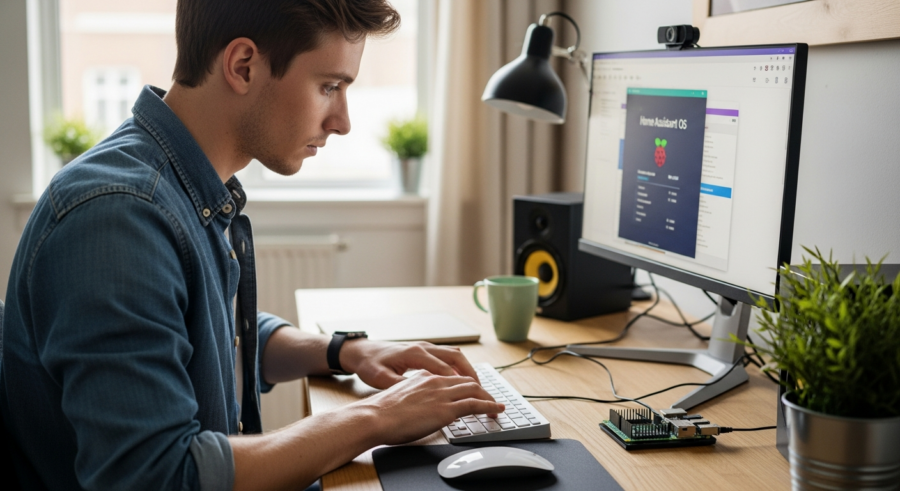
Home automation is rapidly gaining popularity, offering convenience and energy efficiency. Central to this movement is Home Assistant, a powerful open-source platform. Installing Home Assistant OS on a Raspberry Pi is an excellent way to create a local-first smart home, keeping your data private and under your control.
This guide will walk you through the process step-by-step, ensuring a smooth setup. You’ll learn how to choose the right Raspberry Pi, download the necessary image, flash it to an SD card, and configure your new smart home hub.
By the end of this article, you’ll have a fully functional Home Assistant instance running on your Raspberry Pi. You’ll be ready to connect your smart devices and start automating your home.
Choosing the Right Raspberry Pi Model
Selecting the appropriate Raspberry Pi model is the first step towards building your smart home. Different models offer varying levels of performance and features, impacting the overall experience.
For running Home Assistant OS on Raspberry Pi, the Raspberry Pi 4 Model B is generally recommended. It provides ample processing power and memory for most smart home setups.
The Raspberry Pi 4 boasts a faster processor, more RAM options (2GB, 4GB, or 8GB), and improved connectivity compared to older models. The 4GB or 8GB versions are preferable, especially if you plan to run many integrations or use resource-intensive add-ons.
While the Raspberry Pi 3 Model B+ can run Home Assistant, it may struggle with larger installations or demanding tasks. You might experience slower response times and limitations on the number of devices you can comfortably manage.
The Raspberry Pi 5 is the newest and most powerful option, offering a significant performance boost. However, it’s also more expensive and might be overkill for basic Home Assistant setups, unless you anticipate very heavy usage in the future.
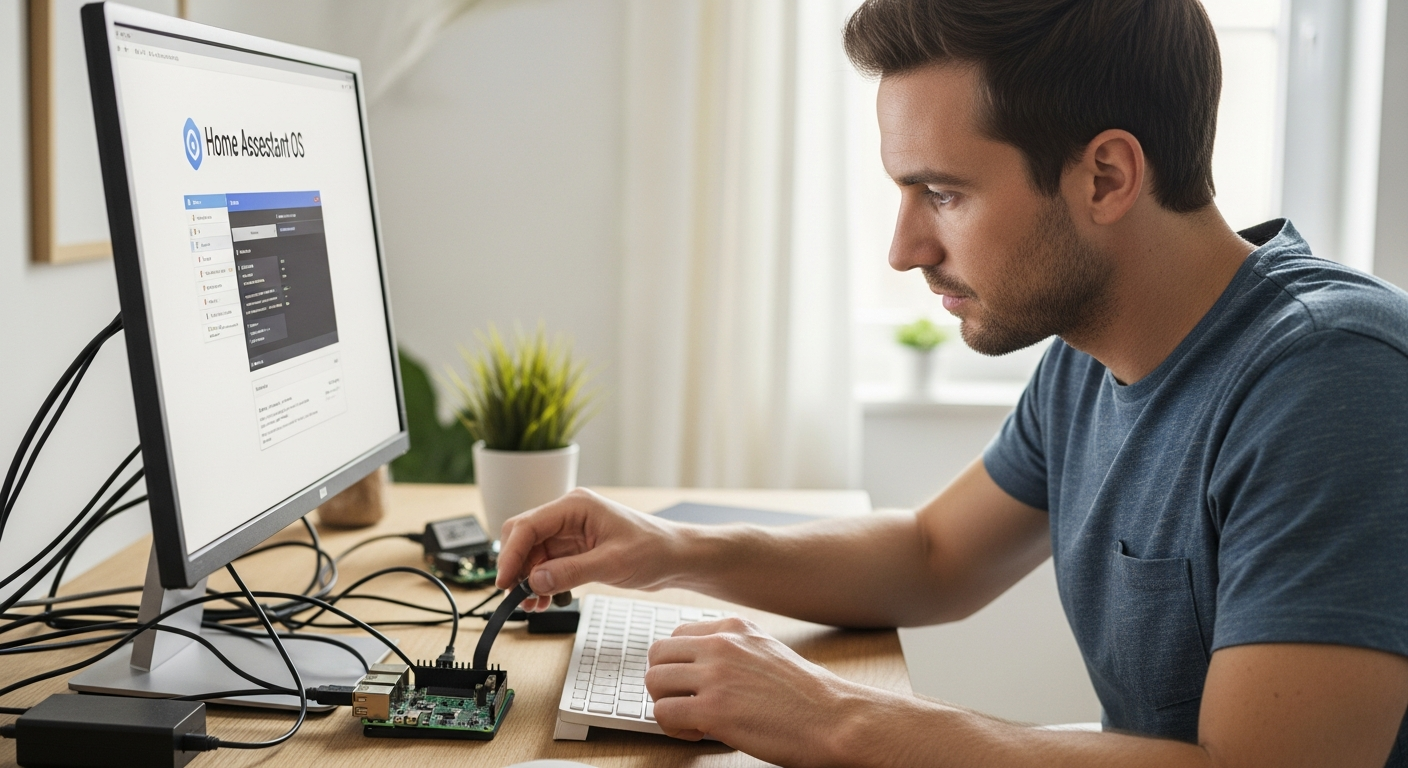
Consider the future growth of your smart home when choosing a Raspberry Pi. If you plan to add many devices or run complex automations, investing in a more powerful model upfront can save you headaches later.
Also, think about the power consumption of the Raspberry Pi. The Raspberry Pi 4 consumes more power than older models, which could be a factor if you’re concerned about energy efficiency.
The Raspberry Pi Zero is not recommended for Home Assistant due to its limited processing power and RAM. It is better suited for very basic tasks.
Don’t forget to factor in the cost of accessories, such as a power supply, SD card, and case. These can add to the overall cost of your Home Assistant setup.
Ultimately, the best Raspberry Pi model for you will depend on your specific needs and budget. Weigh the pros and cons of each model carefully before making a decision.
A good starting point is the Raspberry Pi 4 with 4GB of RAM. This provides a good balance of performance and affordability for most users.
If you are unsure, it is always better to err on the side of more power. A more powerful Raspberry Pi will be more future-proof and will handle more complex tasks with ease.
You can always upgrade your Raspberry Pi later if your needs change. However, it is often easier to start with a more powerful model from the beginning.
Consider the availability of the Raspberry Pi models. Some models may be difficult to find due to supply chain issues.
Check online retailers and local electronics stores for availability and pricing. Compare prices to ensure you are getting the best deal.
Downloading the Home Assistant OS Image
Once you’ve chosen your Raspberry Pi, the next step is to download the Home Assistant OS image. This image contains the operating system and all the necessary software to run Home Assistant.
Head over to the official Home Assistant website and navigate to the installation page. Locate the section specifically for Raspberry Pi and choose the correct image for your model (e.g., Raspberry Pi 4 or Raspberry Pi 3).
The website offers different installation methods, but for this guide, we’ll focus on the direct image installation. This method involves downloading a pre-built image and flashing it onto an SD card.
Download the image file, which will typically be in a ‘.img.xz’ format. This is a compressed image file, so you’ll need to extract it before you can use it.
Use a program like 7-Zip (Windows) or The Unarchiver (macOS) to extract the ‘.img’ file from the downloaded archive. Make sure you extract it to a location you can easily find later.
Always download the Home Assistant OS image from the official Home Assistant website. This ensures that you are getting a genuine and secure image.
Be careful when downloading files from the internet, especially operating system images. Only download from trusted sources to avoid malware or corrupted files.
The Home Assistant website provides checksums for the downloaded images. You can use these checksums to verify that the image has not been tampered with during download.
Checksum verification is an important security measure that helps to ensure the integrity of the downloaded file. It can prevent you from installing a compromised operating system.
There are various tools available for calculating checksums, such as `sha256sum` on Linux or macOS, or third-party tools on Windows.
After downloading the image, compare the calculated checksum with the checksum provided on the Home Assistant website. If they match, you can be confident that the image is genuine.
If the checksums do not match, do not use the image. Delete it and download it again from the official Home Assistant website.
The file extension ‘.img.xz’ indicates that the file is compressed using the XZ compression algorithm. This algorithm provides good compression ratios, resulting in smaller download sizes.
Extracting the ‘.img.xz’ file will create a larger ‘.img’ file, which is the actual disk image that you will flash onto the SD card.
Make sure you have enough free disk space on your computer to extract the image file. The extracted ‘.img’ file can be several gigabytes in size.
Flashing the Image to an SD Card
Now that you have the Home Assistant image, you need to flash it onto an SD card. This process writes the image data onto the SD card, making it bootable for your Raspberry Pi.
You’ll need an SD card reader and a suitable SD card. A 32GB SD card is generally recommended, but a 16GB card can work for smaller setups.
| Software | Operating System | Description |
|---|---|---|
| BalenaEtcher | Windows, macOS, Linux | Easy-to-use graphical tool for flashing images. |
| Raspberry Pi Imager | Windows, macOS, Linux | Official tool for flashing Raspberry Pi operating systems. |
| Rufus | Windows | Popular tool for creating bootable USB drives, also works for SD cards. |
| dd command | Linux, macOS | Command-line utility for copying and converting data. |
Download and install a flashing tool like BalenaEtcher or the Raspberry Pi Imager. These tools are designed to simplify the process of writing images to SD cards.
It’s crucial to use a high-quality SD card for your Home Assistant installation. A poor-quality SD card can lead to data corruption and system instability.
Look for SD cards that are specifically designed for continuous use, such as those marketed for security cameras or dashcams. These cards are typically more durable and reliable.
SD card speed is also important. A faster SD card will result in faster boot times and improved system performance. Look for SD cards with a speed class of at least Class 10 or UHS-I.
Before flashing the image, it’s a good idea to format the SD card. This will ensure that there are no existing files or partitions that could interfere with the flashing process.
You can use the built-in formatting tools in your operating system to format the SD card. Choose the FAT32 file system for SD cards up to 32GB, or exFAT for larger cards.
When selecting the SD card in the flashing tool, double-check that you’ve chosen the correct drive. Flashing the image will erase all data on the selected drive, so it’s important to be careful.
If you’re using the `dd` command on Linux or macOS, be extra cautious when specifying the output device. A mistake can overwrite your hard drive.
The flashing process can take some time, depending on the size of the image and the speed of your SD card reader. Be patient and avoid interrupting the process.
Once the flashing is complete, the flashing tool will typically verify the installation. This ensures that the image has been written correctly to the SD card.
If the verification fails, try flashing the image again. If the problem persists, try using a different SD card or a different flashing tool.
Using BalenaEtcher to Flash the Image
BalenaEtcher is a popular, cross-platform tool for flashing OS images. It’s known for its user-friendly interface and reliability.
Open BalenaEtcher and select the “Flash from file” option. Choose the Home Assistant ‘.img’ file you extracted earlier.
Next, select the target SD card. Be very careful to choose the correct drive, as flashing will erase all data on the selected device.
Finally, click the “Flash!” button to start the flashing process. BalenaEtcher will write the image to the SD card and verify the process.
Once the flashing is complete, BalenaEtcher will display a success message. You can now safely remove the SD card from your computer.
BalenaEtcher’s simple interface makes it a great choice for beginners. It guides you through the process step-by-step, minimizing the risk of errors.
The “Validate on success” feature in BalenaEtcher ensures that the image has been written correctly to the SD card. This helps to prevent problems later on.
BalenaEtcher also supports flashing images to USB drives. This can be useful for creating bootable USB drives for other purposes.
If you encounter any errors during the flashing process, BalenaEtcher will provide helpful error messages. These messages can help you to troubleshoot the problem.
Make sure you have the latest version of BalenaEtcher installed. This will ensure that you have the latest features and bug fixes.
BalenaEtcher is a free and open-source tool. You can download it from the official Balena website.
Consider running BalenaEtcher as an administrator. This can help to prevent permission issues during the flashing process.
If you are flashing to a USB drive, make sure the drive is not write-protected. This can prevent BalenaEtcher from writing the image to the drive.
Always eject the SD card or USB drive safely after flashing. This will prevent data corruption.
Using Raspberry Pi Imager to Flash the Image
The Raspberry Pi Imager is the official tool for flashing operating systems onto Raspberry Pi devices. It’s a straightforward and reliable option.
Open the Raspberry Pi Imager and click on “Choose OS”. Scroll down and select “Use custom”.
Navigate to the location where you extracted the Home Assistant ‘.img’ file and select it. Then, click on “Choose Storage” and select your SD card.
Double-check that you’ve selected the correct SD card, as this process will erase all existing data. Click “Write” to begin flashing the image.
The Raspberry Pi Imager will display a progress bar as it writes the image to the SD card. Once the process is complete, it will verify the installation.
The Raspberry Pi Imager is specifically designed for Raspberry Pi devices. This makes it a particularly reliable option for flashing Home Assistant OS.
The Imager can also download and flash official Raspberry Pi operating systems directly. This makes it easy to try out different operating systems on your Raspberry Pi.
The Raspberry Pi Imager is a lightweight and easy-to-use tool. It’s a good choice for users who are new to Raspberry Pi.
The Imager automatically formats the SD card before flashing the image. This ensures that the card is clean and ready for the new operating system.
The Raspberry Pi Imager is available for Windows, macOS, and Linux. You can download it from the official Raspberry Pi website.
The Imager also supports advanced features, such as setting a hostname and enabling SSH before flashing. This can be useful for headless installations.
If you encounter any problems during the flashing process, the Raspberry Pi Imager will display informative error messages.
Always use the latest version of the Raspberry Pi Imager. This will ensure that you have the latest features and bug fixes.
The Raspberry Pi Imager is a free and open-source tool. It’s a great choice for flashing Home Assistant OS to your Raspberry Pi.
Booting the Raspberry Pi
With the Home Assistant OS image flashed onto the SD card, you’re ready to boot your Raspberry Pi. This is the moment when your Raspberry Pi transforms into a smart home hub.
Insert the SD card into the SD card slot on your Raspberry Pi. Connect an Ethernet cable to the Raspberry Pi to provide a network connection.
Plug in the power adapter to power on the Raspberry Pi. The Raspberry Pi will start booting up, and you should see some activity on the Ethernet port LEDs.
The first boot can take some time, typically 15-20 minutes, as Home Assistant sets up the system. During this time, the Raspberry Pi will download and install necessary components.
Be patient and avoid interrupting the process. Once the setup is complete, you’ll be able to access your Home Assistant instance through a web browser.
A stable power supply is essential for the Raspberry Pi to boot correctly. Use a power supply that is specifically designed for the Raspberry Pi and provides sufficient current.
If you don’t have an Ethernet connection available, you can configure Wi-Fi before booting. This requires creating a `wpa_supplicant.conf` file on the SD card.
The `wpa_supplicant.conf` file should contain your Wi-Fi network name (SSID) and password. Place this file in the root directory of the SD card’s boot partition.
During the first boot, the Raspberry Pi will expand the file system to fill the entire SD card. This process can take some time, especially on larger SD cards.
You can monitor the boot process by connecting a monitor to the Raspberry Pi’s HDMI port. This will display the boot log, which can be helpful for troubleshooting.
If the Raspberry Pi fails to boot, check the SD card for errors. You can use a tool like `fsck` on Linux or macOS to check and repair the file system.
Also, check the power supply and the SD card reader. A faulty power supply or SD card reader can prevent the Raspberry Pi from booting.
If you are using a Raspberry Pi 4, make sure it is properly cooled. The Raspberry Pi 4 can get quite hot, especially during the first boot.
Consider using a case with a built-in fan or adding a heatsink to the Raspberry Pi’s CPU.
Connecting to Your Home Assistant Instance
After the Raspberry Pi has finished booting, you can connect to your Home Assistant instance. This is where you’ll configure your smart home and start adding devices.
Open a web browser on your computer or mobile device. Enter the following address in the address bar: `http://homeassistant.local:8123`.
If `homeassistant.local:8123` doesn’t work, you may need to find the IP address of your Raspberry Pi. You can usually find this in your router’s administration panel or by using a network scanning tool.
Once you have the IP address, enter it into your browser, followed by `:8123` (e.g., `http://192.168.1.100:8123`). This will take you to the Home Assistant welcome screen.
If you still can’t connect, double-check that your Raspberry Pi is connected to the network and that your computer is on the same network. Also, ensure that there are no firewall rules blocking port 8123.
`homeassistant.local` relies on mDNS (Multicast DNS) to resolve the hostname to the IP address. Some networks may not support mDNS, which can prevent you from accessing Home Assistant using this address.
If you are having trouble with `homeassistant.local`, try using the IP address of your Raspberry Pi instead. This is a more reliable way to connect to Home Assistant.
You can use a network scanning tool like Nmap or Angry IP Scanner to find the IP address of your Raspberry Pi. These tools will scan your network and list all the devices that are connected.
Alternatively, you can log in to your router’s administration panel and look for the Raspberry Pi in the list of connected devices. The router will typically display the IP address of each device.
Once you have the IP address, make sure to use the correct port number (8123) when connecting to Home Assistant. The port number is specified after the IP address, separated by a colon.
If you are still unable to connect, try clearing your browser’s cache and cookies. This can sometimes resolve connection issues.
Also, try using a different web browser. Some browsers may have compatibility issues with Home Assistant.
If you have a firewall enabled on your computer, make sure that it is not blocking port 8123. You may need to add a rule to allow traffic on this port.
If you are using a VPN, try disabling it temporarily. The VPN may be interfering with the connection to Home Assistant.
Initial Configuration Steps
The first time you access Home Assistant, you’ll be guided through the initial configuration steps. This includes creating a user account, setting your location, and discovering devices on your network.
Create a user account with a username and a strong password. This account will be used to access and manage your Home Assistant instance.
- Set your location (latitude and longitude)
- Choose a name for your home
- Select your preferred units of measurement (e.g., Celsius or Fahrenheit)
- Enable or disable analytics reporting
- Discover compatible devices on your network
Home Assistant will automatically scan your network for compatible devices, such as smart lights, thermostats, and sensors. Follow the on-screen instructions to add these devices to your Home Assistant setup.
You can also manually add devices and integrations through the Home Assistant configuration panel. This allows you to connect to a wide range of services and devices, even if they’re not automatically discovered.
When creating your user account, choose a strong and unique password. Avoid using the same password you use for other online services.
Consider using a password manager to generate and store your passwords securely. This will help you to create strong passwords that are difficult to guess.
Setting your location accurately is important for Home Assistant to function correctly. This allows Home Assistant to determine the sunrise and sunset times, which can be used in automations.
Choosing a name for your home is a cosmetic setting, but it can help you to organize your Home Assistant setup. You can use a name that is meaningful to you.
Selecting your preferred units of measurement is important for displaying sensor data correctly. Choose the units that you are most comfortable with.
Enabling analytics reporting helps the Home Assistant developers to improve the software. However, you can disable this option if you are concerned about privacy.
The device discovery process can take some time, depending on the number of devices on your network. Be patient and allow Home Assistant to scan your network completely.
If a device is not automatically discovered, you can try adding it manually. You will need to know the device’s IP address and other configuration details.
The Home Assistant documentation provides detailed instructions on how to add different devices and integrations manually.
Securing Your Home Assistant Installation
Once your Home Assistant instance is up and running, it’s important to secure it. This protects your smart home from unauthorized access and potential security vulnerabilities.
Enable two-factor authentication (2FA) for your user account. This adds an extra layer of security, requiring a code from your mobile device in addition to your password.
Keep your Home Assistant software up to date. Regularly check for updates and install them promptly to patch any security vulnerabilities.
If you plan to access your Home Assistant instance from outside your home network, use a secure connection like HTTPS. You can set up Let’s Encrypt to obtain a free SSL certificate.
Consider using a strong and unique password for your Home Assistant account. Avoid using the same password you use for other online services.
Two-factor authentication (2FA) is one of the most important security measures you can take. It makes it much more difficult for attackers to gain access to your account, even if they know your password.
Home Assistant supports various 2FA methods, such as authenticator apps and SMS codes. Choose the method that you are most comfortable with.
Regularly updating your Home Assistant software is crucial for patching security vulnerabilities. The Home Assistant developers release updates frequently, so it’s important to stay up to date.
Enabling HTTPS encrypts the communication between your browser and your Home Assistant instance. This prevents attackers from eavesdropping on your traffic and stealing your credentials.
Let’s Encrypt is a free and automated certificate authority. It makes it easy to obtain and install SSL certificates for your Home Assistant instance.
You can also use a reverse proxy like Nginx or Apache to further secure your Home Assistant installation. A reverse proxy can provide additional security features, such as rate limiting and intrusion detection.
Consider using a firewall to restrict access to your Home Assistant instance. Only allow traffic from trusted IP addresses.
Disable any unused integrations or add-ons. This will reduce the attack surface of your Home Assistant installation.
Monitor the Home Assistant logs for suspicious activity. The logs can provide valuable clues about potential security breaches.
Exploring Home Assistant Functionality
With Home Assistant installed and secured, it’s time to explore its powerful functionality. You can create automations, dashboards, and custom integrations to tailor your smart home experience.
Automations allow you to create rules that trigger actions based on specific events. For example, you can automatically turn on lights when motion is detected or adjust the thermostat based on the time of day.
Dashboards provide a visual interface for controlling and monitoring your smart home devices. You can create custom dashboards with widgets that display sensor data, control lights, and trigger automations.
Integrations allow you to connect Home Assistant to a wide range of services and devices. There are integrations for popular smart home platforms like Philips Hue, Nest, and SmartThings, as well as integrations for weather services, calendars, and more.
You can also create custom integrations using Python. This allows you to connect Home Assistant to devices and services that don’t have official integrations.
Home Assistant’s automation engine is incredibly powerful and flexible. You can create complex automations that respond to a wide range of events and conditions.
Dashboards can be customized to display the information that is most important to you. You can create multiple dashboards for different rooms or areas of your home.
The Home Assistant community is constantly developing new integrations. You can find a wide range of integrations on the Home Assistant website and in the community forums.
Creating custom integrations requires some programming knowledge, but it allows you to connect Home Assistant to virtually any device or service.
Home Assistant also supports scripting. This allows you to create more complex automations using Python code.
You can use the Home Assistant mobile app to control your smart home from anywhere in the world.
Home Assistant also supports voice control through Google Assistant and Amazon Alexa.
The possibilities with Home Assistant are endless. You can use it to automate virtually any aspect of your home.
Explore the Home Assistant documentation and community forums to learn more about its features and capabilities.
Troubleshooting Common Issues
While the installation process is generally straightforward, you may encounter some issues. Here are some common problems and their solutions.
If you can’t connect to Home Assistant, double-check that your Raspberry Pi is connected to the network and that your computer is on the same network. Also, ensure that there are no firewall rules blocking port 8123.
If Home Assistant is running slowly, try increasing the swap space on your Raspberry Pi. This can improve performance, especially if you’re running many integrations or add-ons.
If you’re having trouble with a specific integration, check the Home Assistant logs for error messages. The logs can provide valuable clues about what’s going wrong.
Consult the Home Assistant documentation and
