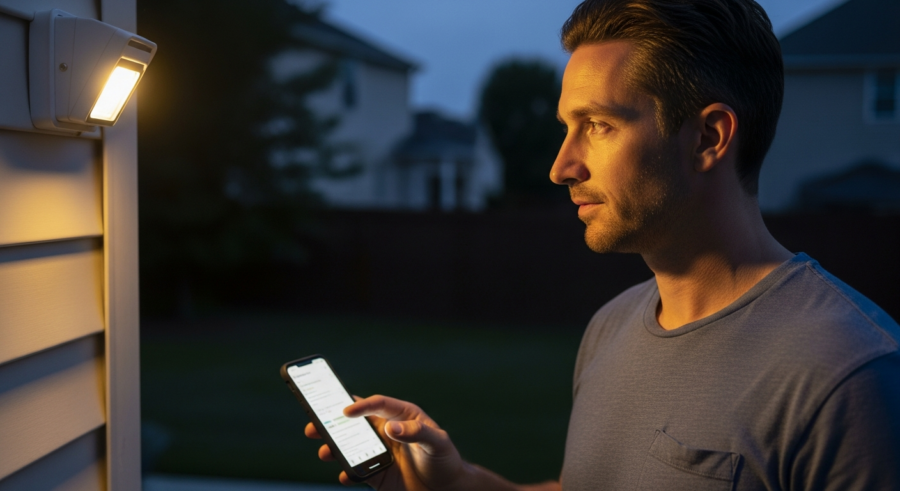
Smart home automation offers convenience and peace of mind. One popular application is using motion-activated lights to enhance security around your property.
With Home Assistant, creating a sophisticated security system with motion-activated lights is surprisingly straightforward. This article will guide you through setting up Home Assistant motion activated lights, covering everything from choosing the right sensor to advanced configuration techniques.
By the end, you’ll have a system that not only deters potential intruders but also provides added convenience and energy savings. Let’s get started building your smart security solution.
Choosing the Right Motion Sensor
The foundation of any good Home Assistant motion activated lights system is a reliable motion sensor. Several factors come into play when selecting the right sensor for your needs.
Consider the environment where the sensor will be placed, whether it’s indoors or outdoors. Outdoor sensors need to be weather-resistant and capable of handling temperature fluctuations.
Indoor sensors can be smaller and more discreet. The range of the sensor is also important, ensuring it covers the desired area effectively.
Wired sensors are generally more reliable and offer faster response times. Wireless sensors offer greater flexibility in placement, but require batteries and can be subject to interference.
When choosing a motion sensor, consider its power source. Battery-powered sensors offer ease of installation, while wired sensors eliminate the need for battery replacements.
Also, think about the sensor’s field of view and detection range. A wider field of view can cover a larger area, but it may also be more prone to false triggers.
Some sensors offer adjustable sensitivity settings, allowing you to fine-tune their response to motion. This is particularly useful for minimizing false alarms caused by pets or other small animals.
Consider the mounting options available for the sensor. Some sensors are designed to be wall-mounted, while others can be placed on a tabletop or shelf. Choose a sensor that is easy to install and fits well with your home’s decor.
Finally, read reviews and compare different models before making a purchase. Look for sensors that are known for their reliability, accuracy, and ease of use.
Integrating the Motion Sensor into Home Assistant
Once you’ve chosen your motion sensor, the next step is integrating it into Home Assistant. This process varies depending on the type of sensor you have.
For Zigbee or Z-Wave sensors, you’ll need a compatible hub connected to your Home Assistant instance. Follow the manufacturer’s instructions to pair the sensor with the hub.
Once paired, Home Assistant should automatically detect the new device. If not, you may need to manually add it through the integrations page.
For Wi-Fi sensors, you’ll typically need to install a custom integration or use the manufacturer’s app to connect the sensor to your Wi-Fi network. Then, configure the integration within Home Assistant to recognize the sensor.
During the integration process, you’ll typically need to provide the sensor’s unique identifier or IP address. This allows Home Assistant to communicate with the sensor and receive motion detection events.
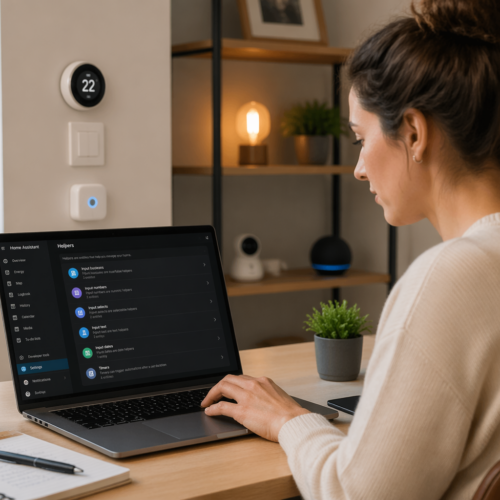
Once the sensor is integrated, you can view its status and configure its settings within Home Assistant. You can also create automations that trigger based on the sensor’s state.
If you encounter any issues during the integration process, consult the Home Assistant documentation or the sensor manufacturer’s website for troubleshooting tips. The Home Assistant community forums are also a great resource for finding solutions to common problems.
Make sure the sensor is properly named within Home Assistant for easy identification. This will be helpful when creating automations and managing your smart home devices.
Creating the Motion-Activated Lights Automation
With the motion sensor integrated, you can now create the automation that turns on the lights when motion is detected. This is done through Home Assistant’s automation editor.
Navigate to the “Configuration” panel and select “Automations & Scenes”. Click the “Add Automation” button to start a new automation.
| Component | Description | Example |
|---|---|---|
| Trigger | The event that starts the automation | Motion sensor detects motion |
| Condition | Optional criteria that must be met for the automation to run | Time of day is between sunset and sunrise |
| Action | The action to be performed when the trigger and conditions are met | Turn on the specified lights |
| Device | The specific device that the automation will affect | Living room light |
Configure the trigger to be the state of your motion sensor changing to “detected”. Set the action to turn on the desired lights, selecting the specific light entities you want to control.
When creating the automation, give it a descriptive name so you can easily identify it later. This is especially important if you have multiple automations in your Home Assistant setup.
You can also add a condition to prevent the automation from running if the lights are already on. This can be useful if you manually turn on the lights and don’t want the motion sensor to override your control.
Consider adding a “wait” action to turn off the lights after a certain period of inactivity. This ensures that the lights don’t stay on indefinitely if no motion is detected.
Test the automation thoroughly after creating it to ensure it’s working as expected. You can use the “Run Actions” button in the automation editor to manually trigger the automation and verify that the lights turn on and off correctly.
Advanced Automation Options
Home Assistant offers plenty of options to refine your automations. You can set conditions to ensure the lights only turn on during certain hours.
You could also add a condition that checks the current illuminance level, preventing the lights from turning on if it’s already bright enough. This prevents unnecessary lights turning on during the daytime.
Another useful feature is adding a delay before turning the lights off after motion is no longer detected. This prevents the lights from constantly turning on and off with brief periods of motion.
For example, you could set a 5-minute delay, ensuring the lights stay on for at least 5 minutes after the last detected motion. Experiment with different settings to find what works best for your specific needs and environment.
You can also use the “choose” action to create different behaviors based on different conditions. For example, you could have the lights turn on at full brightness if motion is detected at night, but only turn on at a dim level if motion is detected during the day.
Consider using the “scene” action to activate a pre-defined lighting scene when motion is detected. This allows you to create more complex and customized lighting effects.
You can also use the “service call” action to control other smart home devices in addition to the lights. For example, you could have the automation send a notification to your phone when motion is detected.
Explore the various options available in the Home Assistant automation editor to create automations that are tailored to your specific needs and preferences. The possibilities are endless.
Configuring Time-Based Restrictions
Time-based restrictions are essential for preventing your Home Assistant motion activated lights from activating at unwanted times. You likely don’t want your outdoor security lights flashing in the middle of the day.
To implement time-based restrictions, add a condition to your automation that checks the current time. You can specify a time range during which the automation should be active.
For example, you can set the automation to only run between sunset and sunrise. This ensures that the lights only turn on when it’s dark outside, conserving energy and preventing unnecessary activations.
You can also create multiple automations with different time-based restrictions. This can be useful for having different lighting behaviors at different times of the day.
You can use the “time” condition to specify a specific time range, or you can use the “sun” condition to specify a time relative to sunrise or sunset. The “sun” condition is particularly useful for outdoor lighting, as it automatically adjusts the time range as the seasons change.
Consider using the “weekday” condition to restrict the automation to certain days of the week. This can be useful for having different lighting behaviors on weekdays and weekends.
You can also combine multiple time-based conditions to create more complex restrictions. For example, you could set the automation to only run between sunset and sunrise on weekdays, but to run all day on weekends.
Experiment with different time-based restrictions to find the settings that work best for your specific needs and preferences. The goal is to create a lighting system that is both convenient and energy-efficient.
Adjusting Sensitivity and Delay
Fine-tuning the sensitivity and delay settings of your motion sensor is crucial for optimal performance. Too much sensitivity can lead to false triggers, while too little might cause the sensor to miss genuine motion events.
Most motion sensors have adjustable sensitivity settings, either through a physical dial or within the sensor’s configuration in Home Assistant. Experiment with different sensitivity levels to find the sweet spot that minimizes false triggers while still reliably detecting motion.
- Reduce sensitivity to avoid false triggers from pets
- Increase sensitivity to detect motion at a greater distance
- Adjust the delay to keep lights on for a sufficient duration
- Use shorter delays in high-traffic areas
- Consider longer delays in low-traffic areas
The delay setting determines how long the lights remain on after motion is no longer detected. A longer delay ensures the lights stay on long enough for you to safely navigate the area, while a shorter delay conserves energy.
When adjusting the sensitivity, consider the environment in which the sensor is located. Outdoor sensors may need to be less sensitive to avoid false triggers from wind, rain, or animals.
Indoor sensors may need to be more sensitive to detect motion from a greater distance. Also consider the height at which the sensor is mounted. A higher mounting height may require a more sensitive setting.
When adjusting the delay, consider the typical use case for the lights. If the lights are used for security purposes, a longer delay may be appropriate to deter potential intruders. If the lights are used for convenience, a shorter delay may be sufficient.
Experiment with different sensitivity and delay settings to find the combination that works best for your specific needs and environment. It may take some trial and error to find the perfect settings.
Integrating with Other Smart Home Devices
One of the great things about Home Assistant is its ability to integrate with a wide range of other smart home devices. This allows you to create even more sophisticated and useful automations.
For example, you can integrate your motion-activated lights with your smart lock system. When motion is detected at night, the lights can turn on and the front door can automatically lock, adding an extra layer of security.
You can also integrate with your smart blinds. If motion is detected during the day, the blinds can automatically close to help keep your home cool.
Another useful integration is with your smart speaker. When motion is detected, your smart speaker can announce “Motion detected outside,” alerting you to potential activity.
You can also integrate with your smart thermostat. If motion is detected in a room that is not currently occupied, the thermostat can automatically lower the temperature to conserve energy.
Consider integrating with your smart security system. If motion is detected while the system is armed, the system can automatically trigger an alarm and notify the authorities.
You can also integrate with your smart garage door opener. If motion is detected in the driveway at night, the garage door can automatically open to provide additional lighting.
Explore the various integration options available in Home Assistant to create a smart home system that is truly tailored to your specific needs and preferences. The possibilities are endless.
Using Blueprints for Simplified Automation
Home Assistant Blueprints are pre-built automation templates that can simplify the process of creating complex automations. Instead of building an automation from scratch, you can use a Blueprint as a starting point and customize it to your specific needs.
There are many Blueprints available for motion-activated lights, created by the Home Assistant community. These Blueprints often include advanced features like time-based restrictions, sensitivity adjustments, and integration with other smart home devices.
To use a Blueprint, simply import it into your Home Assistant instance and configure the required parameters. This can save you a significant amount of time and effort, especially if you’re new to Home Assistant.
You can find Blueprints on the Home Assistant forums and community websites. Look for Blueprints that are well-documented and have positive reviews from other users.
When choosing a Blueprint, consider the features and functionality that are most important to you. Some Blueprints are designed for specific types of motion sensors or lights, so make sure to choose one that is compatible with your hardware.
Read the documentation carefully before using a Blueprint to understand how it works and what parameters need to be configured. You can also customize the Blueprint to further tailor it to your specific needs.
Don’t be afraid to experiment with different Blueprints to find the ones that work best for you. The Home Assistant community is constantly creating new and improved Blueprints, so there’s always something new to discover.
Using Blueprints is a great way to simplify the process of creating complex automations and to take advantage of the collective knowledge of the Home Assistant community.
Troubleshooting Common Issues
Even with careful planning, you may encounter some issues when setting up your Home Assistant motion activated lights. Here are some common problems and how to fix them.
If your motion sensor isn’t being detected by Home Assistant, double-check that it’s properly paired with your hub or connected to your Wi-Fi network. Ensure that the sensor is within range of the hub or router.
If the lights are not turning on when motion is detected, verify that the automation is enabled and that the trigger and conditions are correctly configured. Check the logs in Home Assistant for any error messages related to the automation.
If you’re experiencing false triggers, try adjusting the sensitivity of the motion sensor. Make sure there are no obstructions that could be causing the sensor to activate, such as tree branches or animals.
If the lights are staying on for too long after motion is no longer detected, check the delay setting in the automation. Make sure it is set to the desired duration.
If the lights are not turning off at all, make sure that the automation includes an action to turn them off after a certain period of inactivity. Also, check for any conflicting automations that may be preventing the lights from turning off.
If you’re having trouble with a specific integration, consult the Home Assistant documentation or the device manufacturer’s website for troubleshooting tips. The Home Assistant community forums are also a great resource for finding solutions to common problems.
Don’t be afraid to ask for help if you’re stuck. The Home Assistant community is very active and helpful, and there are many experienced users who are willing to assist you.
Advanced Motion Detection Techniques
Beyond basic motion detection, Home Assistant allows for more advanced techniques to improve accuracy and reduce false positives. One such technique is using multiple motion sensors to confirm motion.
By requiring motion to be detected by two or more sensors before activating the lights, you can significantly reduce the likelihood of false triggers caused by pets or weather. Another advanced technique is using zones.
You can define specific zones within the sensor’s field of view and only trigger the lights if motion is detected in a particular zone. This can be useful for ignoring motion in areas like sidewalks or driveways.
You can also use machine learning to analyze motion patterns and distinguish between human motion and other types of motion. This requires more advanced setup and configuration, but can provide a very high level of accuracy.
Consider using object detection to identify specific objects, such as people or cars, before triggering the lights. This can further reduce the likelihood of false triggers caused by animals or other non-threatening objects.
You can also use presence detection to determine whether someone is actually home before activating the lights. This can prevent the lights from turning on when no one is there to see them.
Experiment with different advanced motion detection techniques to find the ones that work best for your specific needs and environment. The goal is to create a lighting system that is both accurate and reliable.
These advanced techniques may require more technical knowledge and configuration, but the results can be well worth the effort.
Optimizing for Security and Energy Efficiency
Your Home Assistant motion activated lights can serve double duty, enhancing both security and energy efficiency. To optimize for security, place motion sensors in strategic locations around your property.
Focus on areas that are vulnerable to intruders, such as entry points, backyards, and dark corners. Use bright, energy-efficient LED lights to illuminate these areas when motion is detected, deterring potential intruders and providing clear visibility.
To optimize for energy efficiency, use short delay times and consider integrating with illuminance sensors. This ensures that the lights only turn on when it’s dark enough to warrant them, conserving energy during daylight hours.
You can also use adaptive lighting techniques, gradually increasing the brightness of the lights over time instead of turning them on at full brightness immediately. This can be less jarring and more energy-efficient.
Consider using different lighting colors for different purposes. For example, you could use white light for security purposes and warm light for ambiance.
You can also use dimming to further conserve energy. For example, you could dim the lights after a certain period of inactivity.
Experiment with different lighting techniques to find the ones that work best for your specific needs and preferences. The goal is to create a lighting system that is both secure and energy-efficient.
By carefully considering both security and energy efficiency, you can create a motion-activated lighting system that is both effective and sustainable.
Regular Maintenance and Updates
Like any smart home system, your Home Assistant motion activated lights require regular maintenance and updates to ensure optimal performance. Keep your Home Assistant instance up to date with the latest software releases.
These updates often include bug fixes, security patches, and new features that can improve the reliability and functionality of your system. Regularly check the batteries in your wireless motion sensors and replace them as needed.
Also, periodically review your automation configurations to make sure they are still meeting your needs. As your lifestyle and environment change, you may need to adjust the settings to maintain optimal performance.
Finally, keep an eye on the Home Assistant community forums and documentation for tips and tricks on how to improve your motion-activated lighting system. There’s always something new to learn.
Clean your motion sensors regularly to remove dust and debris that could interfere with their performance. This is especially important for outdoor sensors that are exposed to the elements.
Check the wiring and connections of your wired motion sensors and lights to ensure that they are secure and in good condition. Loose or damaged connections can cause malfunctions.
Back up your Home Assistant configuration regularly to protect your data and settings in case of a system failure. You can use the built-in backup feature in Home Assistant to create backups that can be easily restored.
By following these simple maintenance and update tips, you can ensure that your Home Assistant motion activated lights continue to provide reliable and efficient performance for years to come.
Conclusion
Setting up Home Assistant motion activated lights is a great way to enhance your home security and improve energy efficiency. By following the steps outlined in this article, you can create a sophisticated and customized system that meets your specific needs.
Remember to choose the right motion sensor, integrate it properly into Home Assistant, and configure the automations to your liking. With a little bit of effort, you can create a smart home lighting system that provides peace of mind and added convenience.
Experiment with advanced techniques like time-based restrictions, sensitivity adjustments, and integration with other smart home devices to get the most out of your system. Enjoy the benefits of a smarter and more secure home.
The possibilities are truly endless when you combine the power of Home Assistant with smart motion sensors and lights. Now you can have smart security lighting that is effective and efficient.
By investing in a Home Assistant motion activated lights system, you’re not just improving your home’s security and energy efficiency, you’re also investing in a more convenient and comfortable lifestyle. Take the time to set up your system properly and enjoy the many benefits it has to offer.
The future of home automation is here, and motion-activated lights are just one small part of the exciting possibilities that await. Embrace the technology and create a smart home that truly enhances your life.
With a little bit of creativity and effort, you can transform your home into a smart, secure, and energy-efficient haven.